Help › Printing vouchers
Printing vouchers
Every entry in SiteCash is a numbered petty cash voucher. Print it, get it signed and file it with the bill, just like a paper voucher book, but without writing anything by hand.
Who uses this:
Owner
Admin
Accountant
Site user
What a voucher is
A petty cash voucher is the paper record of one cash movement at a site. It shows who got the money, how much, for what, and who prepared, approved and received it. Signed vouchers, with the bills stapled to them, are the proof your auditor and accountant need.
SiteCash makes one voucher for every entry. There are three kinds, one for each entry type:
| Entry type | Printed title |
|---|---|
| Expense | Cash Payment Voucher |
| Cash received | Cash Receipt Voucher |
| Cash returned | Cash Return Voucher |
Anyone who can open the site can print its vouchers.
Voucher numbers
A voucher number looks like SH/26-27/0042:
| Part | Meaning |
|---|---|
SH | The site code (Sunrise Heights). Green Park Villas vouchers start with GP. |
26-27 | The Indian financial year, April to March: here 1 April 2026 to 31 March 2027. |
0042 | The running number, 4 digits. |
- Each site has its own series, and each financial year starts again at
0001. SoSH/26-27/0001andGP/26-27/0001can both exist. - The year comes from the entry date, not the day you save. An entry dated 31-Mar-27 is in
26-27; one dated 01-Apr-27 startsSH/27-28/0001. - Numbers are given in the order entries are saved. A back-dated entry saved today gets the next free number.
- A number is never used twice and never removed. A cancelled voucher keeps its number, so the series has no gaps.
Good to know The site code is part of every number. That is why it cannot be changed once a site has vouchers. See Site settings.
What is printed
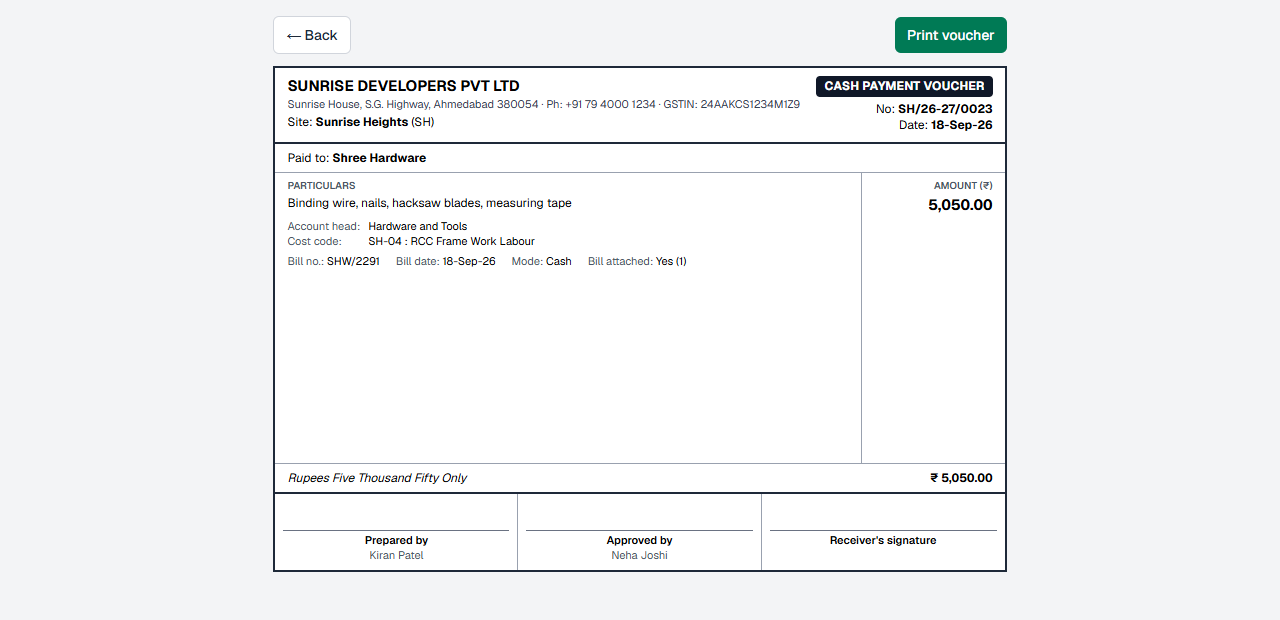
| Part of the voucher | What it shows |
|---|---|
| Company header | Company name (in capitals), address, phone and GSTIN, from Company Settings → Company details. See Users, access & settings. |
| Site | Site name and code, for example Site: Sunrise Heights (SH). |
| Title, number and date | For example CASH PAYMENT VOUCHER, No: SH/26-27/0042, Date: 27-Sep-26. |
| Paid to / Received from / Returned to | The vendor or person, for example Paid to: Ganesh Tea Stall. If no name was entered, the "Received by" name is used; if that is empty too, a blank line is printed to write on. |
| Particulars | What the money was for, and the remarks if any. |
| Account head | For an expense: the category, for example Tea & Snacks Exp; a bill payment shows Paid Against Bill (vendor account). For cash received: Petty cash — Sunrise Heights. For cash returned: the name it was returned to. |
| Cost code | For example SH-35 : Taxes, Statutory Charges & Office Expenses, when the entry has one. |
| Other details | Requested by, Bill no., Bill date, Qty × Rate (when both are filled in), Mode (Cash, UPI, CARD or BANK) and Bill attached: Yes (2) with the number of photos/PDFs, or No. |
| Amount (₹) | The amount in figures in a box on the right, for example 4,130.50. |
| Amount in words | In the Indian system (thousand, lakh, crore), for example Rupees Four Thousand One Hundred Thirty and Fifty Paise Only, with the amount in figures again. |
| Signature boxes | Three boxes with the name printed under each line: Prepared by (who made the entry, for example Kiran Patel); Approved by (who approved it, for example Neha Joshi); Receiver's signature (the "Received by" name). On a Cash Receipt Voucher the third box is Received by (site) with the site in-charge's name. |
Good to know Entries made by an owner, admin or accountant are approved at once, without a separate approver. For these, the Approved by box has no printed name; sign it by hand.
Print one voucher
- Open the voucher from the cash book (click its number) and click Print voucher. Or, while making an entry, click Save & print voucher.
- The voucher opens on its own page, without the menu. Check it.
- Click Print voucher. Your browser's print window opens.
- Choose your printer (or Save as PDF) and print. The voucher fills the top half of an A4 page.
- Click ← Back to return to the voucher.
Tip Get the voucher signed by the person who received the cash, staple the bill to it and file it by voucher number.
Print all vouchers of a period
At the end of the week or month, print all vouchers of a site at once.
- Open the site's cash book and choose the dates, for example the quick range Last month.
- Click Print vouchers. A print page opens for the same dates.
- At the top you see the site, the number of vouchers, the period and the total of payments (expenses and cash returned), for example Sunrise Heights — 24 vouchers.
- To change the period, change From and To and click Update. Tick Include cancelled if you also want the cancelled vouchers.
- Click Print 24 vouchers (the button shows the number) and print.
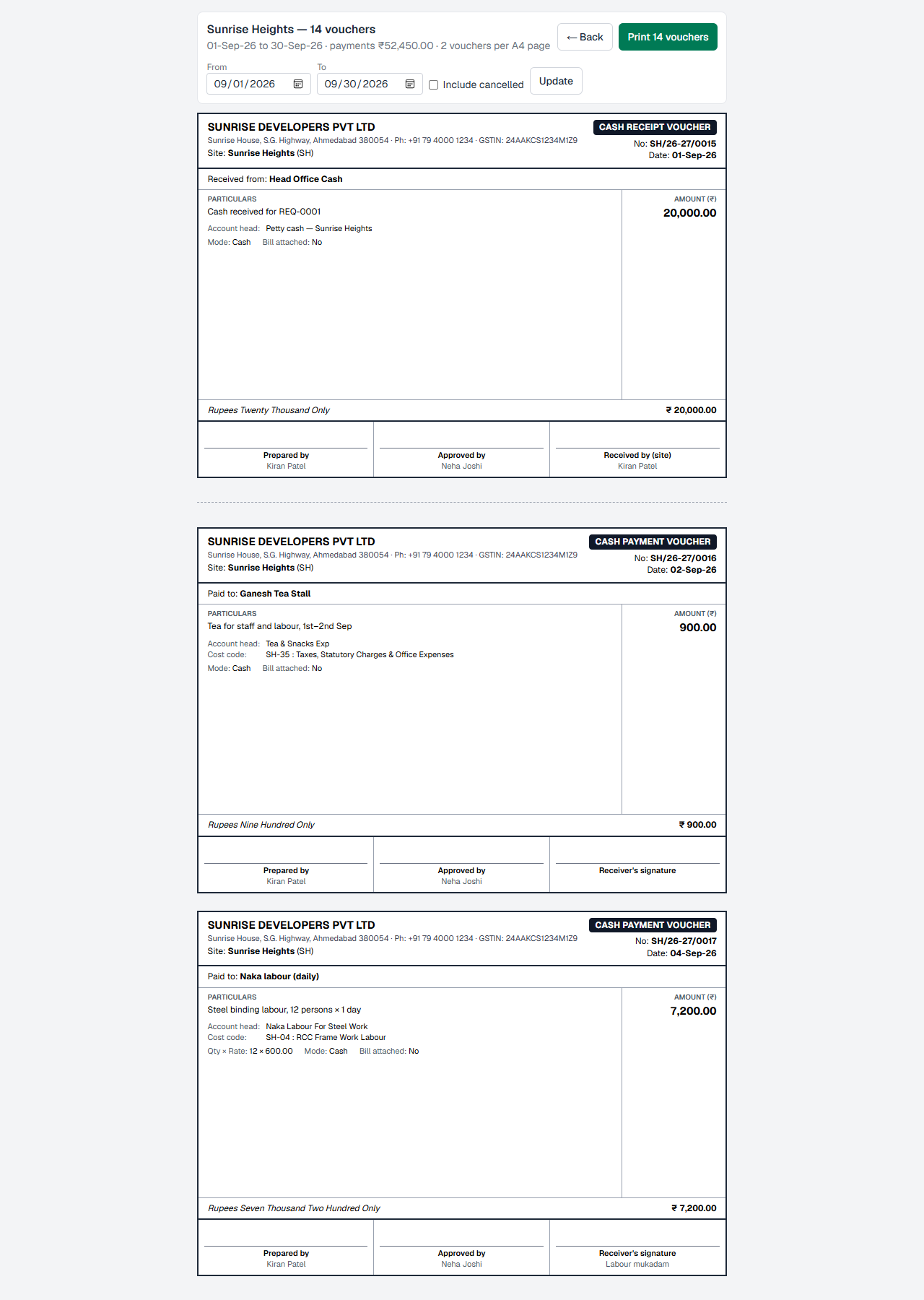
- Vouchers are printed two per A4 page, with a dashed cut line between them. Cut each sheet in half.
- They are in date order, then voucher number order, exactly as in the cash book.
- All types and all approval states of those dates are printed. The other cash book filters (type, status, category, cost code, search) are not used here; only the dates are.
- Cancelled vouchers are left out unless you tick Include cancelled. Include them when you want a complete, unbroken number series for your file.
Cancelled and awaiting-approval marks
| Mark on the voucher | Meaning |
|---|---|
| Large red CANCELLED stamp across the voucher | The voucher was cancelled. It has no effect on the cash balance. See Cancelling a voucher. |
| AWAITING APPROVAL under the title | The entry has not been approved yet. The Approved by box is empty. |
| SENT BACK FOR CORRECTION under the title | The accountant sent the entry back. Correct it and print again after it is approved. |
Tip For your final file, print vouchers after the accountant has approved them, so every voucher has the approver's name and no "awaiting approval" mark.
Printing tips and PDF
- Paper: A4, portrait. SiteCash sets the page size and small 8 mm margins itself. In the print window keep Margins on Default and Scale on Default or 100%, otherwise two vouchers may not fit on one page.
- Headers and footers: untick them (under More settings in Chrome or Edge) so the browser does not print the date and web address on the vouchers.
- Background graphics: tick this option so the dark title band (CASH PAYMENT VOUCHER) prints clearly.
- PDF: choose Save as PDF (or Microsoft Print to PDF) as the printer to keep a file you can email or send on WhatsApp.
- Phone: open the browser menu (⋮) and choose Share → Print, or Print, then choose a printer or save as PDF.
- The buttons and the grey box at the top of the print page are not printed.
Troubleshooting
- If you see No vouchers in this period. do: change From and To and click Update, or tick Include cancelled.
- If only one voucher fits on each page, or a voucher is cut in two, do: set Scale to Default/100%, Margins to Default and paper to A4.
- If the company name or address is wrong or missing, do: ask the owner or an admin to fix Company details in Company Settings, then print again.
- If the Approved by box has no name, it means the entry is still waiting for approval, or it was made by an owner, admin or accountant (approved at once). Sign it by hand.
- If "Paid to" is a blank line, it means no name was entered. Edit the entry and fill in Paid to, or write the name by hand.
- If the voucher shows Bill attached: No, add the bill photo on the voucher page (see Bill photos) and print again.
- If the page shows "not found", it means you do not have access to that site. Ask your admin.