Help › Cash requests
Cash requests
When a site is running low on petty cash, the site asks the office for more with a cash request. The office approves or rejects it, sends the cash, and the site records it when it arrives. Everyone can see where each request stands.
When to ask for cash
Ask before the cash runs out, not after. The office needs time to decide and to send the cash, and the site should never have to stop work or spend the in-charge's own money.
- When SiteCash sends you a low-balance alert, or the cash book shows a yellow warning that the cash is below the site's limit.
- When the cash position box says the cash lasts only a few days.
- When you know a big payment is coming, for example labour payments on Saturday to Mahadev Labour Contractor.
A cash request is the written record of why the site needed the money. Together with the + Cash received entry, it shows who asked, who approved, how much was sent and when it arrived.
Who can do what
| Task | Who |
|---|---|
| Ask for cash | Anyone who can open the site: Site user for their own sites; Owner, Admin and Accountant for any open site |
| See requests | Site users see the requests of their own sites. Everyone else sees all requests. |
| Approve or reject | Owner, Admin, Accountant |
| Record the cash received | Anyone who can add entries at that site (usually the site user) |
| Cancel a request | The person who asked, or an Owner, Admin or Accountant, and only while no cash is recorded against it |
| Set the low-balance limit | Owner, Admin (in Site settings) |
Ask for cash
You can open the Request cash form from several places:
- Cash Requests in the menu → + Request cash
- The Request cash button on the site's card on the dashboard, or at the top of the site's cash book
- The Request cash link in the yellow low-balance warning, or in the low-balance alert
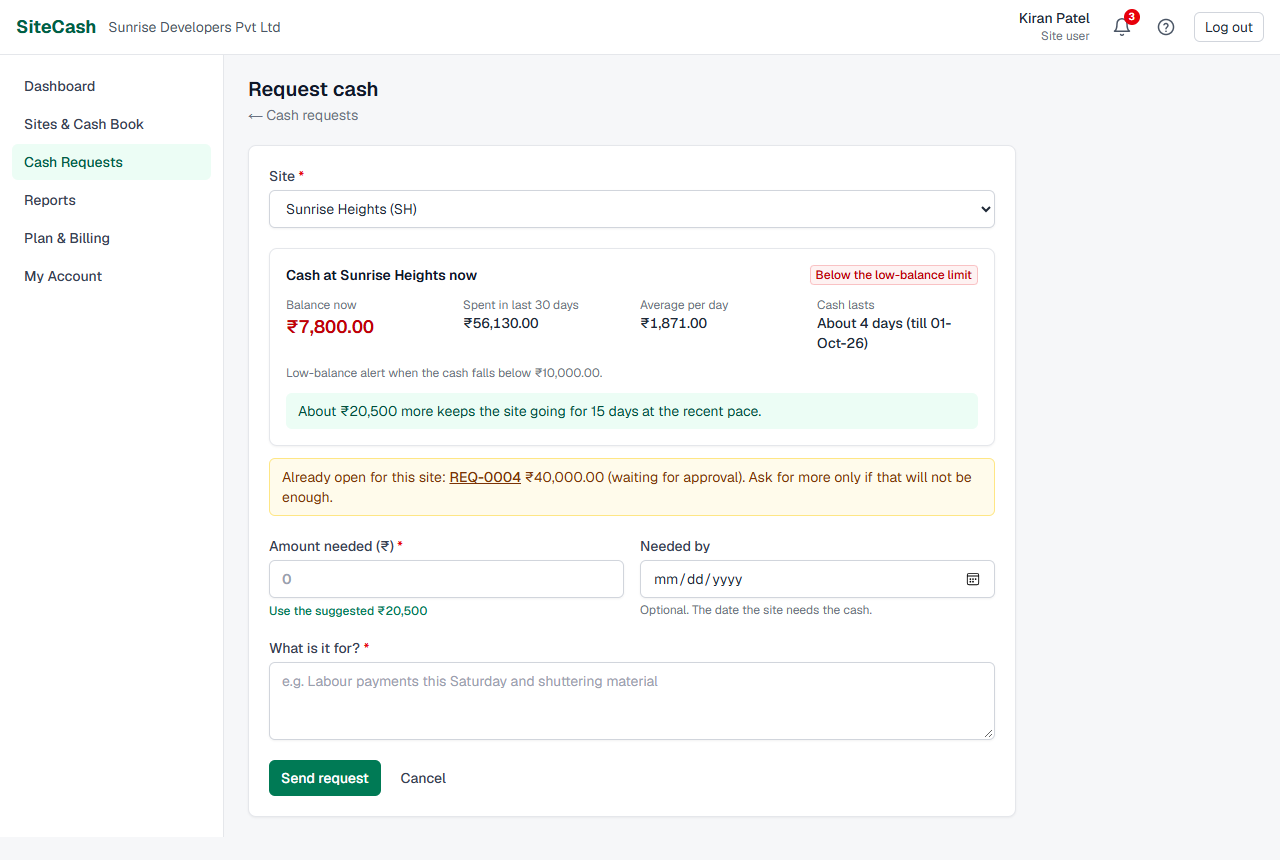
- Site — choose the site, for example Sunrise Heights (SH). If you have only one site, it is already chosen. Only open sites are listed. The form then shows the site's cash position.
- Amount needed (₹) — type the amount. To use SiteCash's suggestion, tap Use the suggested ₹33,000 under the box (the amount depends on the site).
- Needed by — optional. The date the site needs the cash. It cannot be in the past.
- What is it for? — say why you need the cash, for example “Labour payments this Saturday and shuttering material”. Write at least 5 characters.
- Tap Send request.
The request gets a number such as REQ-0003 and its page opens with the message “Request sent. Owners, admins and accountants have been alerted.” It is now Waiting. SiteCash also saves the site's balance at the moment you asked, so the approver can see it.
Requests already open
If the site already has a request that is waiting for a decision or approved and waiting for cash, the form shows a yellow warning, for example: “Already open for this site: REQ-0002 ₹20,000.00 (approved — cash to be sent). Ask for more only if that will not be enough.” Click the request number to open it.
The cash position box
The box “Cash at Sunrise Heights now” helps the site ask for the right amount, and helps the approver decide. It appears on the Request cash form and on every request's page.
| Figure | What it means |
|---|---|
| Balance now | The cash the site should have right now, the same as the cash book balance. Shown in red when it is negative or below the low-balance limit. |
| Spent in last 30 days | All payments of the last 30 days (expenses and cash returned), including entries still waiting for approval. Cancelled vouchers are not counted. |
| Average per day | The 30-day spending divided by 30. |
| Cash lasts | How many days the balance lasts at that pace, for example “About 4 days (till 01-Oct-26)”. It can also say “Less than a day”, “No cash left” or “No spending in the last 30 days”. Shown in red when it is less than 3 days. |
| Low-balance limit | If the site has one: “Low-balance alert when the cash falls below ₹5,000.00.” A red label Below the low-balance limit appears when the balance is under it. |
| Suggestion (on the form) | For example “About ₹33,000 more keeps the site going for 15 days at the recent pace.” If the balance is already enough: “The balance already covers about 15 days at the recent pace.” |
How the suggested amount is worked out
SiteCash wants the site to have enough cash for 15 days at its recent spending pace. It takes the average per day × 15, subtracts the balance now, and rounds up to the next ₹500.
The suggestion is only a guide. If a big payment is coming that is not part of the usual spending, ask for more and say why. If the site had no spending in the last 30 days, there is no suggestion: ask for what the upcoming work needs.
Request statuses
Lists show a short coloured label. The request page and the alerts use the full name.
| Label | Full name | What it means | Next step |
|---|---|---|---|
| Waiting | Waiting for approval | The request is sent. Nobody has decided yet. | An Owner, Admin or Accountant approves or rejects it. |
| Approved | Approved — cash to be sent | The office agreed to send cash, but not all of it has been recorded at the site yet. | The office sends the cash; the site records it with Record cash received. |
| Received | Cash received | All the approved cash has reached the site and is recorded. | Nothing. The request is finished. |
| Rejected | Rejected | The office said no. The reason is shown on the request. | Nothing, or ask again later with a new request. |
| Cancelled | Cancelled | The request was withdrawn before any cash was recorded. | Nothing. No cash should be sent for it. |
A request moves from Approved to Received by itself as soon as the cash recorded against it reaches the approved amount. Nobody has to change it by hand. While only part of the cash is recorded, it stays Approved. Once any cash is recorded against a request, it can no longer be cancelled.
The Cash Requests list
Open Cash Requests in the menu. For Owners, Admins and Accountants, the number next to it is how many requests are waiting for a decision.
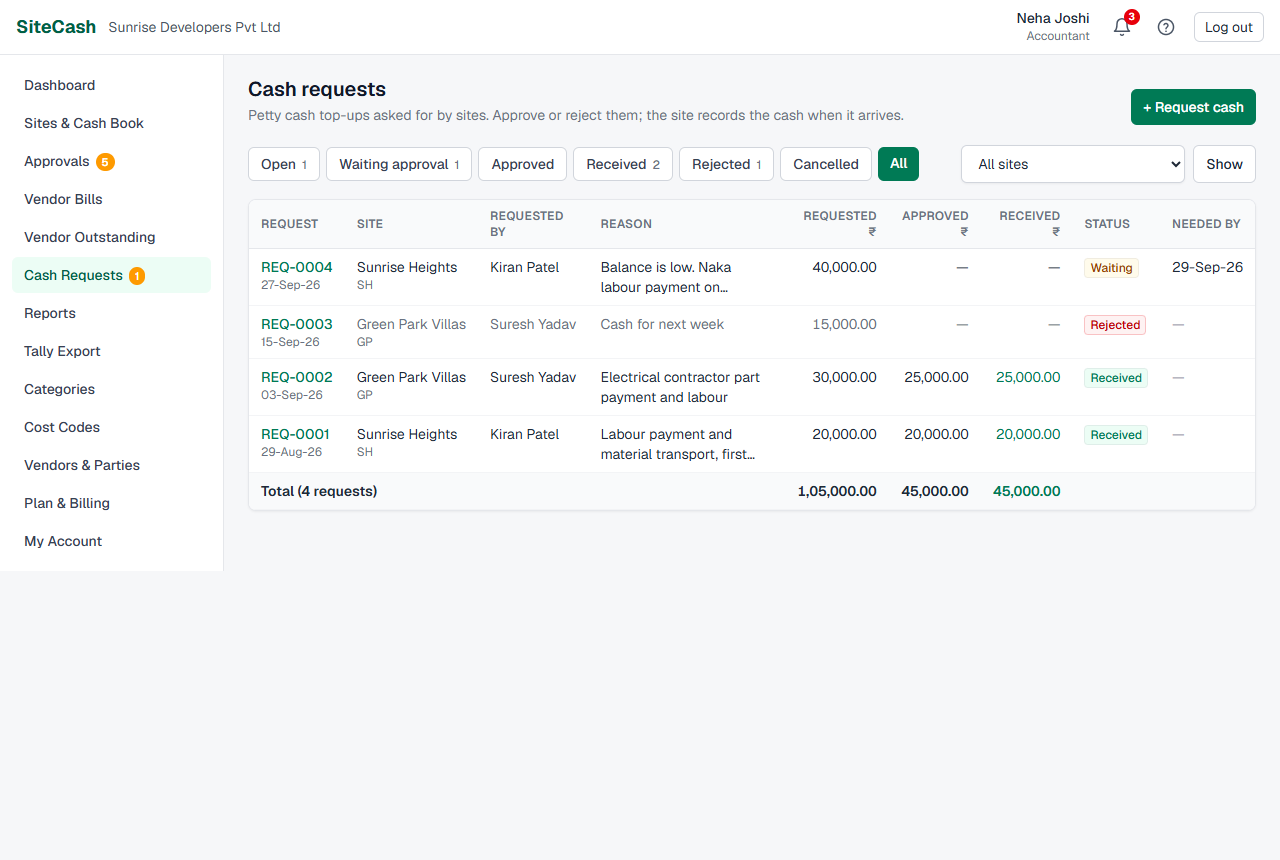
- Tabs: Open (waiting and approved together, shown first), Waiting approval, Approved, Received, Rejected, Cancelled and All. The small number on each tab is how many requests it has.
- Site filter: if you can see more than one site, choose one and click Show.
- Columns: Request (number and date), Site, Requested by, Reason, Requested ₹, Approved ₹, Received ₹, Status and Needed by. A needed-by date that has passed on an open request is shown in red with “overdue”. The last row adds up the amounts.
- On a phone, each request is shown as a card with its number, status, amount and reason. Tap it to open the request.
The newest requests are at the top. Click a request number to open its page. The request page shows the status, four boxes (Requested, Approved, Received, Remaining), the details (who asked and when, needed by, reason, Balance when asked, the decision), the site's cash position now, the cash received against the request, and a History of every step.
Approvers: approve or reject
When a request comes in, Owners, Admins and Accountants get an alert. The dashboard also shows a blue line such as “2 cash requests are waiting for your decision.” with a Review requests link.
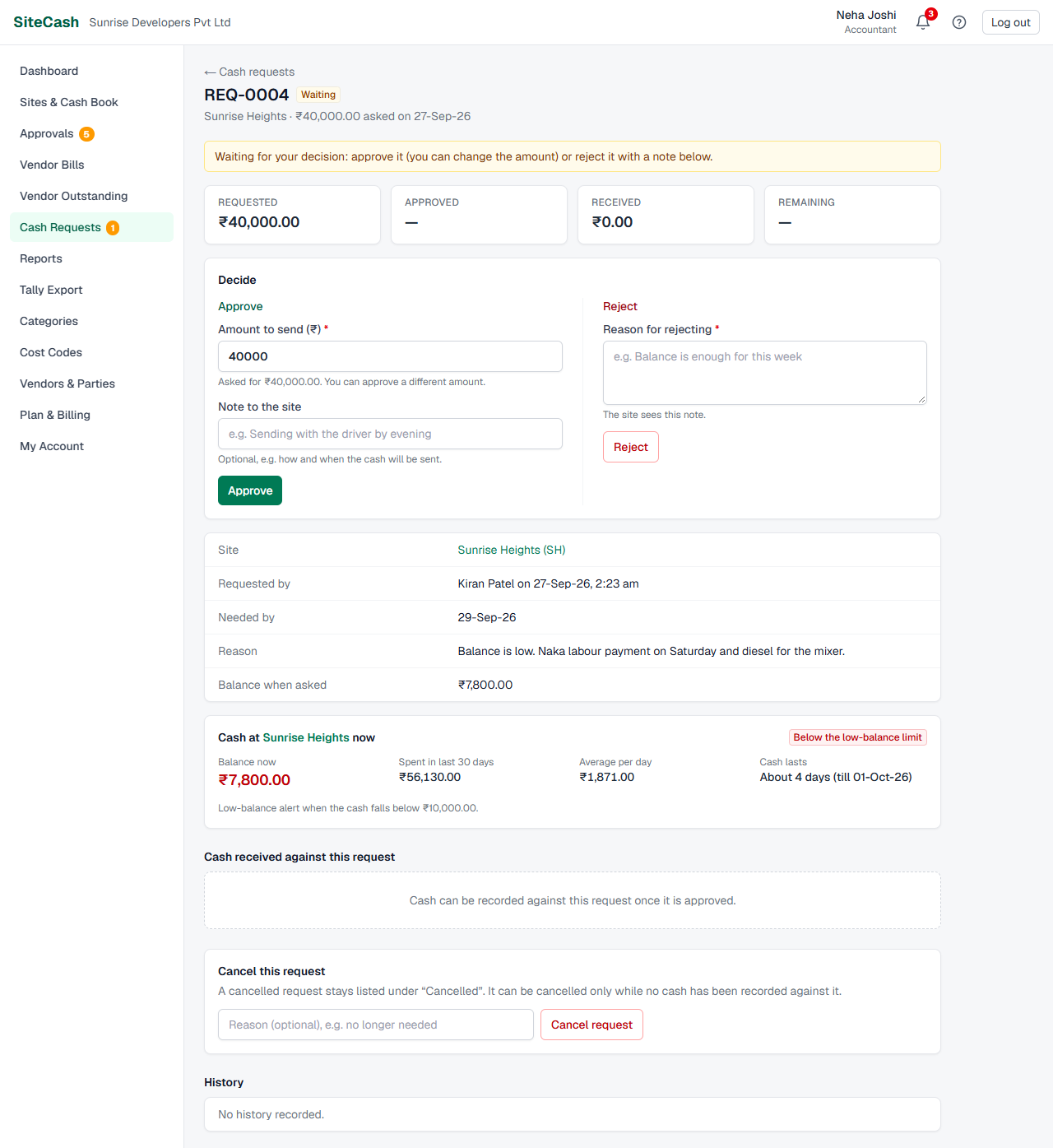
Before you decide, look at the Balance when asked, the cash position now, how long the cash lasts, the reason, and any other open request for the same site.
Approve
- Open the request. The Decide box has two sides: Approve and Reject.
- Amount to send (₹) is filled in with the amount asked. You can change it to approve a different amount, for example ₹25,000 when ₹30,000 was asked.
- Note to the site — optional, for example “Sending with the driver by evening”.
- Click Approve. The message says “Request approved. The site has been told to expect the cash.” The request is now Approved.
Reject
- In the Reject side, write the Reason for rejecting, for example “Balance is enough for this week”. A reason is required; the site sees it.
- Click Reject. The message says “Request rejected. The site has been told, with your note.”
Record the cash when it arrives
When the cash reaches the site, record it as a Cash received entry linked to the request. This adds it to the site's cash book and updates the request.
- Open the request (from the alert, or from Cash Requests). An approved request shows a blue box, for example “Approved for ₹30,000.00. When the cash reaches the site, record it as “Cash received”.”
- Tap Record cash received. The new entry form opens with Cash received already chosen, today's date, the amount still to come, the particulars “Petty cash received for REQ-0003”, and For cash request set to REQ-0003.
- Fill in Received from: who sent the cash, for example Head Office Cash.
- Check the Amount. If a different amount actually arrived, type the real amount. Change the date if the cash came on another day.
- Tap Save (or Save & print voucher to print the receipt voucher for signing).
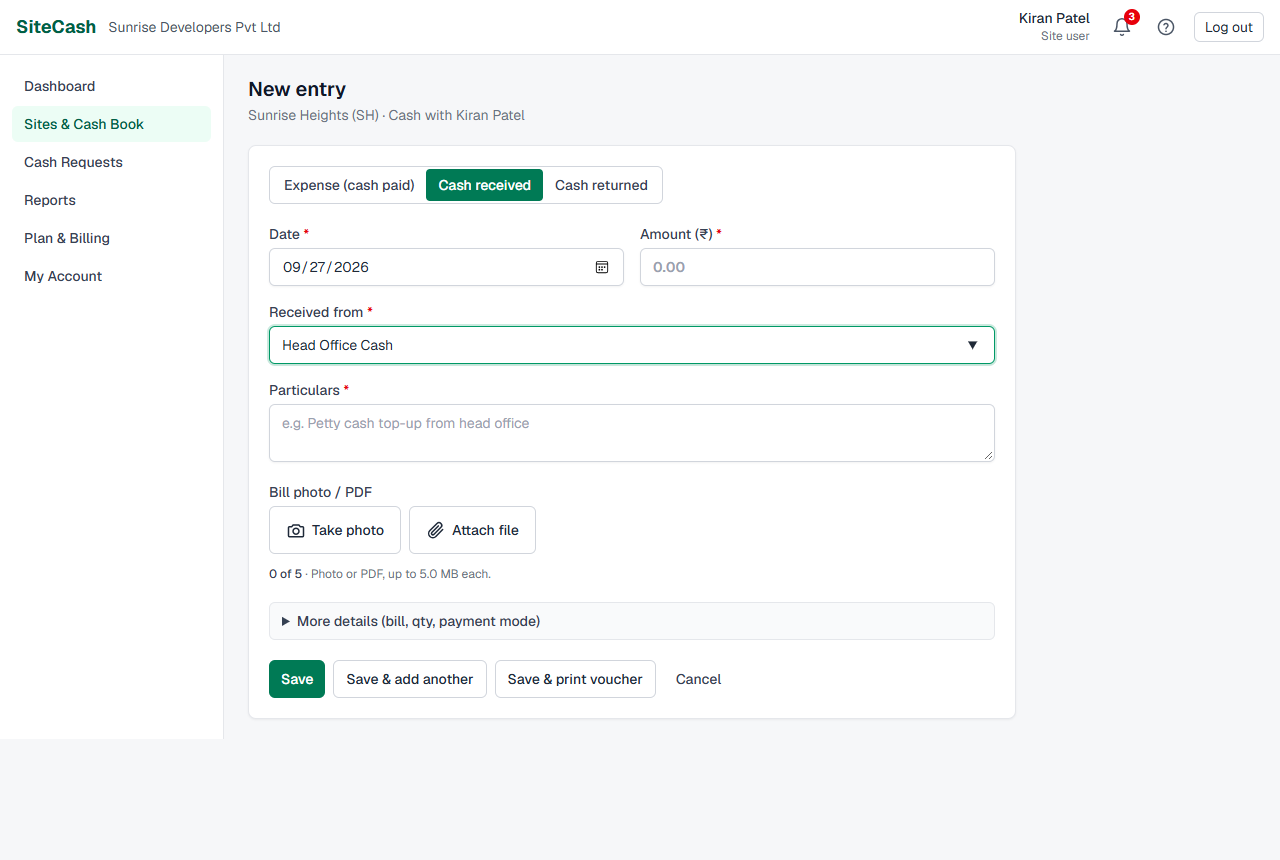
The site's balance goes up, the cash appears in the request's Cash received against this request table, and when the full approved amount has been recorded the request becomes Received by itself.
Part payments and cancelled vouchers
When only part of the cash comes
Record only what actually arrived. For example, if ₹20,000 of the approved ₹30,000 arrives today, record ₹20,000. The request stays Approved and says “Approved for ₹30,000.00; ₹20,000.00 received so far, ₹10,000.00 still to come.” When the rest arrives, tap Record cash received again: the amount is filled in with the ₹10,000 still to come. After that, the request becomes Received.
If a Cash received voucher is cancelled
A cancelled voucher no longer counts. If that makes the total received less than the approved amount, the request goes back to Approved (cash to be sent) by itself, and the Remaining box shows what is still to come. In the request's table the cancelled voucher is crossed out with the label Cancelled, not counted.
The same happens if someone edits the Cash received entry to a lower amount or unlinks it from the request.
Cancel a request
Cancel a request when the site no longer needs the cash, or when it was made by mistake.
- Open the request and go to the box Cancel this request at the bottom.
- Type a reason if you like, for example “no longer needed”.
- Click Cancel request and confirm the question “Cancel REQ-0003? It stays listed under Cancelled and no cash should be sent for it.”
The request becomes Cancelled. It stays in the list under Cancelled, with who cancelled it and the reason.
Low-balance limit and alert
Each site can have a low-balance limit, for example ₹5,000. When the site's cash falls below it, SiteCash warns the site and the office so that someone asks for cash in time.
Set the limit
- Open the site's cash book and click Site settings (or click Edit next to the site in the Sites list). Only Owners and Admins see this.
- In Low balance alert below (₹), type the amount, for example 5000. Leave it blank for no alert.
- Click Save changes.
You can also fill it in when you add a new site. See Sites & cash book.
What happens when the cash falls below the limit
- The site users of that site and all Owners, Admins and Accountants get an alert, for example “Low petty cash at Sunrise Heights: ₹4,200”. The message gives the limit, about how many days the cash lasts, and says “Raise a cash request to top it up.” Opening it takes you to the Request cash form for that site.
- The cash book shows a yellow warning, “Cash in hand is ₹4,200.00, below this site's limit of ₹5,000.00 — about 1 day at the recent spending rate.”, with a Request cash link.
- The site's card on the dashboard shows a Low balance label.
Alerts at each step
Every alert appears under the bell in SiteCash. Each person can also get a copy by email or WhatsApp; see Alerts & notifications. You do not get an alert about a request, decision or Cash received entry you made yourself.
| When | Who gets it | Example |
|---|---|---|
| A request is sent | Owners, Admins, Accountants | “Kiran Patel requested ₹30,000 for Sunrise Heights”, with the request number, needed-by date, balance when asked and reason |
| A request is approved | The person who asked, and the site users of that site | “REQ-0003 approved: ₹30,000 for Sunrise Heights”, with the note and “Record it as “Cash received” when the cash arrives.” |
| A request is rejected | The person who asked, and the site users of that site | “REQ-0003 rejected: ₹30,000 for Sunrise Heights”, with the reason |
| Cash is recorded against a request | The approver who decided it, and the person who asked | “₹30,000 received at Sunrise Heights (REQ-0003)”, adding “The request is now fully received.” when it is complete |
| The balance falls below the limit | Site users of that site, and Owners, Admins, Accountants | “Low petty cash at Sunrise Heights: ₹4,200” |
| Daily summary (if your SiteCash sends daily reminders) | Owners, Admins, Accountants | Includes the number of cash requests waiting for a decision and the sites low on cash |
Cancelling a request does not send an alert.
Troubleshooting
- If you see “Say what the cash is needed for (at least 5 characters).” it means the What is it for? box is empty or too short. Write a few words.
- If you see “The needed-by date cannot be in the past.” choose today or a later date, or leave Needed by empty.
- If the form says “You do not have access to any open site.” no open site is given to you. Ask an Owner or Admin to give you access to your site (see Users, access & settings). Closed sites cannot ask for cash.
- If you see “Give a reason for rejecting the request.” write the reason before you click Reject.
- If you see “This request has already been decided.” someone else approved or rejected it a moment ago. Reload the page.
- If you do not see the Decide box, either you are a site user (only Owners, Admins and Accountants decide), or the request is no longer waiting.
- If the request is still Approved after the cash came, the Cash received entry was probably not linked to it, or less than the approved amount was recorded. Open the Cash received voucher, click Edit, choose the request in For cash request and save. (A site user can edit only a Cash received entry they recorded themselves; if the office recorded it, ask the office.) Check the Remaining box on the request.
- If the request is missing from the For cash request list, it is not approved yet, it is already fully received, or it is for another site.
- If you see “REQ-0003 is not approved.” or “REQ-0003 is for another site.” when saving a Cash received entry, choose another request or “— Not for a request —”.
- If you see “Cash has already been received against this request.” when cancelling, some cash is already recorded against it, so it cannot be cancelled.
- If you see the view-only message (for example that the trial or plan has ended) when you send, approve, reject or cancel a request, your company is in view-only mode. You can still open and read requests, but nothing can be changed until the owner or an admin chooses a plan. See View-only mode.
- If no low-balance alert came, check that the site has a limit in Site settings, that the site is open, and whether the alert was already sent once and the balance has not gone back above the limit since.