Help › Getting started
Getting started
Create your company account, log in, learn what each role can do and find your way around SiteCash on a computer or a phone.
What SiteCash is
SiteCash is the petty cash book for your construction sites, online. Each site has its own cash book with a running balance. The site in-charge records every expense with a bill photo, each entry gets a printed voucher number, and the office approves entries, sends cash to sites, tracks vendor bills, prints reports and sends everything to Tally. Everyone sees the same numbers, so there is no Excel sheet to send back and forth at month end.
In this manual we use a sample company: Sunrise Developers Pvt Ltd, owner Ravi Shah, accountant Neha Joshi and site user Kiran Patel, who holds the cash at the site Sunrise Heights (code SH).
Sign up your company
The person who signs up becomes the Owner of the company. Do this once per company; everyone else is added later by the owner or an admin in Users & Access.
- Open the SiteCash log in page and click Create a company account (under “New builder?”).
- Fill in Company name (for example Sunrise Developers Pvt Ltd), Your name, Email and Password (at least 8 characters).
- Click Create company account. You are logged in straight away.
- SiteCash opens Add your first site. Enter the site name and code (for example Sunrise Heights, SH) and click Create site. See Sites & cash book.
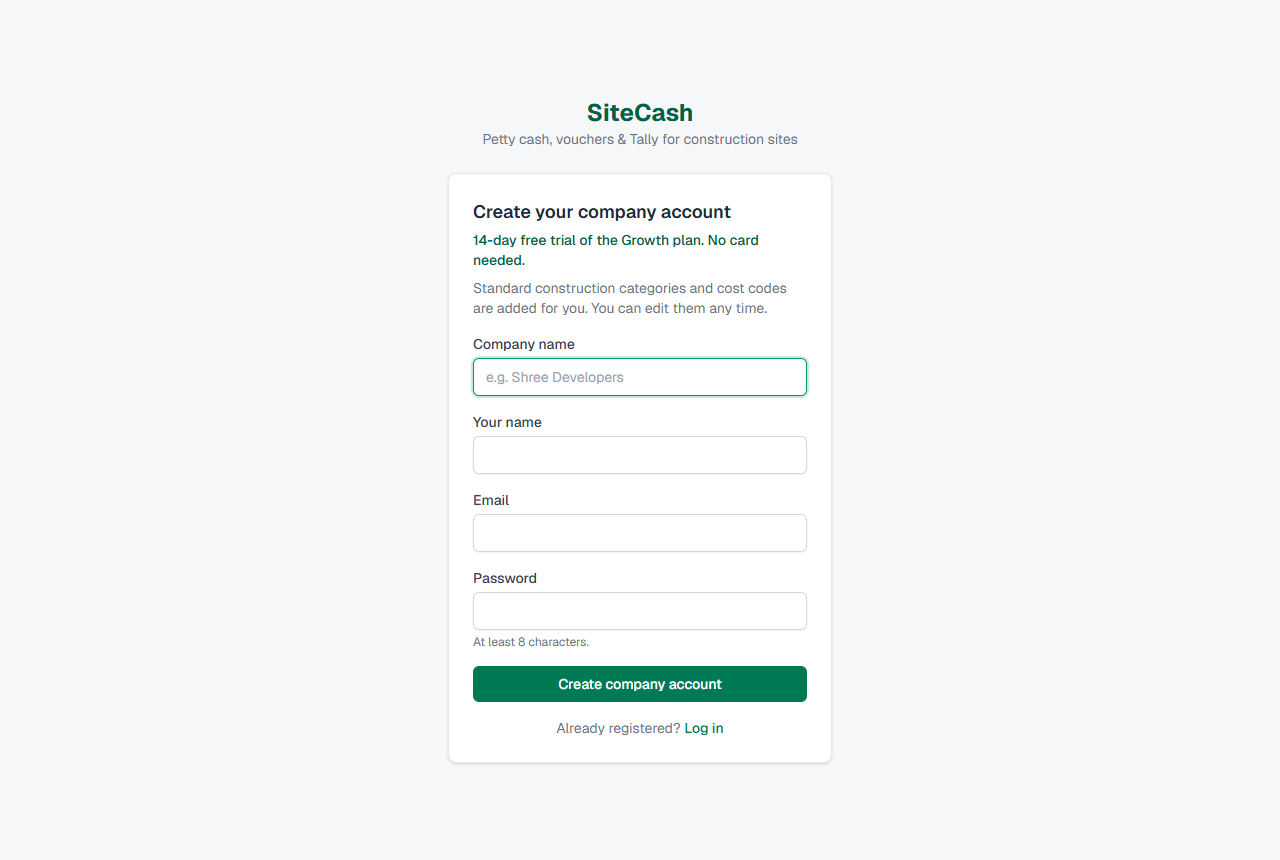
What you get automatically:
- A 14-day free trial of the Growth plan. No card is needed. The header shows how many days are left. See Plan & billing.
- Standard construction categories (about 45, such as Tea & Snacks Exp, Hardware and Tools, Naka Labour For Steel Work, Paid Against Bill) and cost codes 00 to 35 (such as 04 RCC Frame Work Labour, 12 Electrical Work with Material). Many categories already suggest the right cost code. You can edit them any time: see Categories, cost codes & vendors.
After your first site, the welcome message suggests the next steps: add more sites, invite your site staff from Users & Access and fill in your voucher and Tally details in Company Settings (see Users, access & settings).
Log in
- Open SiteCash. Enter your Email and Password.
- Click Log in. The Dashboard opens.
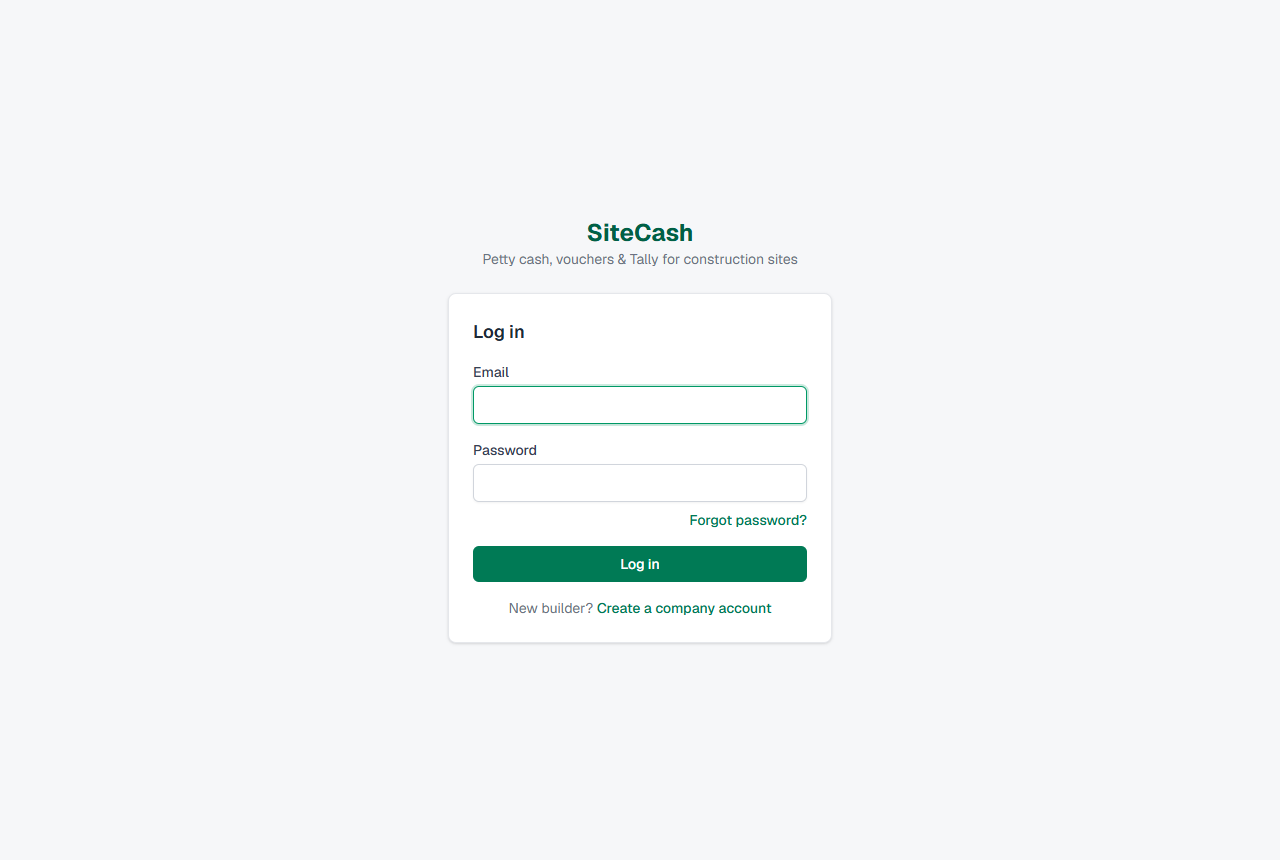
You stay logged in on that device for up to 7 days. Click Log out at the top right when you use a shared computer.
For safety, SiteCash shows the same message, “Email or password is incorrect.”, whether the email is unknown or the password is wrong.
Forgot password
- On the log in page click Forgot password?
- Enter the email you log in with and click Send reset link.
- Open the email “Reset your SiteCash password” and click the link.
- Type your New password twice (at least 8 characters) and click Set new password.
- You see “Password changed. Log in with your new password.” Log in as usual.
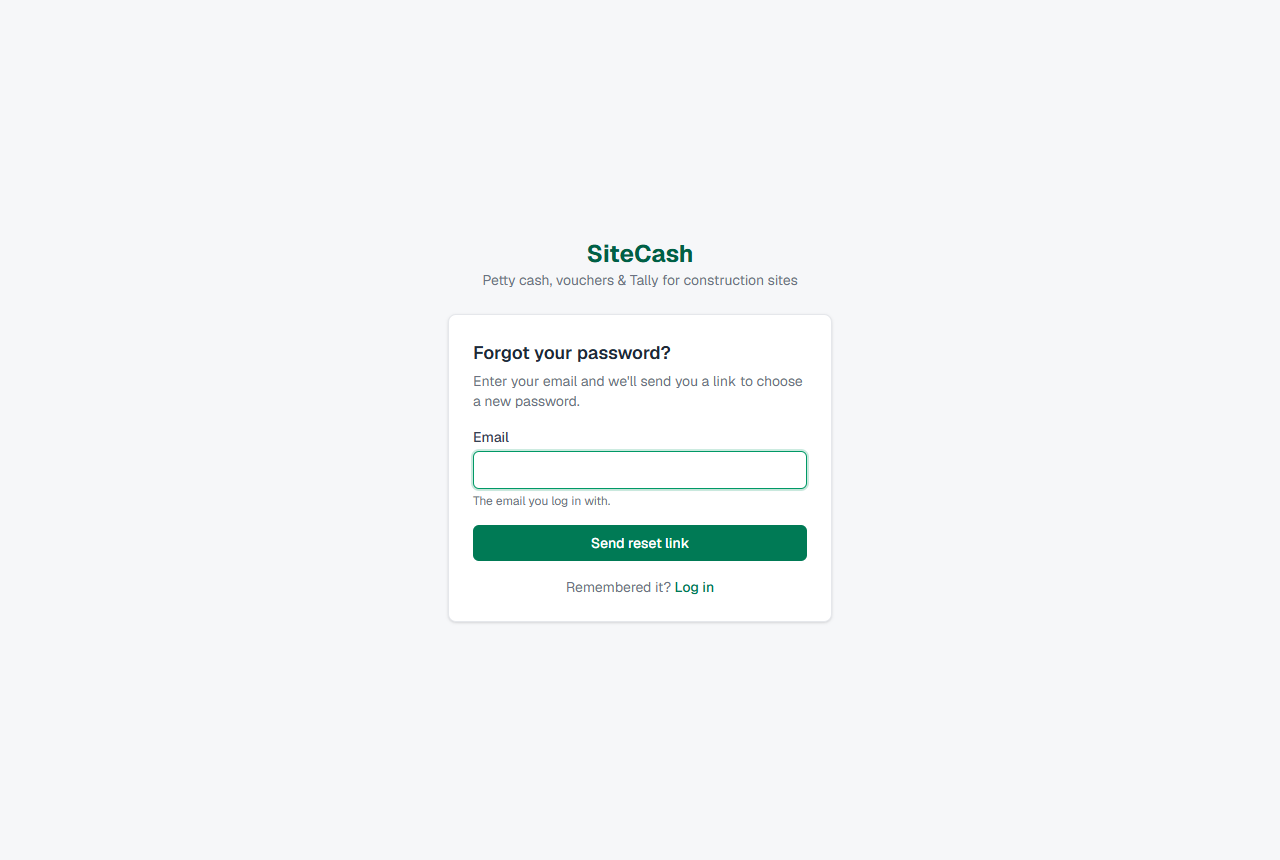
- The link works once and only for 1 hour. An old or used link shows “Link expired”; click Send a new link.
- SiteCash always answers “If an account exists for that email, we’ve sent a link…”, even when the email is not registered. This stops strangers from finding out who has an account.
- At most 3 reset emails are sent per account per hour. Clicking Send the link again many times does not help; check the spam folder first.
- After a reset, SiteCash logs you out on every other device (phone, office PC). Log in again there with the new password.
The four roles
Every person in a company has one role. The role decides which menu items they see and what they can change. The owner or an admin sets it in Users & Access; a change works from the person’s next click, without logging out.
| What you can do | Owner | Admin | Accountant | Site user |
|---|---|---|---|---|
| See sites and cash books | All sites | All sites | All sites | Only the sites given to them |
| Add expenses, cash received, cash returned | Yes | Yes | Yes | Yes, on their sites. Back-dating only within the edit window |
| Edit or cancel an entry | Until exported to Tally | Until exported to Tally | Until exported to Tally | Only entries they made themselves: within the edit window (7 days unless changed), or any time when sent back to them; not after it is approved |
| Approve entries or send them back | Yes | Yes | Yes | No |
| Ask for cash (cash request) | Yes | Yes | Yes | Yes |
| Approve or reject cash requests | Yes | Yes | Yes | No |
| Reports and Excel download | Yes | Yes | Yes | Yes, for their sites |
| Vendor bills and vendor outstanding | Yes | Yes | Yes | No |
| Import from Excel, Tally export | Yes | Yes | Yes | No |
| Undo a Tally export, add or revoke the Tally connector | Yes | Yes | No | No |
| Categories, cost codes, vendors | Yes | Yes | Yes | No |
| Add sites, Users & Access, Company Settings | Yes | Yes (can add and manage only accountants and site users) | No | No |
| Buy, change or cancel the plan | Yes | Yes | No (can see the plan) | No (can see the plan) |
Finding your way
The header (top of every page)
- SiteCash and your company name (or a company list if you belong to several companies, see below).
- The trial badge Trial · 9 days left while the free trial runs. Click it to open Plan & Billing. It is hidden on narrow phone screens.
- Your name and role. Click it to open My Account. (Also hidden on narrow phone screens; use the menu item instead.)
- The bell. A red number shows how many alerts you have not read. Click it to open Alerts. See Alerts & notifications.
- The round ? Help icon, next to the bell. It opens this user manual in a new browser tab, so the page you were working on stays open.
- Log out.
The menu
On a computer the menu is on the left. On a phone it is a row under the header that you swipe sideways. You only see the items your role can use:
| Menu item | Who sees it |
|---|---|
| Dashboard, Sites & Cash Book | Everyone |
| Approvals (with the number of entries waiting) | Owner, Admin, Accountant |
| Vendor Bills, Vendor Outstanding | Owner, Admin, Accountant |
| Cash Requests | Everyone (approvers see the number waiting for a decision) |
| Reports | Everyone |
| Tally Export | Owner, Admin, Accountant |
| Categories, Cost Codes, Vendors & Parties | Owner, Admin, Accountant |
| Users & Access, Company Settings | Owner, Admin |
| Plan & Billing, My Account | Everyone |
If you open a page your role cannot use (for example from an old link), SiteCash takes you to the dashboard with “You don’t have permission to open that page.”
Coloured bars at the top of the page
- A yellow bar warns you early, for example “Your free trial ends in 2 days…” or a failed renewal payment. Work carries on normally. Click Plan & Billing.
- A red bar “View-only mode.” means the trial or plan has ended (or the account is suspended). You can still view, print and download Excel files and earlier Tally files, but nothing can be added or changed: no entries, bill photos, approvals, cash requests, vendor bills, masters, settings or users. The owner or an admin clicks Choose a plan; others see See plan. See Plan & billing.
Switching company
If your login belongs to more than one company (for example Neha Joshi keeps the books for two builders), the company name in the header becomes a list.
- Pick the other company in the list at the top left.
- Click Switch. The dashboard of that company opens.
Each company is completely separate: its own sites, entries, users and alerts. Your role can be different in each company. When you log in, SiteCash opens the company you were added to first.
The dashboard
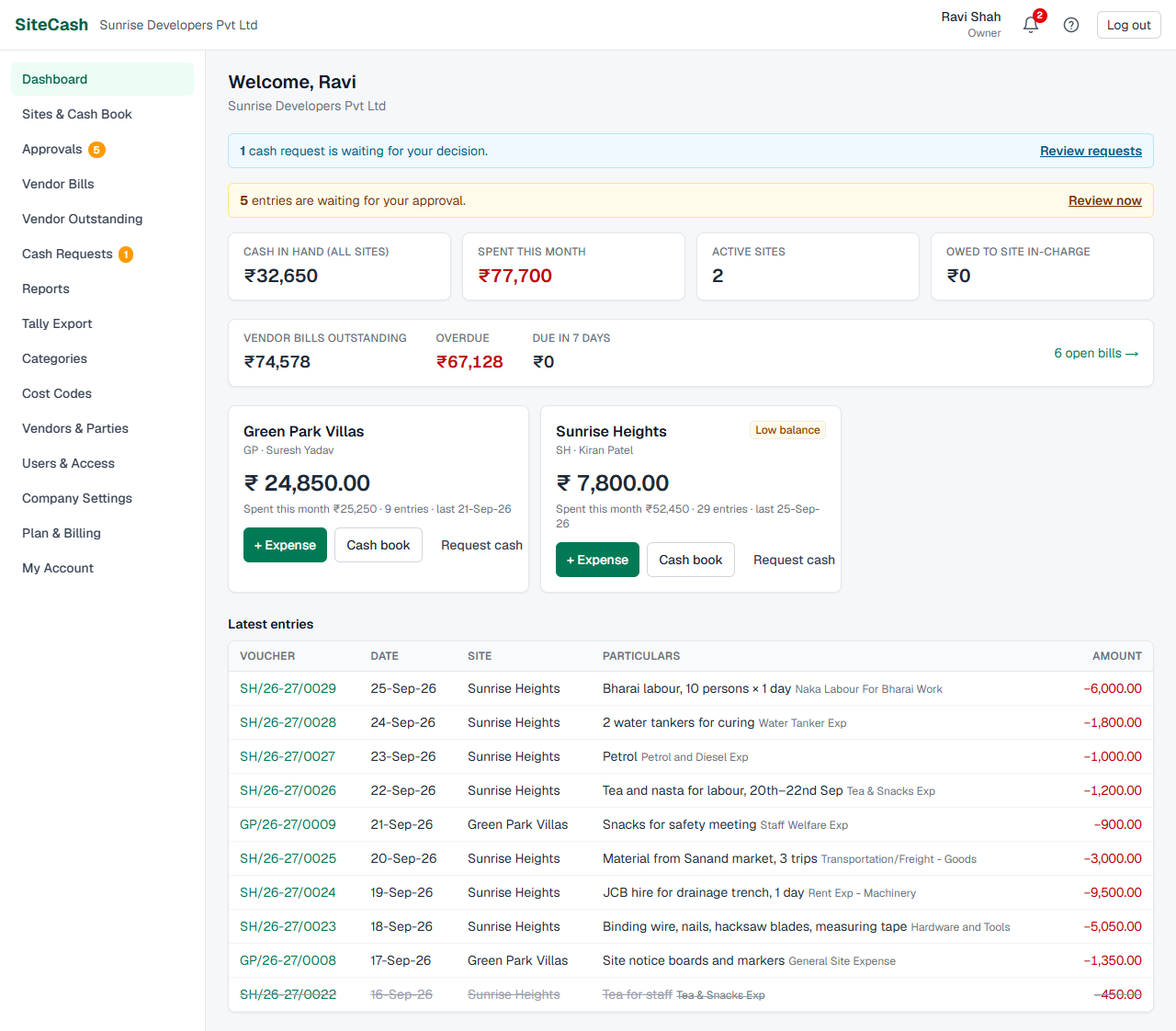
The dashboard greets you (“Welcome, Ravi”) and shows what needs attention first, then the cash position of your sites.
For owners, admins and accountants
- A blue bar: “2 cash requests are waiting for your decision.” with Review requests.
- A yellow bar: “5 entries are waiting for your approval.” with Review now.
- Four totals: Cash in hand (all sites), Spent this month, Active sites and Owed to site in-charge (the total of sites whose balance is below zero, where the in-charge has paid from his own pocket).
- A vendor bills card when bills are open: outstanding, overdue, due in 7 days. Click it to open Vendor Outstanding.
- One card per site with the balance, spending this month, number of entries and the last entry date. Badges: Owes in-charge (balance below zero), Low balance (below the site’s alert limit), Closed. Buttons: + Expense, Cash book, Request cash.
- Latest entries: the last 10 entries of all your sites. Click a voucher number to open it.
For site users
A site user sees only their own sites. The most important part is “Sent back to you: please correct these”: entries you made that the accountant did not accept, each with the note saying what to fix. Click Correct, fix the entry and save it; it goes back for approval. Below that are the totals and the site cards with + Expense, Cash book and Request cash.
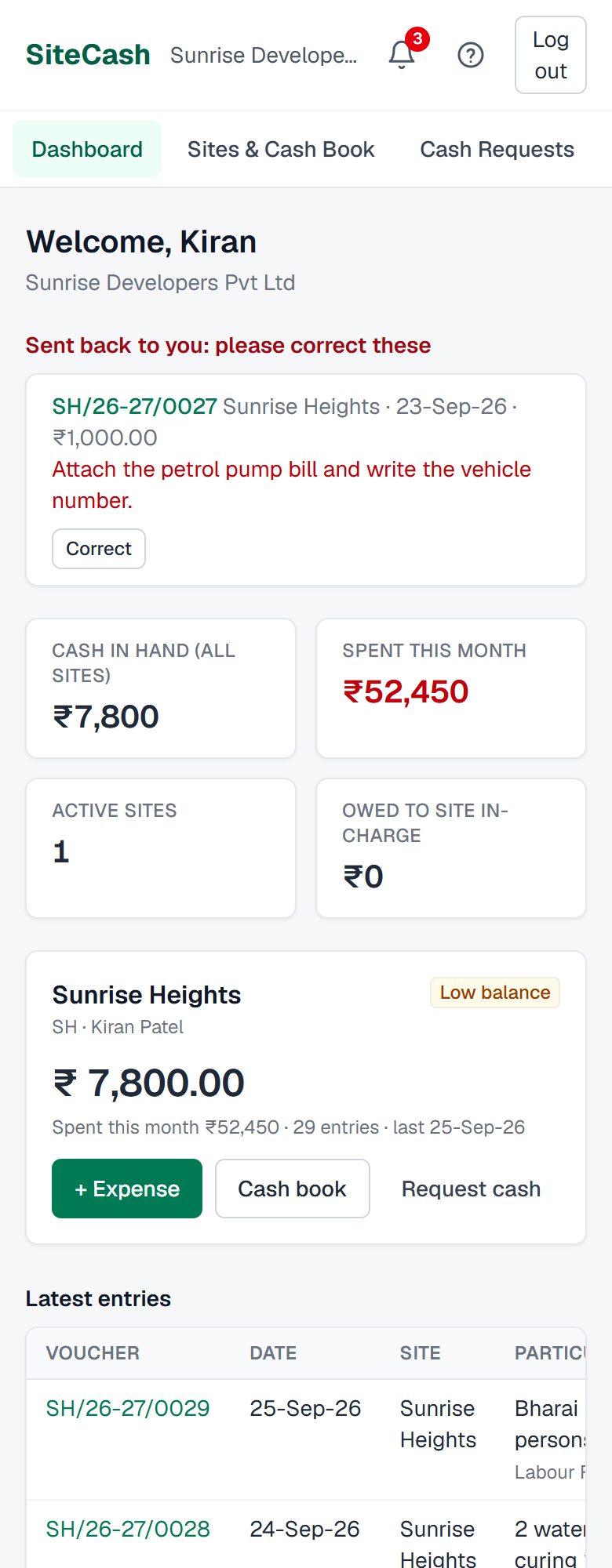
No sites yet? The owner or an admin sees Add your first site. A site user sees “No sites assigned to you. Ask your company admin to give you access to a site.”
My Account
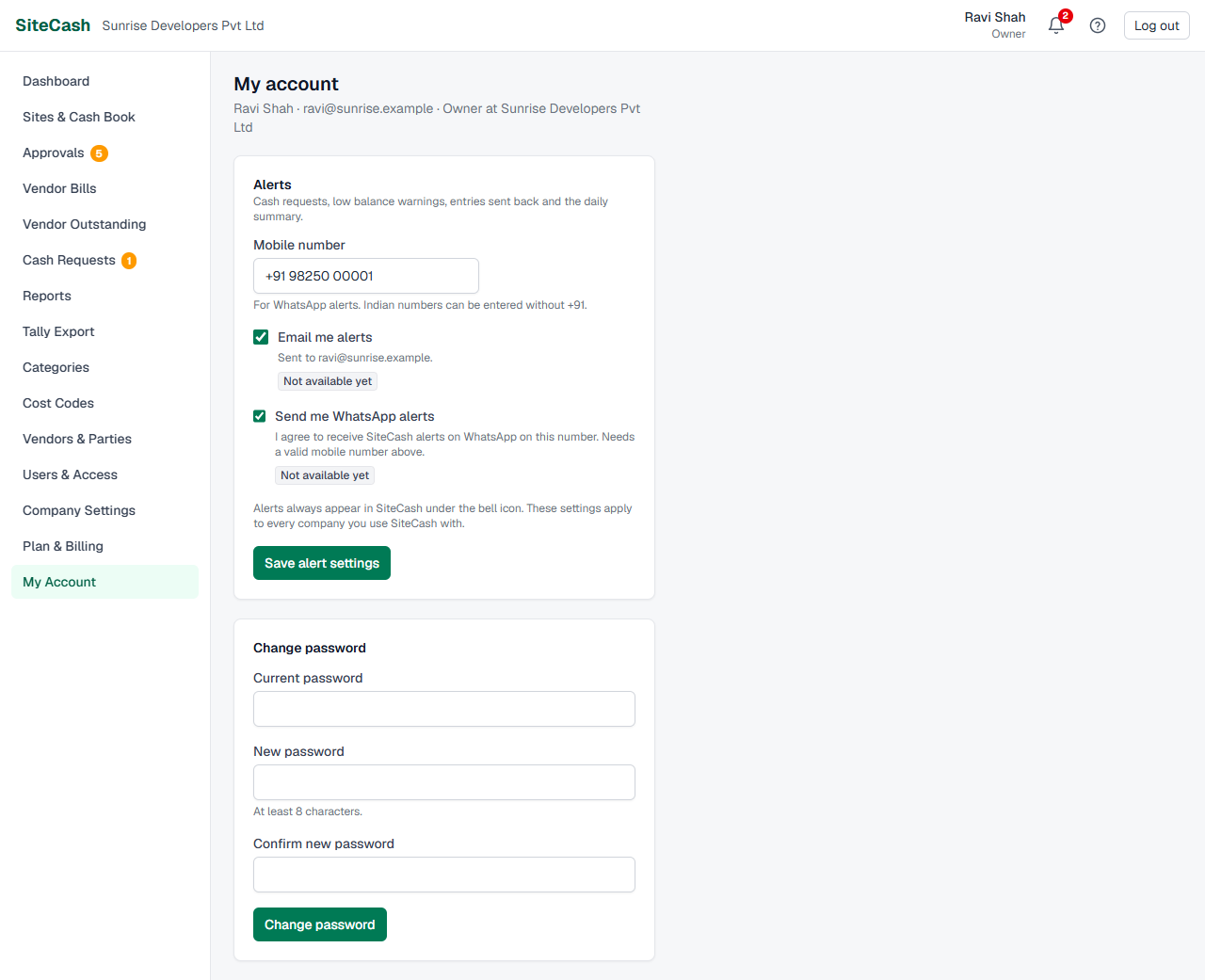
Open My Account from the menu (or click your name in the header). The top line shows your name, email and your role at the company.
Alert settings
Alerts always appear in SiteCash under the bell. Here you choose whether you also want copies by email or WhatsApp.
- Mobile number: needed only for WhatsApp. Indian numbers can be typed without +91, for example 98250 12345.
- Email me alerts: tick to get a copy at your login email. It is on for new users.
- Send me WhatsApp alerts: tick only if you agree to receive SiteCash alerts on WhatsApp on that number. It needs a valid mobile number.
- Click Save alert settings. You see “Alert settings saved.”
Next to each choice a badge shows whether that channel works in your SiteCash: Live, or Not available yet when it has not been set up. These settings belong to you, so they apply in every company you use. Full details: Alerts & notifications.
Change password
- Enter your Current password.
- Enter the New password (at least 8 characters) and type it again in Confirm new password.
- Click Change password. You see “Password changed.”
Using SiteCash on a phone
SiteCash works in the phone’s normal browser (Chrome on Android, Safari on iPhone). There is nothing to install. The menu becomes a row you swipe sideways, and forms have large buttons such as Take photo for bill photos.
Site users on a phone usually need only three things: + Expense on the dashboard, the Cash book and Request cash. See Entries & bill photos and Cash requests.
Troubleshooting
- If you see “Email or password is incorrect.”, check the email for typing mistakes and that Caps Lock is off. Still stuck? Use Forgot password?
- If you see “Too many attempts. Wait 15 minutes or reset your password.”, it means 5 wrong passwords were tried for your email in 15 minutes. Wait 15 minutes, or reset your password with the email link.
- If you see “Your account is not linked to any company. Ask your admin to add you.”, your login exists but no company has you as a user any more. Ask the owner or admin to add your email in Users & Access.
- If you see “This reset link has expired or was already used.”, the link is older than 1 hour or was used. Click Send a new link.
- If you see “An account with this email already exists. Please log in.” while signing up, log in instead, or use another email for the new company.
- If you are suddenly sent back to the log in page, your password was changed or reset (by you on another device, or by your admin), or 7 days have passed. Log in again.
- If a menu item is missing, your role does not include it. Ask the owner or admin to check your role in Users & Access.
- If a site is missing for a site user, it has not been given to them. The owner or admin ticks the site for that user in Users & Access.
More answers: FAQ & troubleshooting.