Help › Sites & cash book
Sites & cash book
Every construction site has its own petty cash book in SiteCash. This page explains how to add and set up a site, and how to read its cash book: the balance, the filters and the small marks next to each voucher.
What a site is
A site is one project where cash is spent, for example Sunrise Heights or Green Park Villas. Each site has its own cash in hand, its own cash book and its own voucher numbers. Usually one person at the site holds the cash (the in-charge), for example Kiran Patel at Sunrise Heights.
Every site has a short site code, like SH for Sunrise Heights and GP for Green Park Villas. The code is used in two places:
- Voucher numbers. Every entry at Sunrise Heights gets a number like
SH/26-27/0042: site code, financial year, running number. See Printing vouchers. - Cost codes and Tally cost centres. A cost code is shown together with the site code, for example
SH-04 : RCC Frame Work Labour. This is also the cost centre name sent to Tally, so costs stay separate for each site. See Categories, cost codes & vendors.
The Sites list
Open Sites & Cash Book in the menu. You see every site you are allowed to open. Owners, admins and accountants see All sites of the company; a site user sees only Sites you have access to.
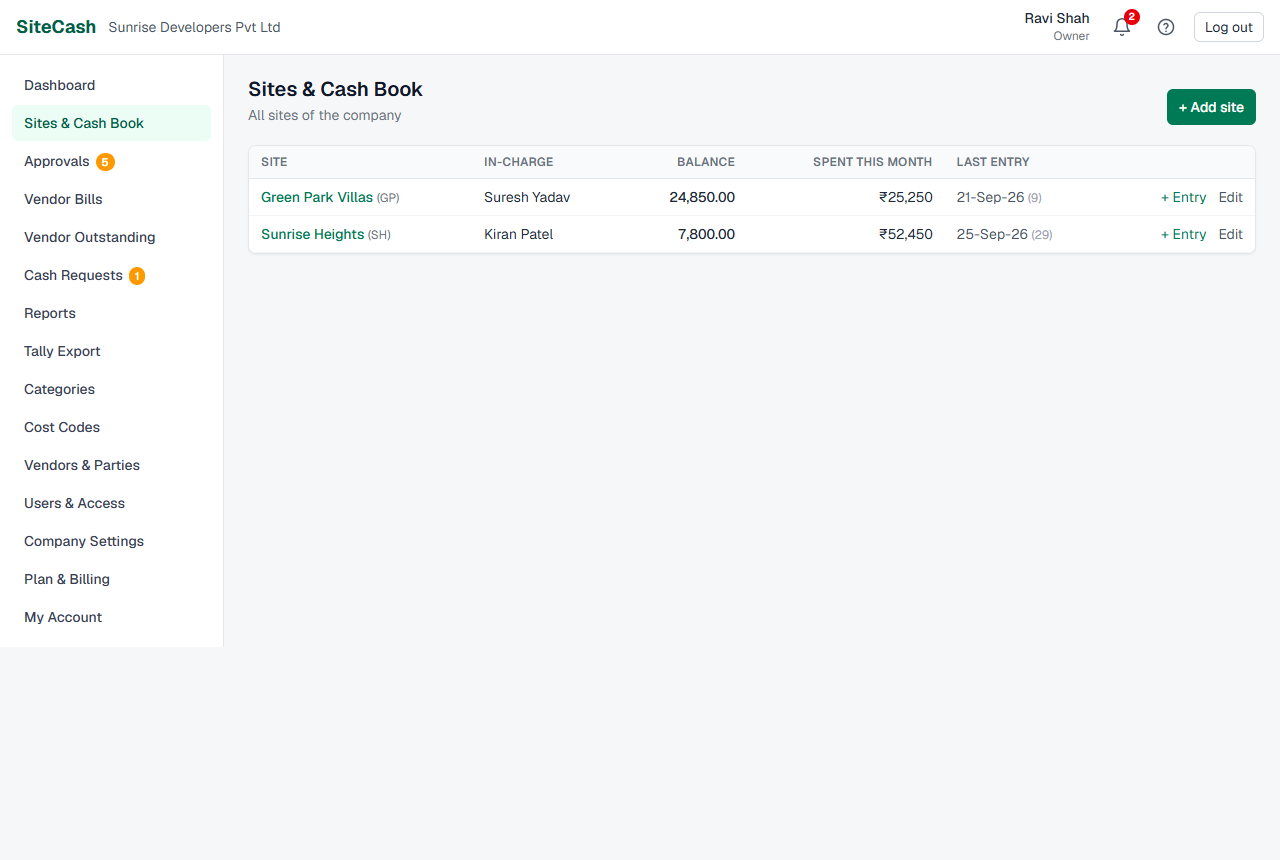
| Column | What it shows |
|---|---|
| Site | Site name (click it to open the cash book) and the code in brackets. A closed site shows Closed. |
| In-charge | The person who holds the cash. |
| Balance | Cash in hand now: opening balance + all cash received − all cash paid. Cancelled vouchers are left out. Shown in red when it is below zero. |
| Spent this month | Expenses and cash returned since the 1st of this month. |
| Last entry | Date of the latest entry, and the total number of entries in brackets. |
| Links | + Entry opens a new expense for that site. Edit opens the site settings (owners and admins only). |
Open sites are listed first, then closed ones, each group in A–Z order.
Add a site
Only the Owner and Admins can add sites.
- Open Sites & Cash Book and click + Add site. (Right after sign-up, SiteCash opens this form for you as Add your first site.)
- Type the Site name, for example Sunrise Heights.
- Type the Site code, for example SH. Below the box SiteCash shows what the vouchers will look like, for example
SH/26-27/0001. - Fill in the other fields if you know them (see the table below). You can change them later.
- Click Create site. The new, empty cash book opens.
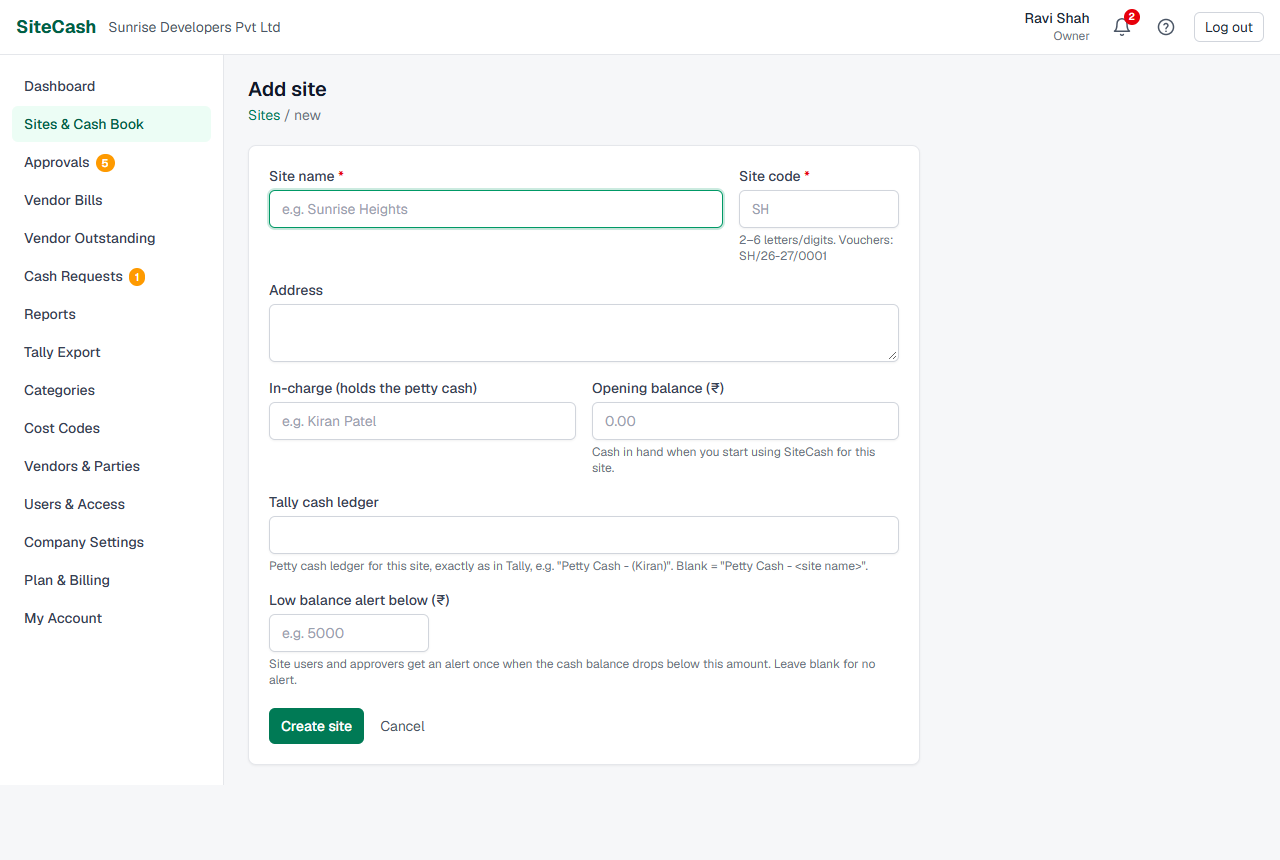
| Field | What to enter |
|---|---|
| Site name (required) | The name everyone uses for the project. At least 2 characters. |
| Site code (required) | 2 to 6 capital letters or digits, no spaces, for example SH or GP2. SiteCash turns small letters into capitals and drops other characters. Each site in your company needs a different code. |
| Address | Site address (optional). |
| In-charge (holds the petty cash) | Name of the person who keeps the site's cash, for example Kiran Patel. It is shown on the cash book and printed on receipt vouchers. |
| Opening balance (₹) | Cash in hand on the day you start using SiteCash for this site, for example 25,000. Leave it empty for ₹0. If the in-charge had spent their own money, enter a minus amount. |
| Tally cash ledger | The petty cash ledger of this site in Tally, typed exactly as it is in Tally, for example Petty Cash - (Kiran). If you leave it empty, SiteCash uses Petty Cash - Sunrise Heights (the words "Petty Cash - " and the site name). |
| Low balance alert below (₹) | When the cash in hand drops below this amount, the site team and the approvers get an alert, once. Leave it empty for no alert. See Low balance warning. |
Site settings
Owners and admins can change a site at any time, except while the company is in view-only mode: open the cash book and click Site settings, or click Edit in the Sites list. Make your changes and click Save changes.
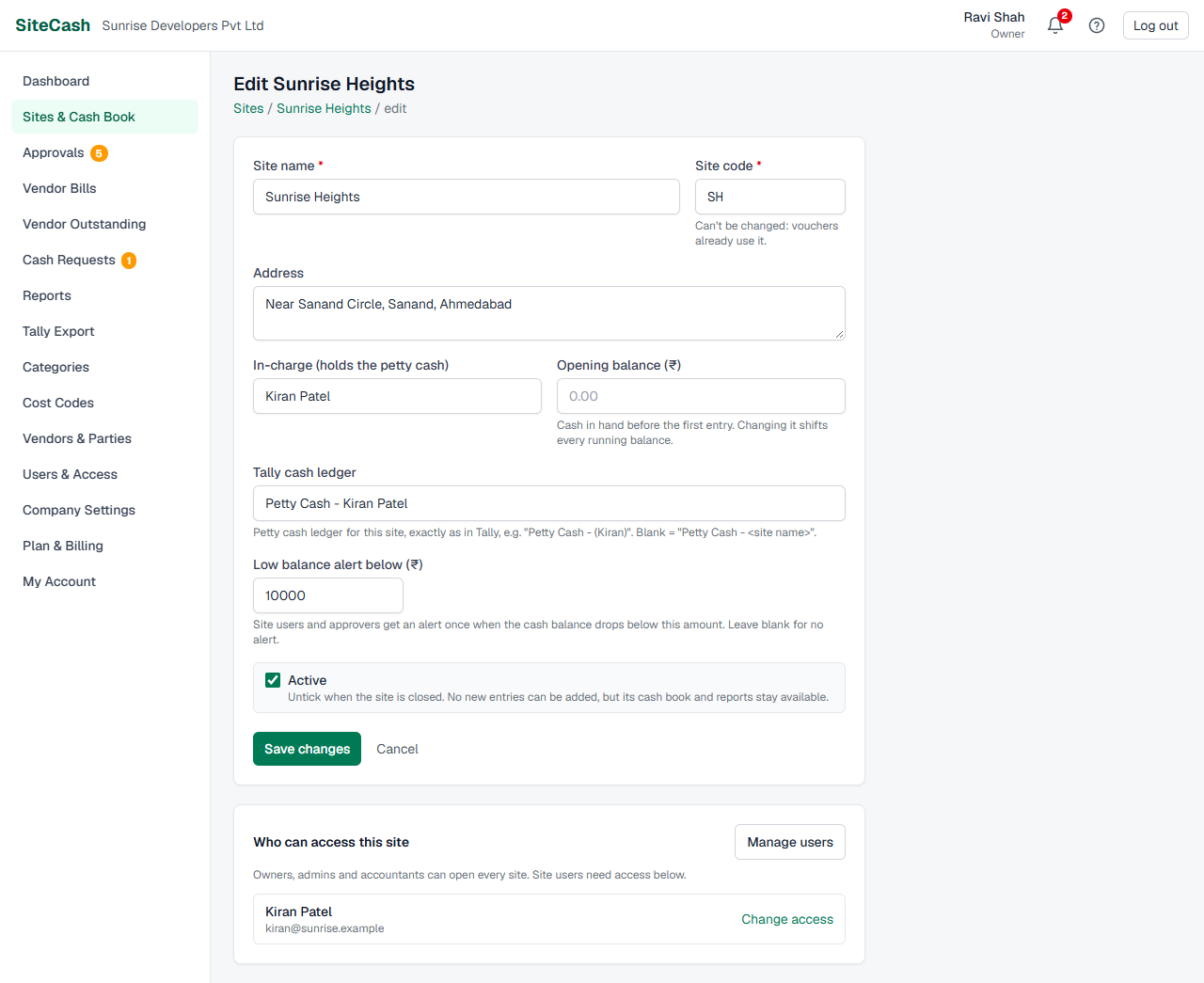
When the site code cannot change
As soon as a site has any voucher (even a cancelled one), the code box is grey and shows Can't be changed: vouchers already use it. Old vouchers are printed and filed with that code, so it must stay the same. Before the first entry you can still change it.
Changing the opening balance
You can correct the opening balance later. Be aware that it moves every running balance in the cash book up or down by the same amount, including the balances of past months.
Changing the low-balance limit
When you save, SiteCash checks the balance again. If the balance is already below the new limit (and no alert has been sent yet), the alert goes out at once.
Close or reopen a site
When a project is finished, close its site so no more cash is recorded there by mistake.
- Open the site and click Site settings.
- Untick Active.
- Click Save changes. The site now shows Closed.
On a closed site:
- New entries cannot be saved, and saved entries cannot be edited. The form says This site is closed; new entries cannot be saved.
- You cannot ask for cash for it, and no low-balance alerts are sent.
- The cash book, printing, Excel and reports still work. Nothing is deleted.
To reopen, tick Active again and save.
Plan site limits
Your plan may allow only a certain number of active sites. Closed sites do not count. If you are at the limit, adding a site (or reopening a closed one) shows a message like:
Your Growth plan includes 3 active sites. Upgrade your plan (Billing) or close a finished site to add another.
Close a finished site, or move to a bigger plan in Plan & billing. If your free trial or plan has ended, you cannot add sites or save site settings (so you cannot reopen a closed site either) until you choose a plan.
Who can open a site
Owners, admins and accountants can open every site. A site user can open only the sites they have been given.
The bottom of the site settings page shows Who can access this site: the site users who can open it. Click Change access next to a person, or Manage users, to give or remove access. Access is changed in Users & Access; see Users, access & settings.
| Task | Owner / Admin | Accountant | Site user |
|---|---|---|---|
| See the cash book | All sites | All sites | Own sites only |
| Add entries, request cash, print, Excel | Yes | Yes | Own sites only |
| Import from Excel | Yes | Yes | No |
| Add a site, change site settings, close a site | Yes | No | No |
The cash book
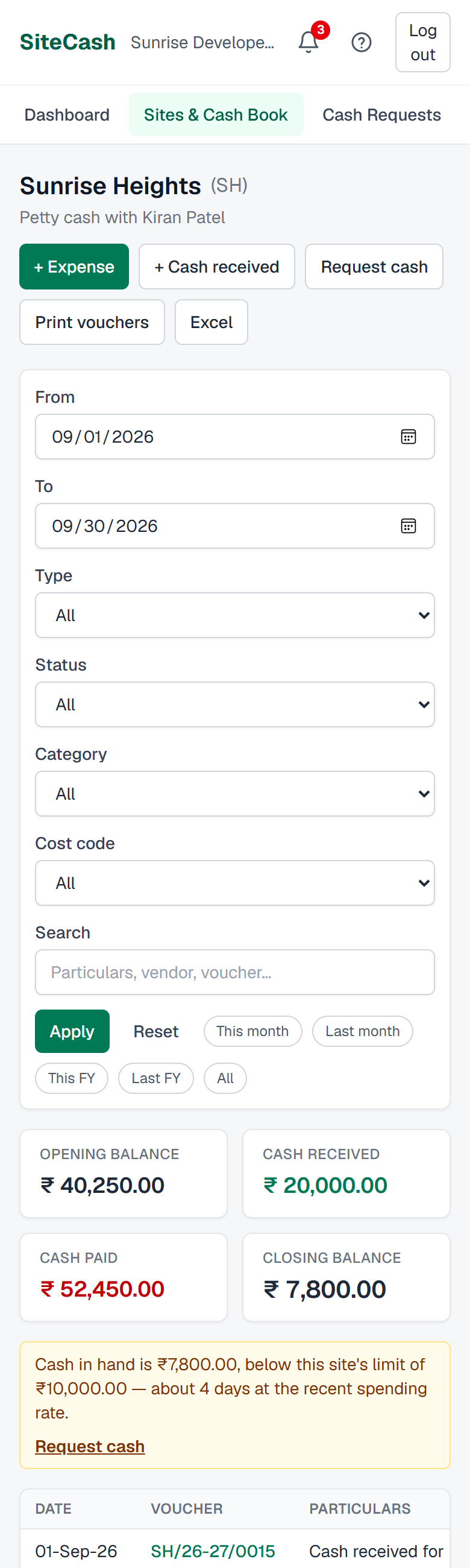
Click a site name to open its cash book. At the top you see the site name and code, and Petty cash with Kiran Patel (the in-charge). Below are the filters, the four balance cards and the list of entries.
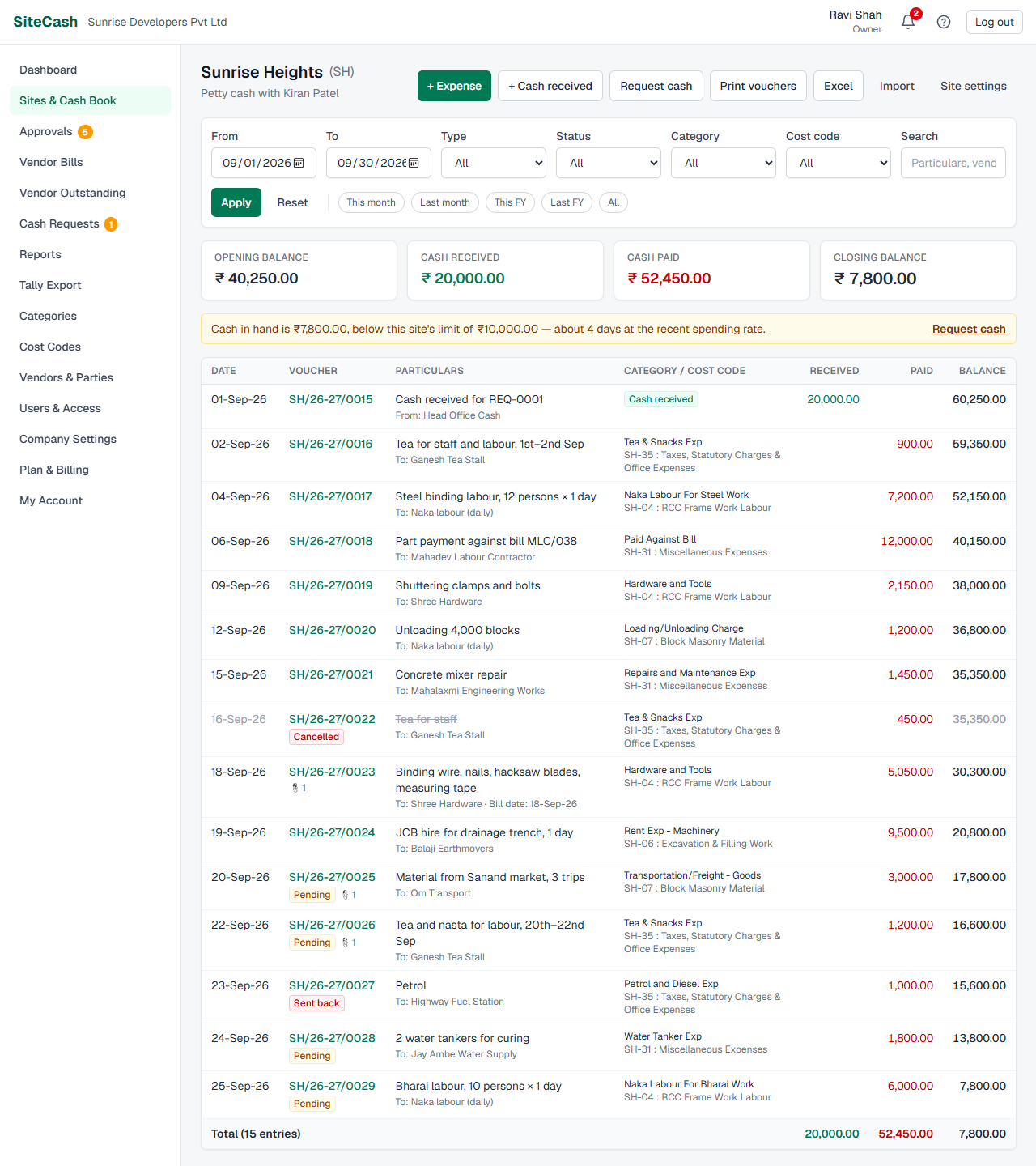
Each row is one voucher, oldest first, with these columns:
| Column | What it shows |
|---|---|
| Date | Entry date, for example 27-Sep-26. |
| Voucher | Voucher number (click it to open the voucher) and its badges. |
| Particulars | What the money was for. Below it in small grey text: To: Shree Hardware (or From: Head Office Cash for cash received), Ref: the person who asked for the expense, the bill date and remarks. |
| Category / Cost code | For an expense: the category and the cost code, for example SH-35 : Taxes, Statutory Charges & Office Expenses. For cash in or out: a green Cash received or Cash returned label. |
| Received | Cash that came into the site (green). |
| Paid | Cash that went out: expenses and cash returned (red). |
| Balance | Cash in hand after this entry. See Running balance. |
The last line shows the totals and the number of entries. After you save an entry, a green message Saved voucher SH/26-27/0042. appears and that row is highlighted.
Date range and quick ranges
The cash book opens on this month: from the 1st of the month to today. To see another period, change From and To and click Apply, or click one of the quick ranges:
| Quick range | Period |
|---|---|
| This month | 1st of this month to today |
| Last month | The whole previous month |
| This FY | 1 April of this financial year to today |
| Last FY | 1 April to 31 March of the previous financial year |
| All | Every entry up to today |
The quick range you are using is shown in green. Reset goes back to this month and clears all filters.
Filters and search
Use the filters to find entries quickly. Choose one or more and click Apply.
| Filter | Choices |
|---|---|
| Type | All, Expenses, Cash received, Cash returned |
| Status | All, Waiting for approval, Sent back, Approved |
| Category | One category, for example Tea & Snacks Exp |
| Cost code | One cost code, for example SH-04 : RCC Frame Work Labour |
| Search | Any word from the particulars, remarks, voucher number, vendor name or "requested by" name. For example type Om Transport or 0042. |
With filters on, the Cash received and Cash paid cards and the totals line add up only the entries you see. Cancelled vouchers are listed but never added to totals.
The four balance cards
| Card | Meaning |
|---|---|
| Opening balance | Cash in hand at the start of the From date: the site's opening balance plus everything before that date. |
| Cash received | Total cash received in the period (green). |
| Cash paid | Total expenses and cash returned in the period (red). |
| Closing balance | Opening balance + cash received − cash paid: cash in hand at the end of the To date. Red when below zero. |
Check: at the end of the day, the Closing balance for "today" should match the cash Kiran Patel actually has in hand. If it does not, an entry is missing or wrong.
Running balance
The Balance column shows the cash in hand after each entry, like the last column of a paper cash book.
When you filter by type, status, category, cost code or search, some entries are hidden, so a running balance would be wrong. SiteCash then hides the Balance column and shows — on the Opening and Closing balance cards, with the note Running balance is hidden while category, cost code, type, status or search filters are applied. Changing only the dates keeps the balance. Click Reset to see it again.
Badges next to a voucher
| Badge | Meaning |
|---|---|
| Pending | Made by a site user and waiting for approval. It already counts in the balance. See Approvals. |
| Sent back | The accountant sent it back with a note. The site user who made it must correct it; saving sends it for approval again. See Editing an entry. |
| Cancelled | The voucher was cancelled. The row is grey and struck through and has no effect on the balance. |
| Tally | Already exported to Tally. It is locked and cannot be edited or cancelled. See Tally export & connector. |
| 📎2 | Number of bill photos or PDFs attached (here 2). |
Negative balance: money owed to the in-charge
If the Closing balance is below zero, the in-charge has paid more than the cash they were given, using their own money. SiteCash shows a yellow message, for example:
Balance is negative: Kiran Patel has spent ₹3,250.00 of their own money and is owed this amount.
This is not an error. Send cash to the site (and record it as + Cash received) to bring the balance back above zero. The message is shown only when no filters are on.
Low balance warning and "Request cash"
If the site has a Low balance alert below amount and the cash in hand drops below it, the cash book shows a yellow warning, for example:
Cash in hand is ₹4,200.00, below this site's limit of ₹5,000.00 — about 3 days at the recent spending rate.
The "days" figure is the cash in hand divided by the average daily spending of the last 30 days. Click Request cash in the warning to ask the office for more cash. See Cash requests.
At the same moment, the site users of that site and all owners, admins and accountants get one alert. They are not alerted again until the balance has gone back up to the limit (after cash is received) and then dropped below it again. See Alerts & notifications.
Troubleshooting
- If you see Code SH is already used by Sunrise Heights. Choose another code. it means another site of your company has that code. Do: pick a different code, for example
SH2. - If you see The code can't be changed because this site already has vouchers numbered SH/… it means vouchers already carry this code. Do: keep the code; you can still change the site name.
- If you see Your … plan includes … active sites. it means you reached your plan's limit. Do: close a finished site or upgrade in Plan & billing.
- If you see No sites and Ask your admin for access to a site. it means you are a site user without any site yet. Do: ask the owner or admin to give you access in Users & Access.
- If the Balance column is missing, it means a filter is on. Do: click Reset.
- If the balance does not match the cash in hand, check entries marked Pending or Sent back (they do count), cancelled vouchers (they do not count), and whether the opening balance is right.
- If you see No entries in this period, do: click All to see every entry, or add the first entry.
- If you cannot see + Add site or Site settings, it means only the owner and admins can manage sites.
- If saving a new site or site settings shows a message that your trial or plan has ended, it means the company is in view-only mode. Do: the owner or an admin chooses a plan in Plan & billing.