Help › Vendor bills & outstanding
Vendor bills & outstanding
Record the bills your vendors and contractors give you, mark what has been paid against each bill (from site petty cash or by the office), and see at a glance how much you owe each vendor and for how long.
Owners, admins and accountants see the Vendor Bills and Vendor Outstanding menus and do everything on this page. Site users do not see these menus; they only pay vendors from site cash and can pick the bill they are paying on the expense form (see Paying from site petty cash).
Why record vendor bills
The cash book shows the cash that went out, but not what you still owe. A supplier like Shree Hardware may give you a bill for ₹1,25,000 and be paid in parts: some cash from the site, some by bank transfer from the head office. With vendor bills in SiteCash you can:
- see for every bill how much is paid and how much is still outstanding;
- see which bills are overdue (past their due date and not fully paid);
- see the total you owe each vendor, and how old the unpaid bills are (ageing);
- give a vendor a statement of account with a running balance;
- keep the bill photo with the bill, so nobody has to search for the paper.
A bill does not change any site's cash balance. Only the payments do: a payment from site petty cash is a normal expense voucher in the cash book, and an office payment does not touch site cash at all.
Adding a bill
- Open Vendor Bills in the menu and click + New bill. (On a vendor's statement you can also click + New bill for this vendor; the vendor is then filled in for you.)
- Fill in the form (see the table below).
- Add the bill photo or PDF if you have it.
- Click Save bill. The bill's page opens with the message "Bill saved."
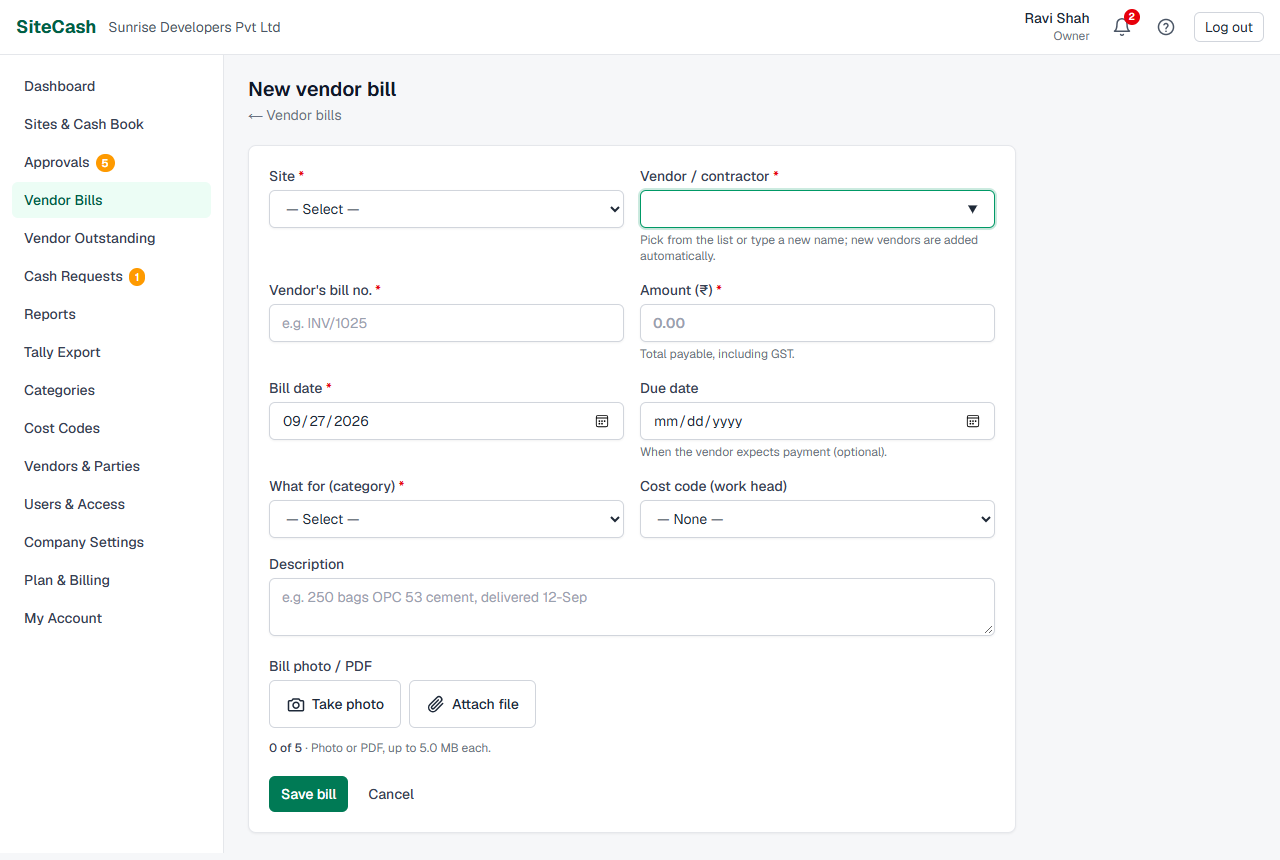
| Field | What to enter |
|---|---|
| Site | The site the bill belongs to, e.g. Sunrise Heights (SH). If you have only one open site it is already chosen. Closed sites show "— closed". |
| Vendor / contractor | Pick from the list or type a new name. A new name is added to your vendors automatically. Up to 150 characters. |
| Vendor's bill no. | The number printed on the vendor's bill, e.g. SHW/1187. Up to 60 characters. |
| Amount (₹) | The total payable, including GST, e.g. 1,25,000. Must be more than 0. |
| Bill date | The date on the bill. It cannot be in the future. |
| Due date | Optional. When the vendor expects payment. It cannot be before the bill date. Without a due date the bill never shows as overdue. |
| What for (category) | What was bought or what work was done, e.g. Cement or Electrical Work. "Paid against bill" categories are not offered here, because they are for payments, not bills. |
| Cost code (work head) | Which work the bill belongs to, e.g. SH-04 : RCC Frame Work. It is filled in from the category's usual cost code; change it if needed. It is required for normal expense categories. |
| Description | Optional. For example "250 bags OPC 53 cement, delivered 12-Sep". Up to 1,000 characters. |
| Bill photo / PDF | Up to 5 files per bill: photos (JPG, PNG, WEBP, HEIC) or PDF. Each file up to 5 MB, and up to 10 MB in one upload. On a phone you can take the photo directly. |
The bills list
Vendor Bills lists your bills, newest bill date first. You only see bills of sites you can access.
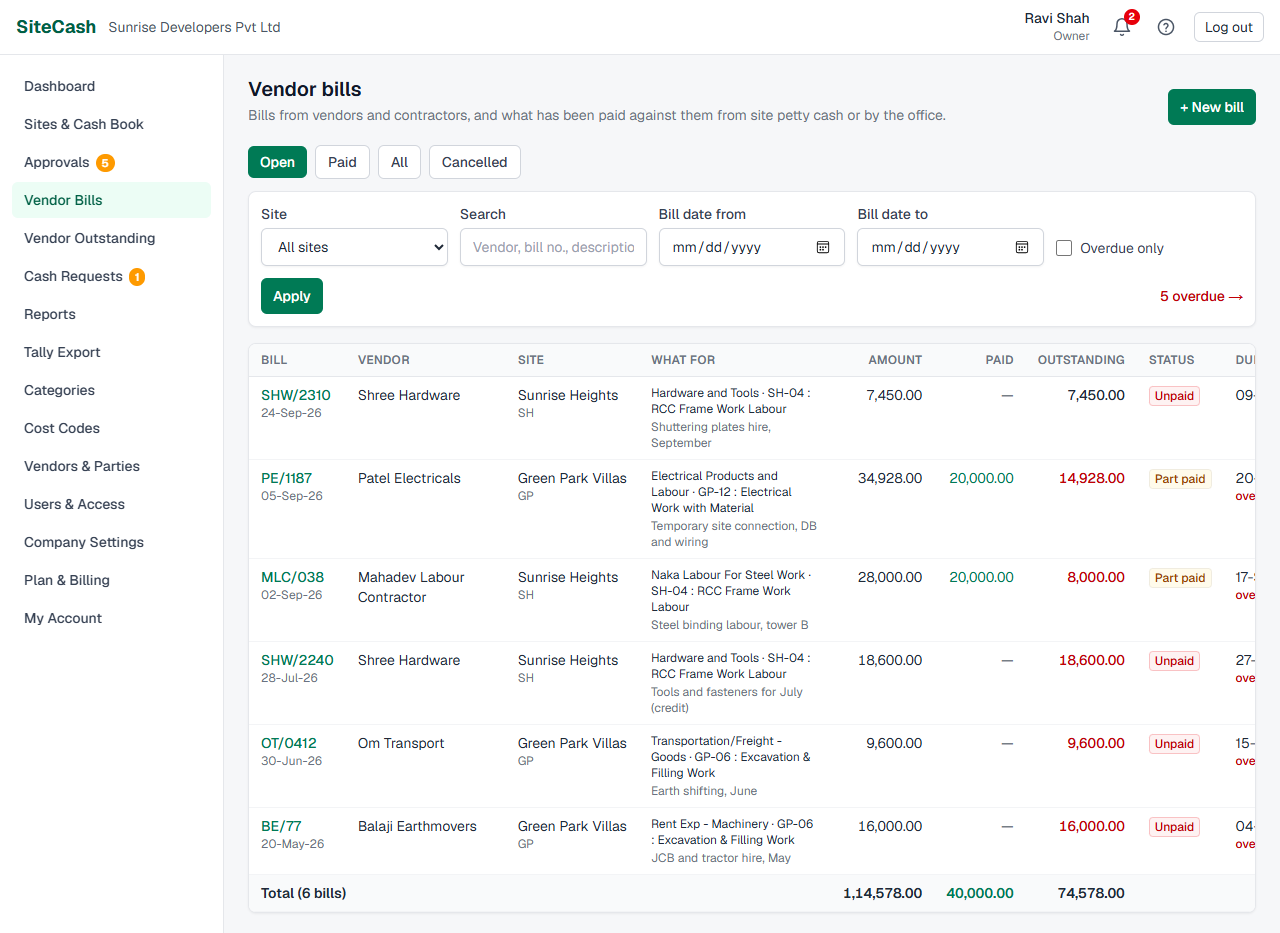
Tabs
| Tab | Shows |
|---|---|
| Open | Bills with something still to pay (Unpaid or Part paid). This tab opens first. |
| Paid | Fully paid bills. |
| All | All bills except cancelled ones. |
| Cancelled | Only cancelled bills (shown struck through). |
Filters
- Site: one site, or "All sites".
- Search: part of the vendor name, bill number or description.
- Bill date from / Bill date to: the bill date range.
- Overdue only: bills past their due date that still have something to pay.
Click Apply. Reset clears the filters. When some bills in the list are overdue, a red link like 3 overdue → shows them. To see one vendor's bills, type the vendor's name in Search, or open the vendor's statement (see Vendor statement).
Columns
Bill (number and bill date), Vendor, Site, What for (category · cost code, and the description), Amount, Paid, Outstanding, Status, Due, and 📎 with the number of bill photos. The last row shows the total of the bills listed. The list shows the latest 1,000 bills; narrow the filters to see older ones.
A bill's page and its status
Click a bill number to open it. At the top you see the bill number, its status and, if it has been sent to Tally, an In Tally badge. The buttons are Vendor ledger (the vendor's statement) and Edit.
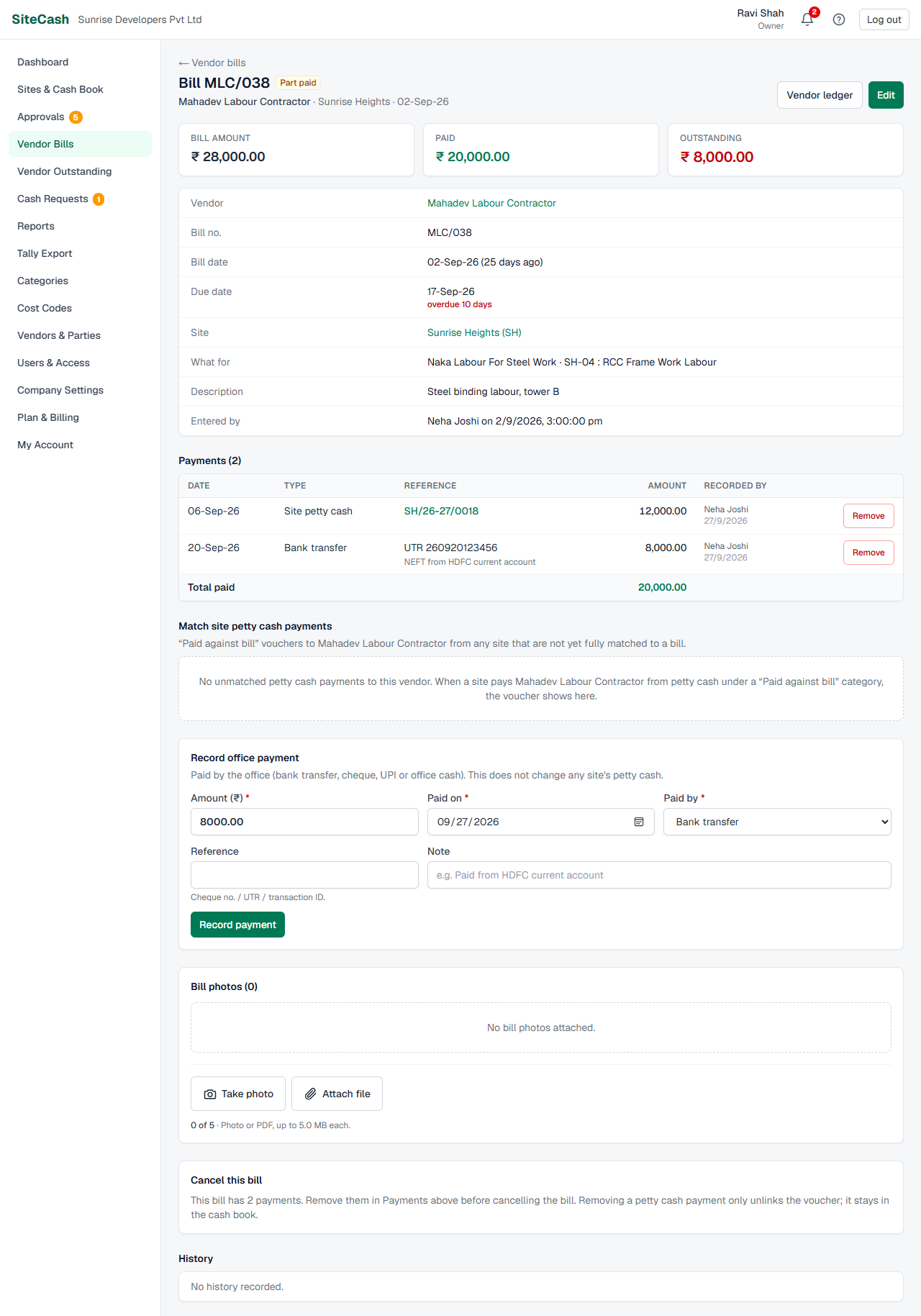
The page has these parts:
- Bill amount, Paid and Outstanding (red when the bill is overdue).
- Details: vendor, bill no., bill date (and how many days ago while unpaid), due date, site, what for, description, and who entered it.
- Payments: every payment against this bill with date, type (Site petty cash, Bank transfer, Cheque, UPI, Office cash), reference, amount and who recorded it.
- Match site petty cash payments and Record office payment: shown only while something is still outstanding.
- Bill photos: view, add or delete files.
- Cancel this bill and History (every change, payment and match, with who did it and when).
Statuses
| Status | Meaning |
|---|---|
| Unpaid | Nothing paid against the bill yet. |
| Part paid | Some amount paid, some still outstanding. |
| Paid | Payments equal the bill amount. Nothing outstanding. |
| Cancelled | The bill was cancelled and no longer counts as payable. |
A bill is paid in two ways, explained next: from site petty cash, or by the office. One bill can have both kinds of payments.
Paying from site petty cash
When the site pays a vendor from petty cash, the site records a normal expense voucher in the cash book with a category of the "Paid against bill" type (in a new company this category is called Paid Against Bill). This reduces the site's cash, like any expense. The payment then needs to be matched to the bill it pays. There are two ways.
A. Choose the bill on the expense form
Site users can do this too, for their own sites.
- In the site's cash book click + Expense (see Entries & bill photos).
- Choose the Paid Against Bill category. The vendor field is now called Vendor (bill paid to).
- Type or pick the vendor, e.g. Shree Hardware. The name must match the vendor the bill was entered for.
- In Against bill, pick the bill. Each choice shows the bill number, bill date and what is still due, for example "SHW/1187 · 02-Sep-26 · ₹1,25,000.00 due". Only open bills of this vendor at this site are listed.
- Enter the amount and save the voucher as usual.
The payment is matched to the bill up to what is still due on it. If you pay more than is due, the extra stays unmatched and shows as an advance with the vendor. If you are not sure which bill it is, leave "— Not matched to a bill yet —"; the accountant can match it later. When no bill is open for this vendor at this site, the box says "No open bills for this vendor at this site. You can match the payment to a bill later."
The voucher's page then shows Vendor bills paid by this voucher, with the bill number and amount, and any part "Not matched yet".
B. Match on the bill's page ("Match site petty cash payments")
Owners, admins and accountants can match payments later, and can split one payment over several bills.
- Open the bill. Under Match site petty cash payments you see the "Paid against bill" vouchers to this vendor, from any site, that are not yet fully matched: voucher (e.g. SH/26-27/0042), site, particulars, and the Unallocated amount.
- In Allocate to this bill, the amount box already holds the smaller of the voucher's unallocated amount and the bill's outstanding. Change it if only part of the voucher belongs to this bill.
- Click Allocate. The message "Petty cash payment matched to this bill." shows and the bill's Paid and Outstanding change.
Splitting a payment over bills: suppose voucher SH/26-27/0042 paid Shree Hardware ₹60,000 for two bills of ₹40,000 and ₹20,000. Open the first bill and allocate 40,000, then open the second bill and allocate the remaining 20,000.
Recording an office payment
Use this when the head office pays the vendor directly, not from site petty cash. It does not change any site's cash balance.
- Open the bill and go to Record office payment.
- Amount (₹): already filled with the outstanding amount. Change it for a part payment. It cannot be more than what is outstanding.
- Paid on: the payment date. It cannot be before the bill date or in the future.
- Paid by: Bank transfer, Cheque, UPI or Office cash.
- Reference: cheque number, UTR or transaction ID. For a Cheque the reference is required ("Enter the cheque number."). For the other ways it is optional, but it helps later.
- Note: optional, e.g. "Paid from HDFC current account".
- Click Record payment. The message "Office payment recorded." shows.
Removing a payment or match
In the bill's Payments table, click Remove next to the payment and confirm.
- Site petty cash payment: only the match is removed ("unlinked"). The voucher stays in the site cash book unchanged, and its amount shows again as unallocated with the vendor. You can match it to the right bill afterwards.
- Office payment: the payment is deleted from the bill. This cannot be undone; record it again if needed.
Editing and cancelling a bill
Editing
Click Edit on the bill, change the fields and click Save changes. Every change is written to the bill's History (old value → new value). These rules apply:
- The amount cannot be less than what is already paid: "₹… is already paid against this bill, so the amount cannot be less than that. Remove payments first."
- The vendor cannot be changed while site petty cash payments are matched to the bill. Remove those matches first.
- The bill date cannot be later than an office payment already recorded on it.
- The duplicate bill number check applies again.
- Bill photos already attached are managed on the bill page; the edit form only adds new ones.
Cancelling
Cancel a bill that was entered by mistake or twice. Bills are never deleted.
- If the bill has payments, remove them first (see above). A bill with payments cannot be cancelled: "This bill has 2 payments. Remove them first, then cancel the bill."
- Under Cancel this bill, type the reason (for example "entered twice", at least 3 characters).
- Click Cancel bill and confirm.
The bill stays listed under the Cancelled tab with the reason, and no longer counts as payable anywhere. You can still enter a new bill with the same number.
Locked after Tally export
Once a bill has been sent to Tally it shows "Locked: already exported to Tally." It can no longer be edited or cancelled, and its photos cannot be deleted. You can still record payments against it and add photos.
Vendor Outstanding
Vendor Outstanding shows, for every vendor, what was billed, what was paid and what you still owe, with the age of the unpaid bills. It is worked out as on today.
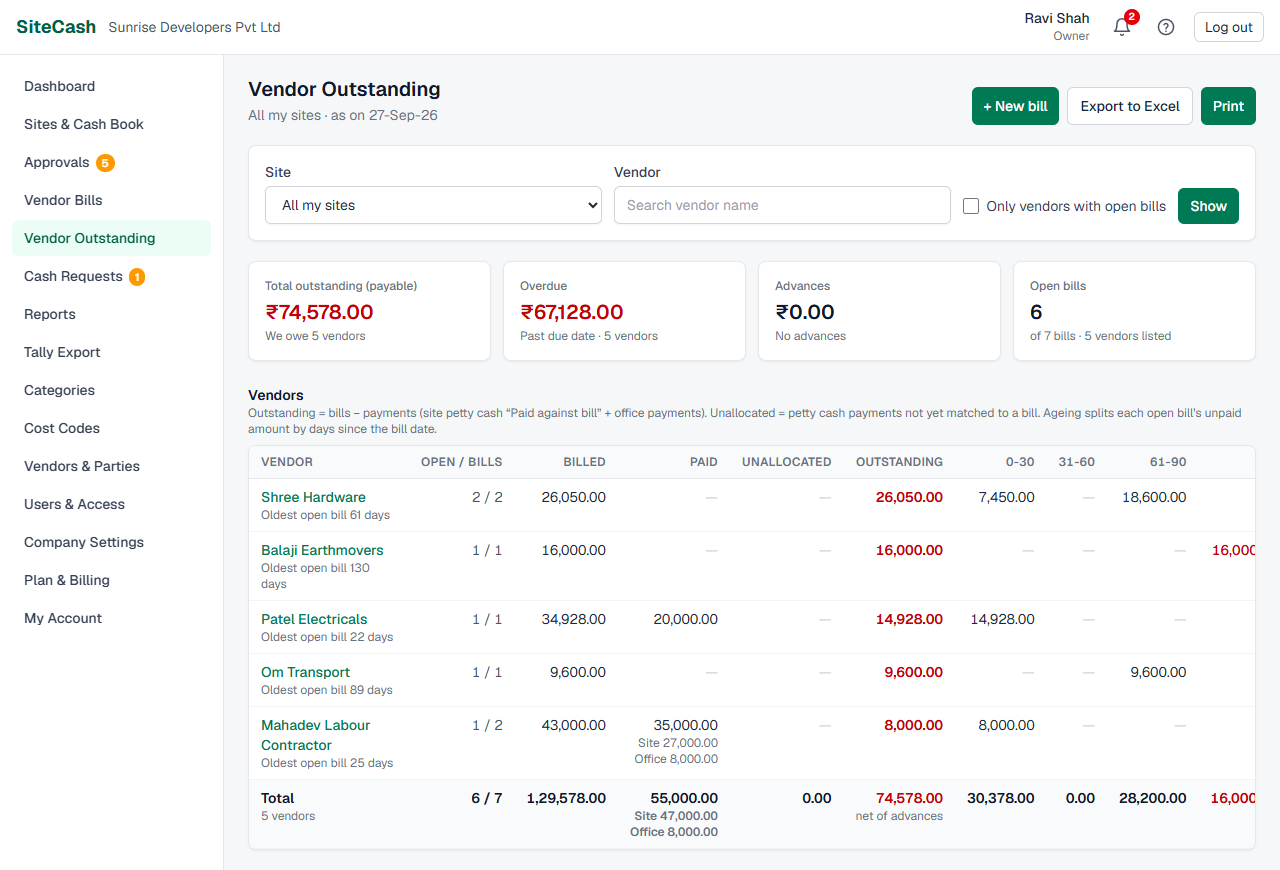
Filters
Site ("All my sites" or one site), Vendor (search by name) and the tick box Only vendors with open bills (hides vendors who have no bill left to pay). Click Show; Clear removes the filters.
Summary cards
- Total outstanding (payable): the total you owe, and to how many vendors.
- Overdue: unpaid amount of bills past their due date.
- Advances: money paid to vendors ahead of their bills.
- Open bills: how many bills still have something to pay.
What each column means
| Column | Meaning |
|---|---|
| Vendor | Click the name for the vendor statement. Below the name: "Oldest open bill 45 days", or "No bills recorded". |
| Open / bills | Open bills out of all bills, e.g. 2 / 5. |
| Billed | Total of the vendor's bills (cancelled bills not counted). |
| Paid | All site petty cash "Paid against bill" payments to the vendor (matched or not) plus office payments. When both kinds exist, the split "Site … / Office …" is shown. |
| Unallocated | Site petty cash payments not yet matched to a bill. |
| Outstanding | Billed − Paid. In red when you owe money; in green as "Advance ₹…" when you paid more than was billed; "Nil" when settled. |
| 0-30, 31-60, 61-90, 90+ | Ageing: each open bill's unpaid amount, placed by days since the bill date. The 90+ column is red. |
| Overdue | Unpaid amount of open bills whose due date has passed. |
The Total row adds up the vendors shown; its Outstanding is "net of advances" (what you owe minus advances).
Owners, admins and accountants also see a Vendor bills outstanding card on the dashboard (with Overdue and Due in 7 days) while any bill is open. Click it to open Vendor Outstanding.
Why imported vendors show advances
If you imported your old Excel cash book (see Importing an old Excel petty cash book), all the old "Paid Against Bill" payments came in, but the bills themselves did not. For such a vendor SiteCash sees payments but no bills, so the whole amount shows as an Advance. The page then shows a note like "3 vendors have payments but no bills recorded yet (for example, cash book data imported from Excel), so they show as an advance. Record their bills to see what is really outstanding."
To fix it, enter the vendor's bills with + New bill, then match the old payments to them on each bill's page. Until you do, the advance is not a real advance; it only means the bills are missing.
Vendor statement
Click a vendor's name on Vendor Outstanding (or Vendor ledger on a bill) to open the vendor's statement of account. The top shows the vendor's name, type (for example "Vendor / supplier" or "Labour contractor"), phone and GSTIN if saved.
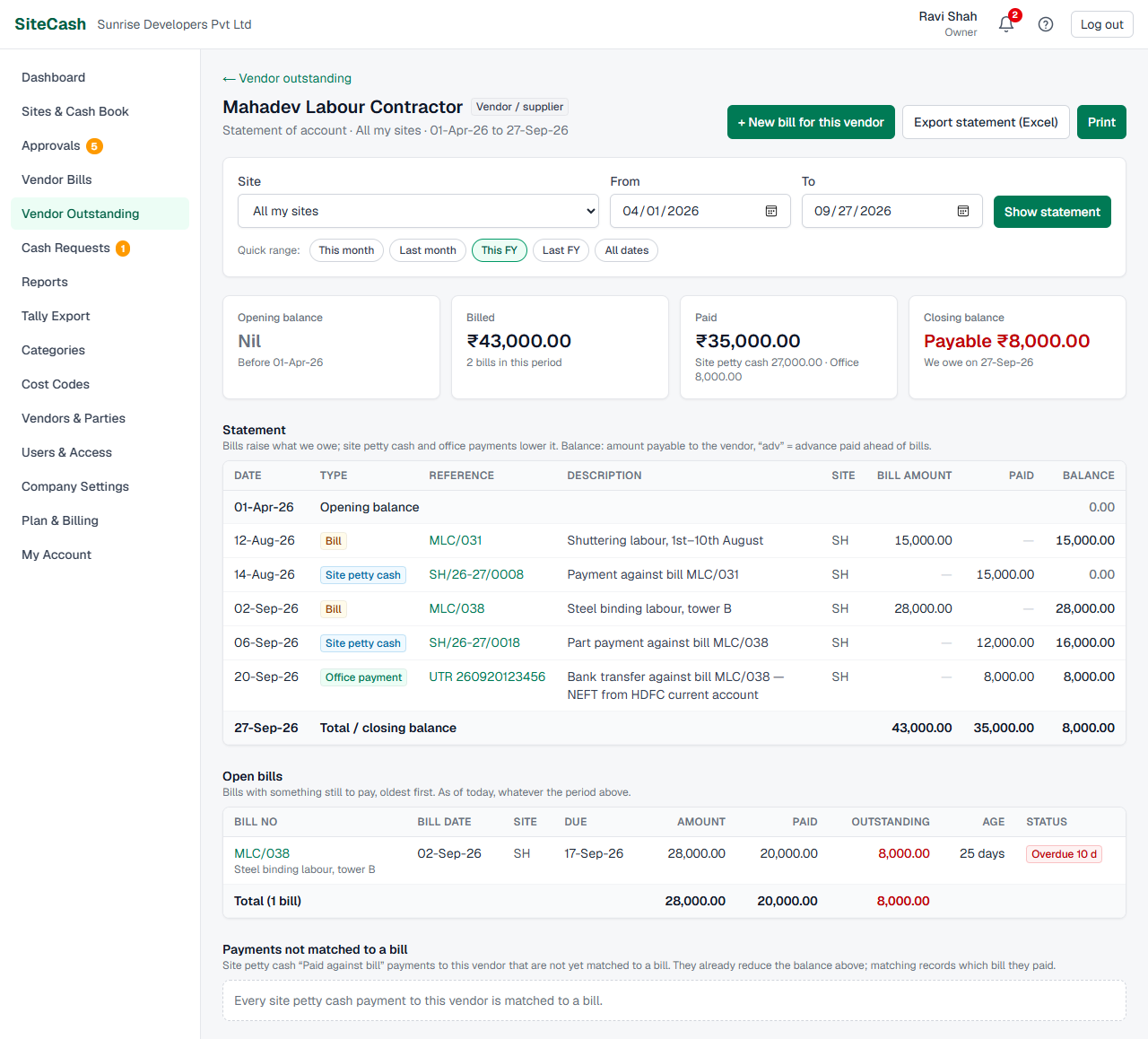
- Choose the Site ("All my sites" or one site) and the From and To dates, then click Show statement. Or click a Quick range: This month, Last month, This FY, Last FY, All dates. It opens on this financial year to date.
- Read the four cards: Opening balance (before the From date), Billed (bills in the period), Paid (split into site petty cash and office) and Closing balance ("Payable ₹…", "Advance ₹…" or "Nil").
The statement table
One line per bill or payment, oldest first, with Date, Type (Bill, Site petty cash or Office payment), Reference (bill no., voucher no. or payment reference, each a link), Description, Site, Bill amount, Paid and Balance. Bills raise the balance (you owe more), payments lower it. The Balance is the running amount payable to the vendor; "adv" after an amount means an advance. On the same day, bills come before payments.
Below the statement you see:
- Open bills: bills still to pay, oldest first, with age in days and status (a red "Overdue 12 d" when past due). This list is as of today, whatever period you chose.
- Payments not matched to a bill: site petty cash payments to this vendor not yet matched. They already reduce the balance; matching them only records which bill they paid. Match them from the bill page.
Excel exports and printing
| Where | Button | What you get |
|---|---|---|
| Vendor Outstanding | Export to Excel | A file with two sheets. Vendor Outstanding: Vendor, Open Bills, Bills, Billed, Paid (Site Petty Cash), Paid (Office), Total Paid, Unallocated, Outstanding, 0-30 / 31-60 / 61-90 / 90+ days, Overdue, Oldest Open Bill (days), Last Activity, with totals and the payable / advances / overdue summary. Open bills: every open bill with vendor, site, bill no, dates, amount, paid, outstanding, age and overdue days. The file follows the same site, vendor search and "only open bills" filter as the screen. |
| Vendor statement | Export statement (Excel) | One sheet Statement for the chosen site and period: opening balance, each bill and payment, running balance, totals and a closing line such as "Closing balance: ₹50,000.00 payable to Shree Hardware." You can send it to the vendor. |
Both pages also have a Print button. The printout leaves out the filters and buttons and shows your company name, the print date and who printed it.
Vendor bills in Tally
Sending bills to Tally is optional. An owner or admin turns it on in Company Settings with Also export vendor bills to Tally (see Users, access & settings).
- When it is on, bills are included in the Tally export of their site and period (by bill date) as journal vouchers: expense Dr, vendor Cr, with the bill number as a bill-wise "New Ref". The voucher type is set in Voucher type for vendor bills (usually "Journal").
- Site petty cash payments matched to a bill that is in Tally carry "Agst Ref" to that bill, so Tally's vendor outstanding matches SiteCash.
- Once exported, a bill is locked (see above).
- Office payments recorded on a bill are not sent to Tally by SiteCash. Enter them in Tally as you do today.
More on exporting in Tally export & connector.
Troubleshooting
- If you see "Bill … from … is already entered", it means the same vendor already has a bill with that number. Do: click Open that bill and check it. If it was a mistake, cancel the wrong one.
- If you see "Choose the cost code (which work is this bill for?)", it means the category is a normal expense category. Do: pick the cost code (work head).
- If you see ""Paid Against Bill" is for payments. Choose what the bill is for…", it means you picked a payment category for a bill. Do: choose what was bought or done, e.g. Cement.
- If the Against bill box on the expense form is empty, it means the vendor has no open bill at this site, or the name typed does not match the vendor on the bill. Do: pick the vendor from the list, or save without a bill and match it later on the bill page.
- If a payment does not appear under "Match site petty cash payments", it means it was entered under a normal category (not Paid Against Bill), to a different vendor name, is cancelled, or is already fully matched. Do: open the voucher and check its category and vendor.
- If you see "₹… is already paid against this bill, so the amount cannot be less than that", it means you are lowering a bill below its payments. Do: remove or reduce the payments first.
- If you see "This bill has 1 payment. Remove it first, then cancel the bill.", do: remove the payment in the Payments table, then cancel.
- If the Edit button is missing, it means the bill is cancelled or already exported to Tally ("Locked: already exported to Tally.").
- If a vendor shows a big Advance, it means payments were recorded but bills were not (common after an Excel import). Do: enter the bills (see above).
- If you cannot see Vendor Bills in the menu, it means you are a site user. Ask the owner, an admin or the accountant.
- If saving, cancelling, matching or recording a payment shows a message that your trial or plan has ended (or deleting a bill photo takes you to Plan & Billing), it means the company is in view-only mode. You can still open bills, and print or export Vendor Outstanding and vendor statements. Do: ask the owner or an admin to choose a plan (see View-only mode).