Help › Approvals
Approvals
Entries made at the site are checked in the office before they go to the accounts. The accountant approves each entry, or sends it back to the site with a note saying what to correct.
Why approvals exist
Site cash is spent far from the office. The site user writes down every payment, but small mistakes happen: the wrong cost code, a typing mistake in the amount, a missing bill photo. If nobody checks, these mistakes go straight into your accounts and into Tally.
Approval gives every entry a second pair of eyes. The accountant looks at the entry and its bill photo while the payment is still fresh. If something is wrong, the entry goes back to the site with a note, and the person who spent the cash corrects it. Your books stay clean, and the site user learns what the office needs.
Which entries need approval
This depends on one company rule: Site user entries need approval. You find it in Company Settings, in the Site users box. Only an Owner or Admin can change it. It is on for new companies.
| Who made the entry | Rule is on | Rule is off |
|---|---|---|
| Site user (for example Kiran Patel) | Starts as Waiting for approval | Approved automatically |
| Owner, Admin or Accountant | Approved automatically | Approved automatically |
The rule covers every kind of entry a site user makes: expenses, cash received and cash returned.
See Users, access & settings for the other company rules, such as the edit window and the bill photo limit.
The life of an entry
Here is what happens to an expense that Kiran Patel adds at Sunrise Heights, when approval is on.
| Step | What happens | Status after this step | Who acts next |
|---|---|---|---|
| 1 | Kiran saves an expense of ₹2,450 paid to Shree Hardware. It gets voucher number SH/26-27/0042. | Waiting for approval | Neha Joshi (accountant) |
| 2a | Neha checks it and clicks Approve. | Approved | Nobody. The entry is finished and can go to Tally. |
| 2b | Neha finds a problem, clicks Reject, writes a note and clicks Send back. | Sent back | Kiran |
| 3 | Kiran corrects the entry as the note says and clicks Save. | Waiting for approval again | Neha. Go back to step 2. |
In short:
- Waiting for approval → Approve → Approved
- Waiting for approval → Send back → Sent back → corrected and saved → Waiting for approval
The Approvals page
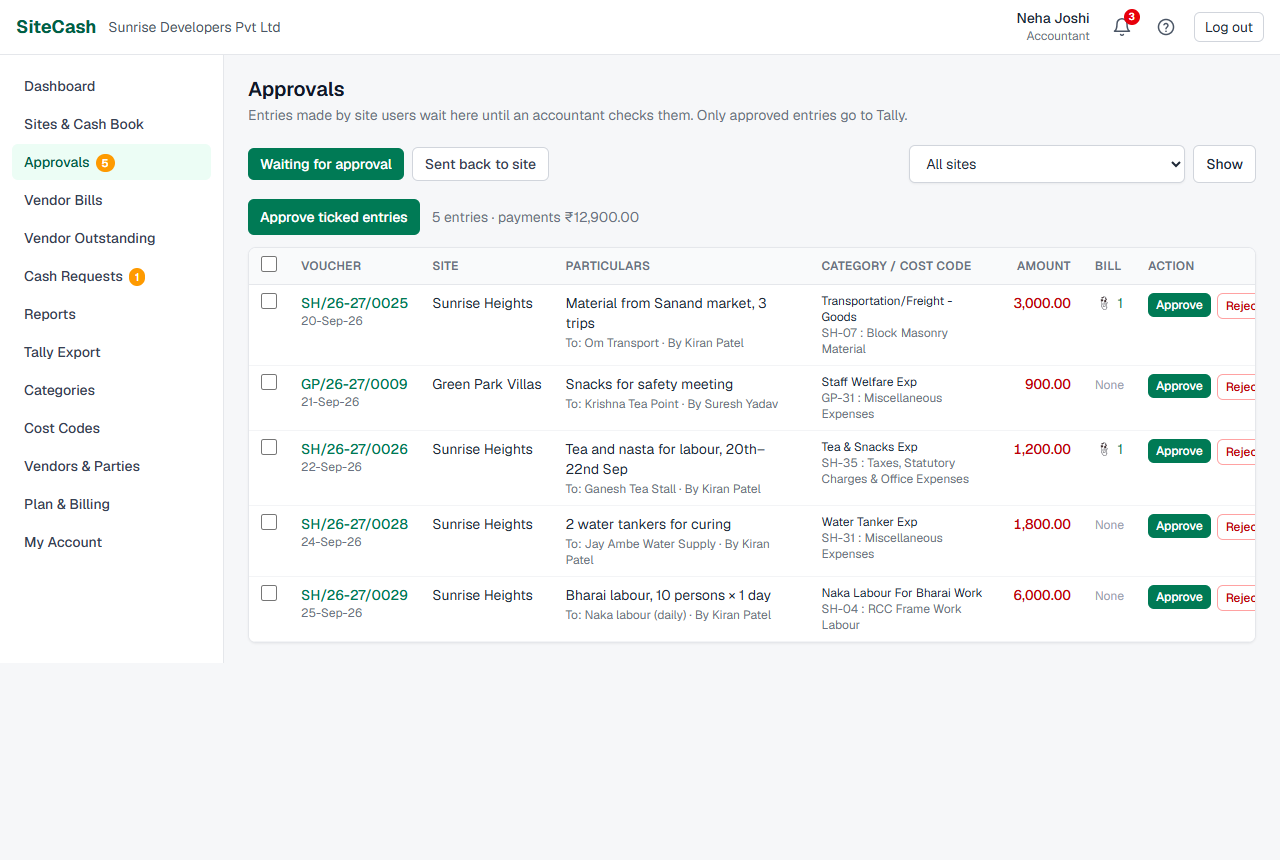
Owners, Admins and Accountants have Approvals in the menu. The number next to it shows how many entries are waiting. The dashboard also shows a yellow line such as “4 entries are waiting for your approval.” with a Review now link.
Tabs and site filter
- Waiting for approval — entries you still have to check.
- Sent back to site — entries you sent back that the site has not corrected yet. The last column shows your note, who sent it back and when.
- To see one site only, choose it in the list on the right (for example “Sunrise Heights (SH) · 3 pending”) and click Show. Choose All sites to see everything again.
What each row shows
| Column | What you see |
|---|---|
| Voucher | The voucher number and date. Click the number to open the voucher page. |
| Site | The site name. |
| Particulars | What the money was for. Below it: who was paid (“To: Shree Hardware”), the reference (“Ref: …”) and who made the entry (“By Kiran Patel”). If the entry was sent back before, you also see “Resubmitted after: …” with your earlier note. |
| Category / Cost code | For expenses, the category and the cost code, for example SH-04 with its name. Cash received and cash returned show a green label instead. |
| Amount | Payments in red, cash received in green. |
| Bill | 📎 with the number of bill photos. Click it to open the voucher and see them. None means no photo is attached. |
| Action | Approve and Reject. |
The oldest entries are at the top. Above the list you see how many entries are waiting and the total of the payments, for example “12 entries · payments ₹38,640.00”.
What to check
Before you approve, open the bill photo (📎) and compare it with the entry:
- Amount — is it the same as on the bill?
- Paid to — is the vendor right? For example Shree Hardware, not Patel Electricals.
- Category — does it match what was bought?
- Cost code — is it charged to the right work? This decides which cost centre the expense goes to in Tally.
- Date — is it the date the cash was paid?
- Bill photo — is there one, and can you read it? Is the bill number filled in when there is one?
- Particulars — would someone reading the voucher next year understand what this was for?
- Duplicates — is the same bill entered twice?
Approve entries
Approve one entry
- Open Approvals. You are on the Waiting for approval tab.
- Check the entry (see What to check).
- Click Approve on its row. A green message says “Approved 1 entry.” and the row leaves the list.
Approve several entries at once
- Tick the box at the start of each entry you have checked. To tick every entry on the page, tick the box in the header row.
- Click Approve ticked entries above the list.
- A green message says how many entries were approved, for example “Approved 5 entries.”
Send an entry back
Send an entry back when the site user must correct it, for example when the photo is missing or the amount does not match the bill.
- Click Reject on the entry's row (or on the voucher page).
- A box opens: “What should the site correct?”. Write a short, clear note, for example “Bill photo not clear, please take it again” or “Amount on bill is ₹2,540, not ₹2,450”.
- Click Send back. (Click Cancel if you change your mind.)
- A yellow message confirms: “SH/26-27/0042 was sent back to the site with your note.” The entry moves to the Sent back to site tab.
The site user who made the entry gets an alert with your note, and sees the entry on their dashboard. See Site users: correct a sent-back entry.
Approve from the voucher page
You can also approve an entry while looking at its full details and bill photos. Click the voucher number anywhere (Approvals, the cash book, the dashboard or an alert) to open the voucher page.
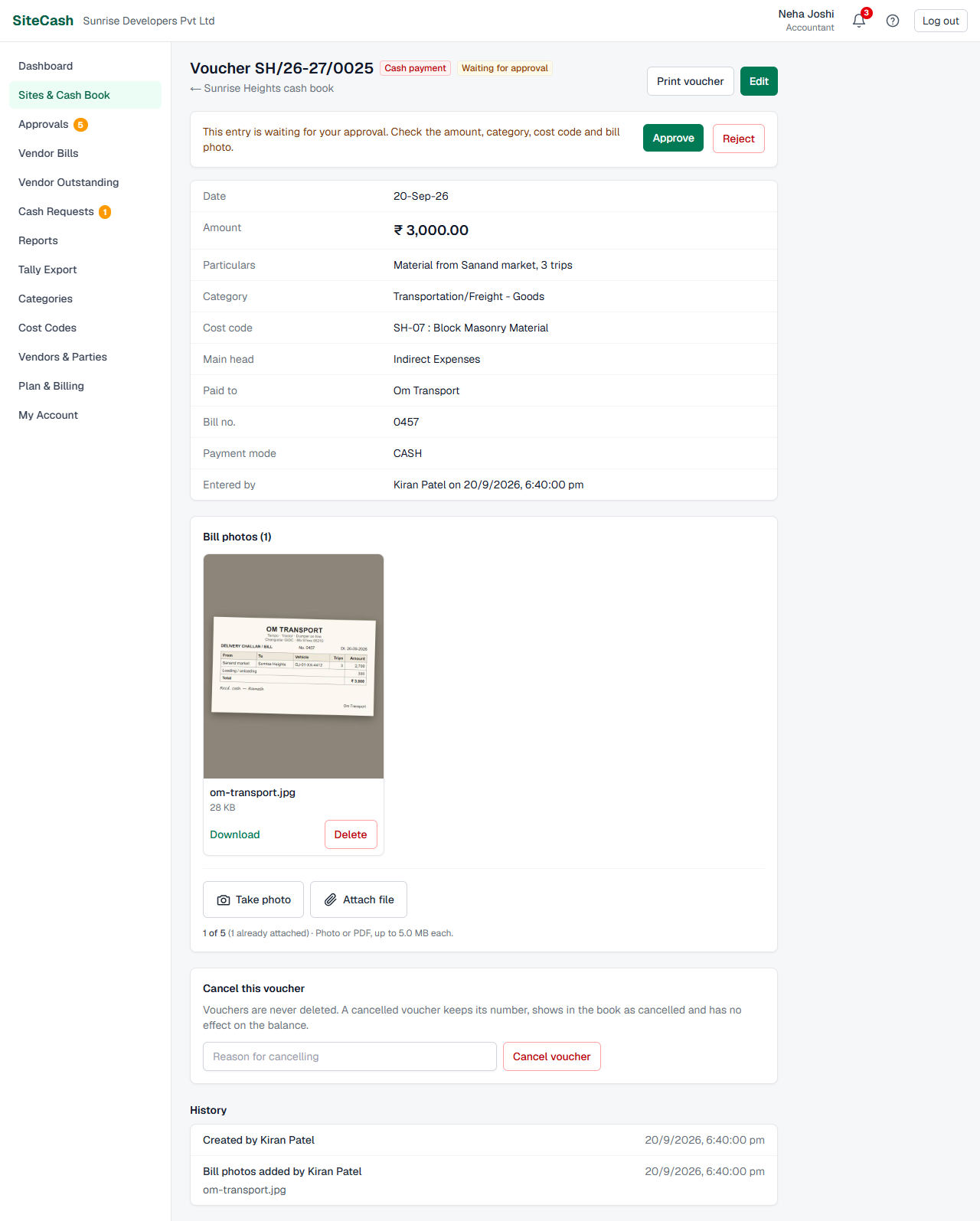
- If the entry is waiting, a yellow panel says “This entry is waiting for your approval. Check the amount, category, cost code and bill photo.” with Approve and Reject.
- If the entry was sent back, the panel says “This entry was sent back to the site.” and shows only Approve. Use it when the site does not need to change anything after all, for example when Kiran explained the bill on the phone.
- The Bill photos box shows every photo or PDF. Click one to see it large.
- The History at the bottom lists every step: “Created”, “Sent back” with the note, “Edited” with what changed, and “Approved”, each with the person's name and time.
Site users: correct a sent-back entry
When the accountant sends back one of your entries, you get an alert, and your dashboard shows a red list: Sent back to you: please correct these. It lists only entries you made yourself. Each line has the voucher number, site, date, amount and the accountant's note in red, with a Correct button.
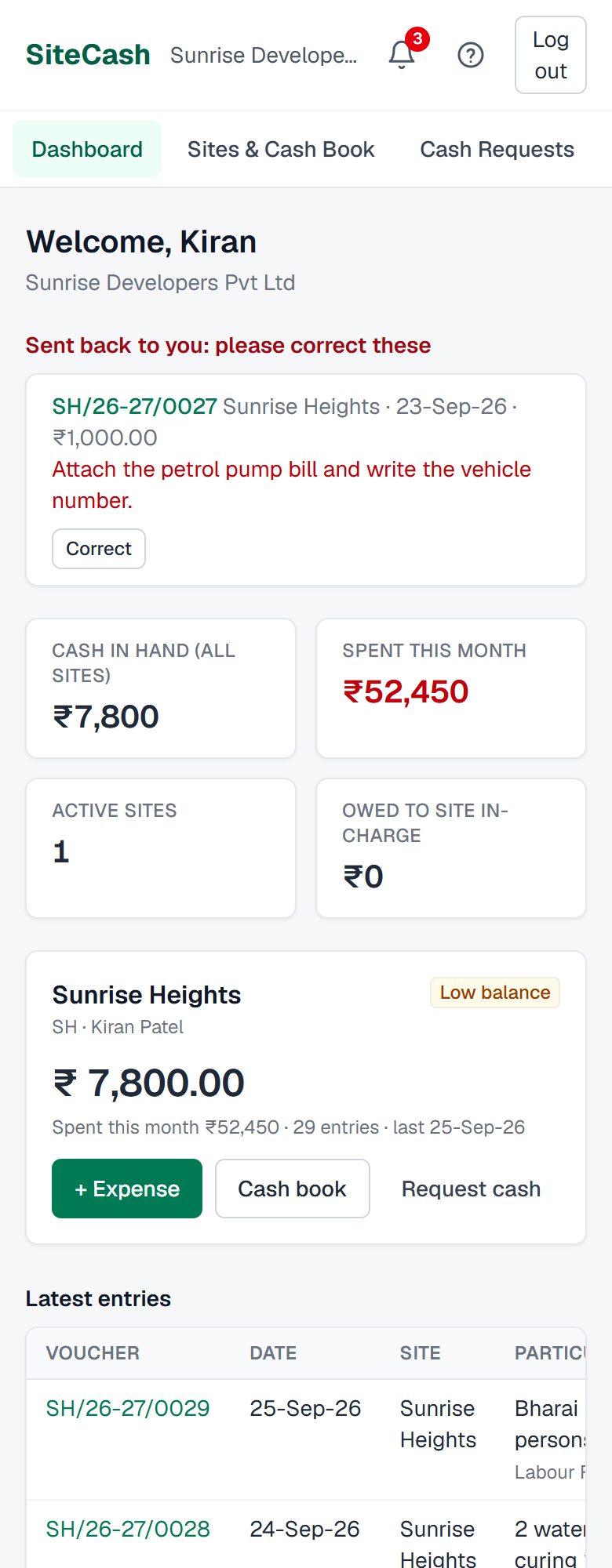
- Read the note. It tells you what to fix.
- Tap Correct. The entry opens for editing. (You can also open the voucher and tap Edit. The voucher page repeats the note: “Sent back by Neha Joshi: … — correct it with Edit; saving sends it for approval again.”)
- Change what the note asks for: the amount, category, cost code, particulars or bill number. If a new bill photo is needed, use Take photo or Attach file.
- Tap Save. The entry is Waiting for approval again and leaves your “Sent back” list.
The accountant sees your corrected entry in Approvals, with their earlier note shown as “Resubmitted after: …”.
Changing your own entry before it is approved
While your entry is still waiting, you can edit it within the company's edit window (7 days unless your company changed it). It stays waiting. Once the accountant has approved it, you can no longer change it (“Locked: already approved.”).
You can edit or cancel only entries you made yourself. An entry someone else made for your site, for example Cash received that the office recorded, shows “Locked: only the office can change entries made by someone else.”
What approval changes
| Where | Before approval | After approval |
|---|---|---|
| Editing by the site user | Allowed for their own entries, within the edit window (any time if sent back) | Locked. The voucher page says “Locked: already approved.” and there is no Edit button and no cancel box. |
| Editing by Owner, Admin, Accountant | Allowed | Still allowed, until the entry is exported to Tally |
| Voucher page | Waiting for approval or Sent back next to the voucher number | An Approved by line with the name, date and time, for example “Neha Joshi on 27/9/2026, 11:05:12 am” |
| Printed voucher | “Awaiting approval” or “Sent back for correction” printed at the top; the Approved by box is empty | The approver's name is printed in the Approved by box |
| Tally | Not exported | Exported with the next Tally export |
| Cash balance | Counted | Counted |
Only approved entries go to Tally
The Tally export skips entries that are waiting or sent back. When some entries in the chosen period are not approved, the Tally Export page warns you, for example “3 entries in this period are not approved yet and will not be exported.”, with an Open approvals link. Approve them first, then export. See Tally export & connector.
Why waiting entries still count in the cash balance
The balance in SiteCash must match the cash in the site's cash box. When Kiran pays ₹2,450 to Shree Hardware, that cash has left his hands, whether or not the office has checked the entry yet. So the entry reduces the balance straight away, also while it is waiting or sent back. It stops counting only if the voucher is cancelled.
For the same reason, waiting entries count in the spending figures used for cash requests.
Alerts about approvals
- Entry sent back — the site user who made the entry gets an alert such as “SH/26-27/0042 sent back: Bill photo not clear”. The message names the accountant, the amount and the site, and ends with “Correct it and save to resubmit.” Opening it takes them straight to the entry's edit form.
- Daily summary — if your SiteCash sends daily reminders, each morning Owners, Admins and Accountants get a summary that includes the number of entries waiting for approval, and each site user with uncorrected entries gets “Reminder: 2 entries sent back to you”.
- There is no alert when an entry is approved, and no instant alert for each new waiting entry. Approvers see the number next to Approvals in the menu and the line on the dashboard.
Alerts always appear under the bell in SiteCash. Each person can also get them by email or WhatsApp. See Alerts & notifications.
Troubleshooting
- If you see “Tell the site user what to correct.” it means the note is empty or too short. Write at least a few words and click Send back again.
- If you see “This entry is no longer waiting for approval.” it means someone else approved it or sent it back a moment ago, or the voucher was cancelled. Reload the page to see its current status.
- If an entry is missing from Approvals, check the other tab, and check that the site filter says All sites. Cancelled vouchers never appear here. Only the oldest 500 entries are shown at a time: approve those to see more.
- If a site user's new entries are approved without you seeing them, the rule Site user entries need approval is switched off. The Approvals page then says “Approval is switched off in Company Settings, so new entries are approved automatically.” Ask an Owner or Admin to switch it on.
- If a site user sees “Locked: already approved.” the entry is approved and only the office can change it. Tell the accountant what is wrong; they can edit it until it is exported to Tally.
- If a site user sees “Locked: only the office can change entries made by someone else.” someone else made the entry, for example the office recorded cash received for the site. Tell the accountant what is wrong; they can edit it.
- If you see “Locked: already exported to Tally.” the entry is in Tally and nobody can change it in SiteCash. Correct it in Tally.
- If a site user cannot save a correction because of the date (the date box refuses the date, or “Site users can only enter dates from 20-Sep-26 onwards. Ask your accountant for older entries.”), the date was changed to one earlier than the company's back-dating limit. A corrected entry may keep its own saved date, even an old one, but cannot be moved earlier. Put back the saved date or choose a date from the one shown onwards. If the date itself must go further back, ask the accountant to change it.
- If Approve takes you to the Plan & Billing page, or Send back shows a message that the trial or plan has ended, your company is in view-only mode and entries cannot be approved or sent back. See View-only mode.
- If the Approvals menu is missing, you are a site user. Only Owners, Admins and Accountants can approve.