Help › Platform admin
Platform admin
The console for the people who run SiteCash itself: every builder company that has signed up, their trials, plans and payments, the price plans on sale, and the payment notifications from Razorpay.
Who can open it
Access is not a role inside a company. It is given to login emails in the server setting PLATFORM_ADMIN_EMAILS (several emails separated by commas), which the operator sets when SiteCash is installed (see the deployment guide, "First platform admin").
- Sign up on SiteCash with your own email. This also creates a company for you, for example "SiteCash HQ".
- Ask whoever runs the server to add that email to
PLATFORM_ADMIN_EMAILSand restart SiteCash. - Log in again. The menu now shows Platform admin at the bottom.
The console has a dark top bar with Overview, Companies, Plans and Billing events. Back to my company returns you to your normal SiteCash screens. Anyone whose email is not on the list gets a "page not found" screen at this address.
Overview
The first page gives the health of the business at a glance. All times are India time.
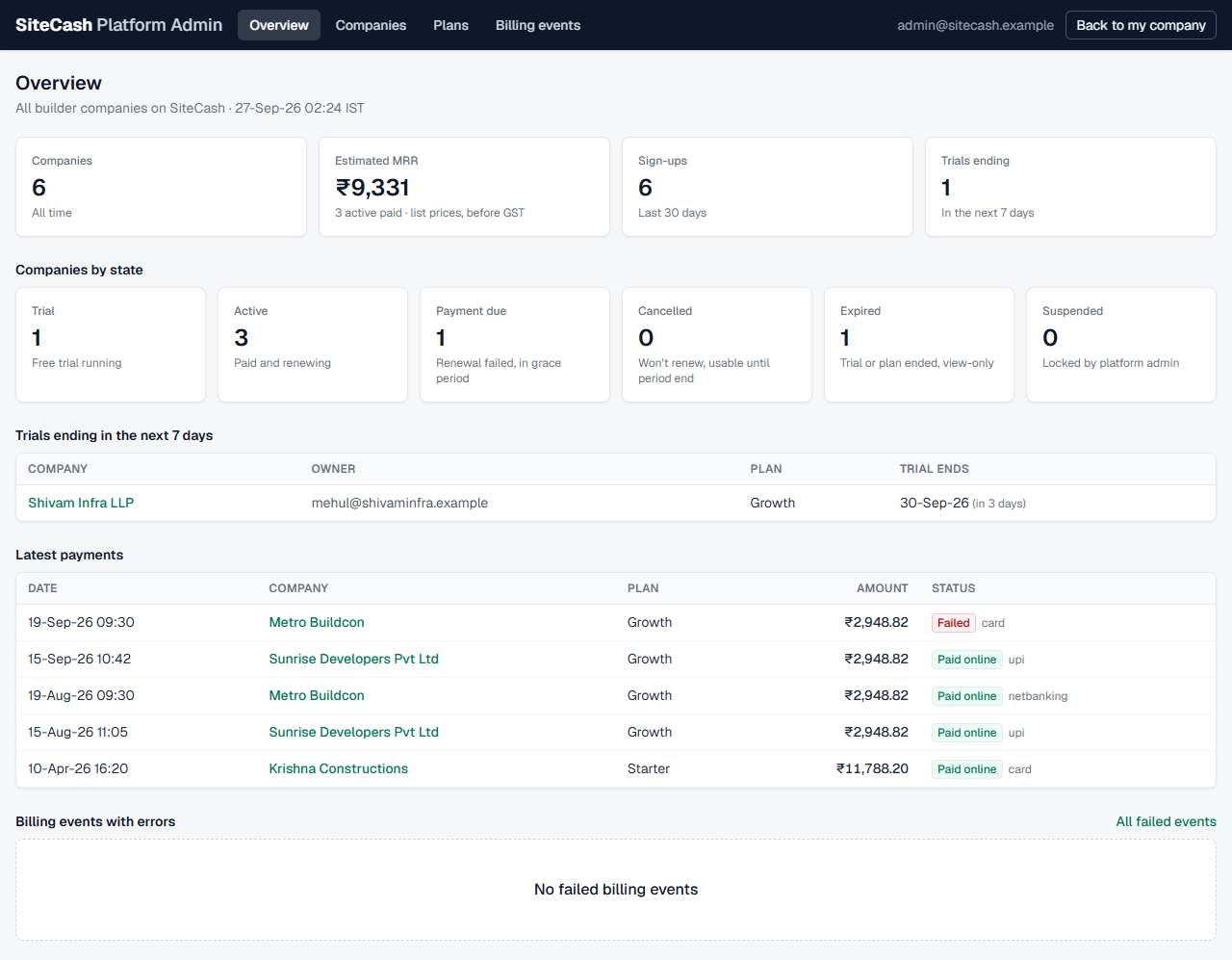
| Tile or table | What it shows |
|---|---|
| Companies | All builder companies ever created. Click to open the list. |
| Estimated MRR | Monthly recurring revenue: the sum of today's list prices (before GST) for companies in the Active state. A yearly plan counts as its yearly price ÷ 12. Offline-paid companies are included; trials, cancelled and payment-due companies are not. It is an estimate: companies still paying an older Razorpay price are counted at today's price. |
| Sign-ups | Companies created in the last 30 days. |
| Trials ending | Trials that end in the next 7 days. |
| Companies by state | One tile per state with a count. Click a tile to see those companies. |
| Trials ending in the next 7 days | Company, owner emails, plan and trial end ("in 3 days"). Use it to call or email owners before they become view-only. |
| Latest payments | The last 10 payments of all companies: Paid online, Offline or Failed. |
| Billing events with errors | The last 10 Razorpay notifications that could not be applied (yet), with All failed events. This should normally be empty; Razorpay's retries usually clear an error by themselves. See Billing events. |
Company states
The console sums up each company's subscription in one word. It follows the same rules that decide what the builder sees.
| State | Meaning | Builder can add entries? |
|---|---|---|
| Trial | Free trial running. | Yes |
| Active | Paid and renewing (online or offline). | Yes |
| Payment due | Renewal failed, still inside the 7-day grace period. | Yes |
| Cancelled | Won't renew, usable until the paid-until date. | Yes |
| Expired | Trial or plan ended, or a grace period ran out: view-only. | No |
| Suspended | Locked by a platform admin. | No |
| Not started | No subscription yet (rare: very old companies). A Growth trial starts the next time someone from the company opens SiteCash. | — |
Companies list and search
Open Companies. The newest companies are at the top.
- Type part of a company name or an owner's email in Company name or owner email.
- Optionally pick a state (All states, Trial, Active, Payment due, Cancelled, Expired, Suspended, Not started).
- Click Show. Clear removes the search.
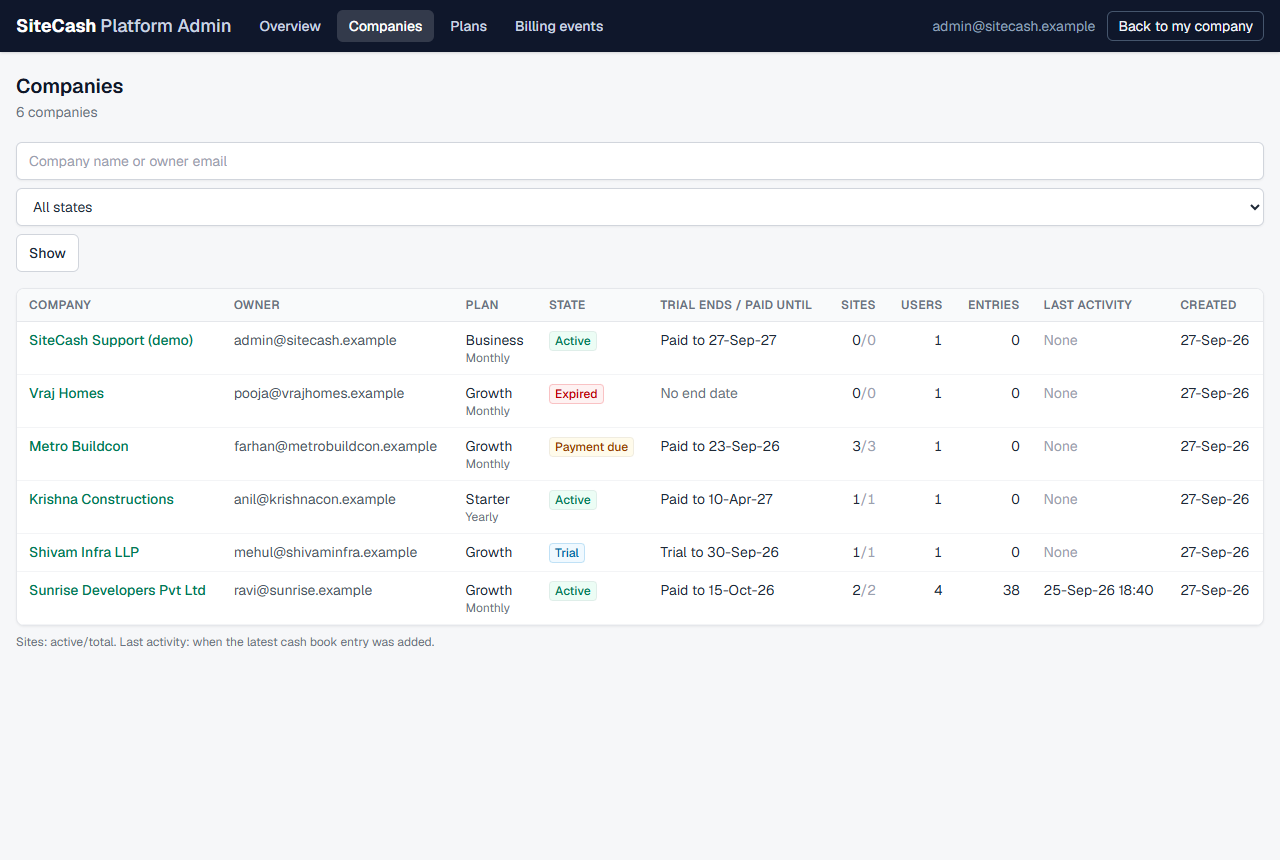
| Column | What it shows |
|---|---|
| Company | Name; click to open the company. |
| Owner | Email of each owner. |
| Plan | Plan name, and Monthly or Yearly once they have paid. |
| State | The state badge, and the reason if suspended. |
| Trial ends / paid until | "Trial to 06-Oct-26" or "Paid to 27-Oct-26", with "Won't renew" if cancelled. |
| Sites | Active / total sites, for example 2/3. |
| Users | Everyone with a login in the company. |
| Entries | Cash book entries so far. |
| Last activity | When the latest cash book entry was added. "None" for companies that never started. |
| Created | Sign-up date. |
The list shows at most 500 companies; search or filter to narrow it.
One company
Click a company to see everything about its account. The state badge is at the top right. Action boxes are on the right (below on a phone).
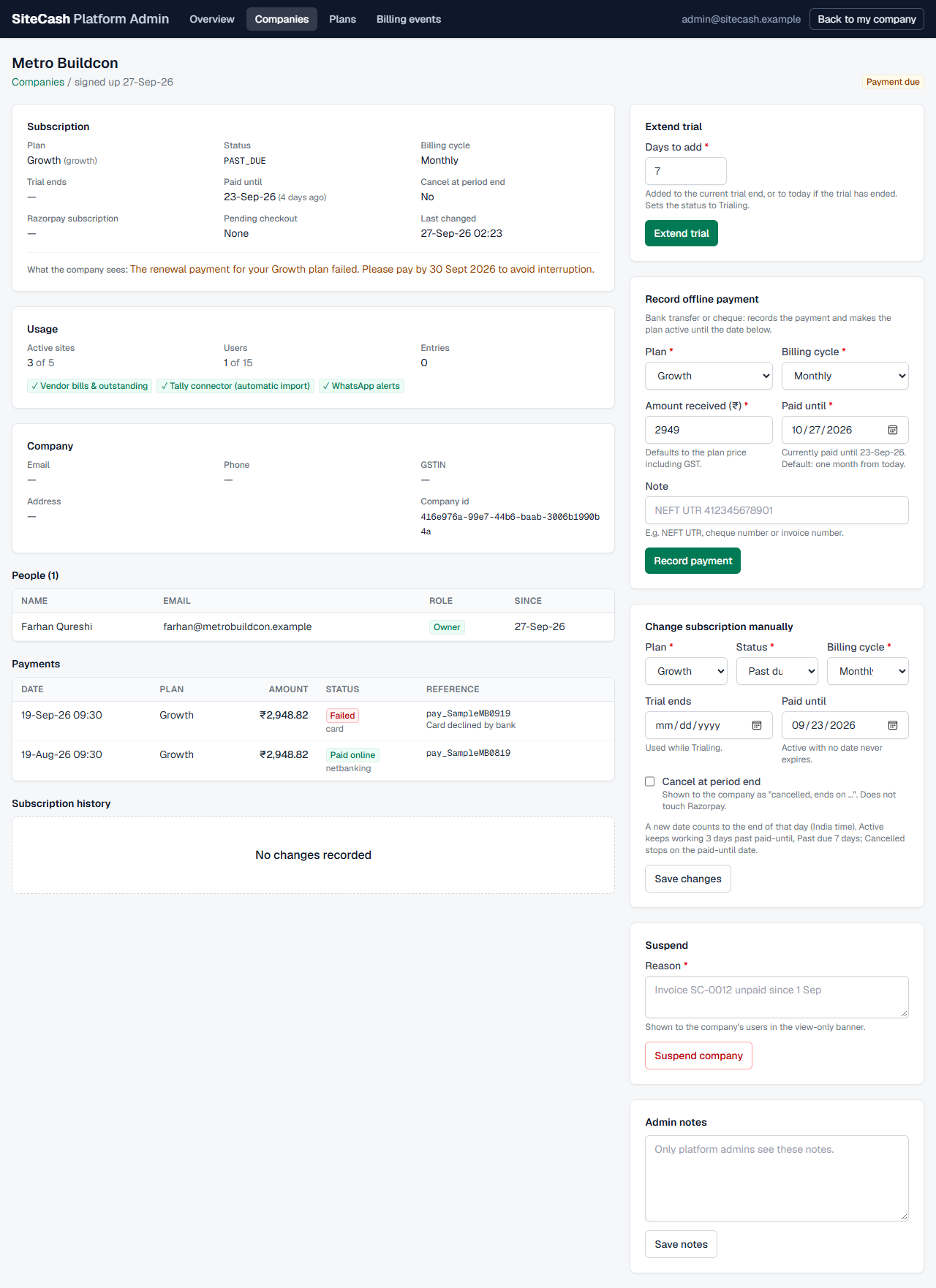
- Subscription: plan (and code), status, billing cycle, trial end, paid until (each with "in 12 days" or "3 days ago"), cancel at period end, the Razorpay subscription number, any pending checkout (a payment window opened but not yet confirmed) and when it last changed. The line What the company sees shows the exact message on the builder's screen, or "No banner, full access."
- Usage: active sites, users and entries against the plan's limits ("over the limit" in red), and which plan features are on (✓) or off (✗).
- Company: email, phone, GSTIN, address and company id, as the builder entered them in Company Settings.
- People: every user with role and since when.
- Payments: online and offline payments with reference, invoice link and note.
- Subscription history: every change made here, and the builder's own payments and cancellations, with date and who did it.
After each action you return to this page with a green message, for example "Trial extended." or "Nothing changed." if the values were the same.
Extend trial
When to use: a builder needs more time to decide, was travelling, or you promised a longer trial.
- In Extend trial, type the Days to add (1 to 365; the box starts at 7).
- Click Extend trial.
Effect: the days are added to the current trial end, or to today if the trial has already ended. The status becomes Trialing, so an expired trial company can add entries again at once.
Record offline payment
When to use: the builder paid by bank transfer, NEFT, cheque or UPI outside Razorpay, or online payment is not switched on yet.
- Check that the money has arrived in your bank.
- In Record offline payment, choose the Plan and Billing cycle they paid for.
- Check Amount received (₹). It starts at the plan price including GST; change it if they paid a different amount.
- Check Paid until. It starts at one month or one year from today and must be after today. The plan works until the end of that day (India time).
- In Note, type the NEFT UTR, cheque number or your invoice number.
- Click Record payment and confirm, for example "Record ₹2,949.00 received from Sunrise Developers Pvt Ltd and activate Growth (monthly) until 27 Oct 2026?"
Effect: the company becomes Active on that plan until the paid-until date, the trial and any "won't renew" flag are cleared, and the payment is added to their Payment history as "Paid offline". Their Plan & Billing page shows "Paid offline (no auto-renewal)". It does not renew by itself: record the next payment before the date.
Change subscription manually
When to use: to correct a mistake, to give a company a free or special arrangement, to end a trial early, or to fix a subscription after a Razorpay problem.
| Field | Meaning |
|---|---|
| Plan | Any plan, including inactive ones (marked "(inactive)"). The company gets that plan's limits and features at once. |
| Status | Trialing, Active (paid), Past due (renewal failed), Cancelled or Expired. |
| Billing cycle | Monthly or Yearly. |
| Trial ends | Used while Trialing. Required for Trialing. |
| Paid until | Last day of the paid period. Required for Past due and Cancelled. Active with no date never expires. |
| Cancel at period end | Shows the builder "cancelled, ends on …". Does not touch Razorpay. |
Click Save changes and confirm "Change the subscription of … by hand? Their access follows the new values immediately."
- A new date counts to the end of that day, India time.
- Active keeps working 3 days past paid-until; Past due keeps working 7 days past paid-until; Cancelled stops on the paid-until date.
- Expired makes the company view-only at once.
Suspend and unsuspend
When to use: an unpaid invoice, misuse, or a request from the company's owner to freeze the account.
- In Suspend, type a Reason (3 to 300 characters), for example "Invoice SC-0012 unpaid since 1 Sep". The company's users see it.
- Click Suspend company and confirm.
Effect: the company becomes view-only whatever its plan says. Its users can still log in, view, print and export, but cannot add or change anything. The red bar reads "This account is suspended: <reason>. Please contact SiteCash support." A suspended company also cannot pay online, so settle payment offline and record it.
To undo it, the box (now titled Suspension) shows the reason and an Unsuspend button. After you confirm, they can add and change data again, if their plan allows.
Admin notes
A private notepad for this company (up to 5,000 characters): phone calls, promised discounts, invoice numbers, who to contact. Type and click Save notes. Only platform admins see these notes; the builder never does. The Subscription history records only that the notes were edited, not what they say.
Plans editor
Open Plans. Plans apply to all companies. The heading reminds you that prices are in rupees before GST, customers pay 18% GST on top, and new sign-ups get a free trial of the Growth plan.
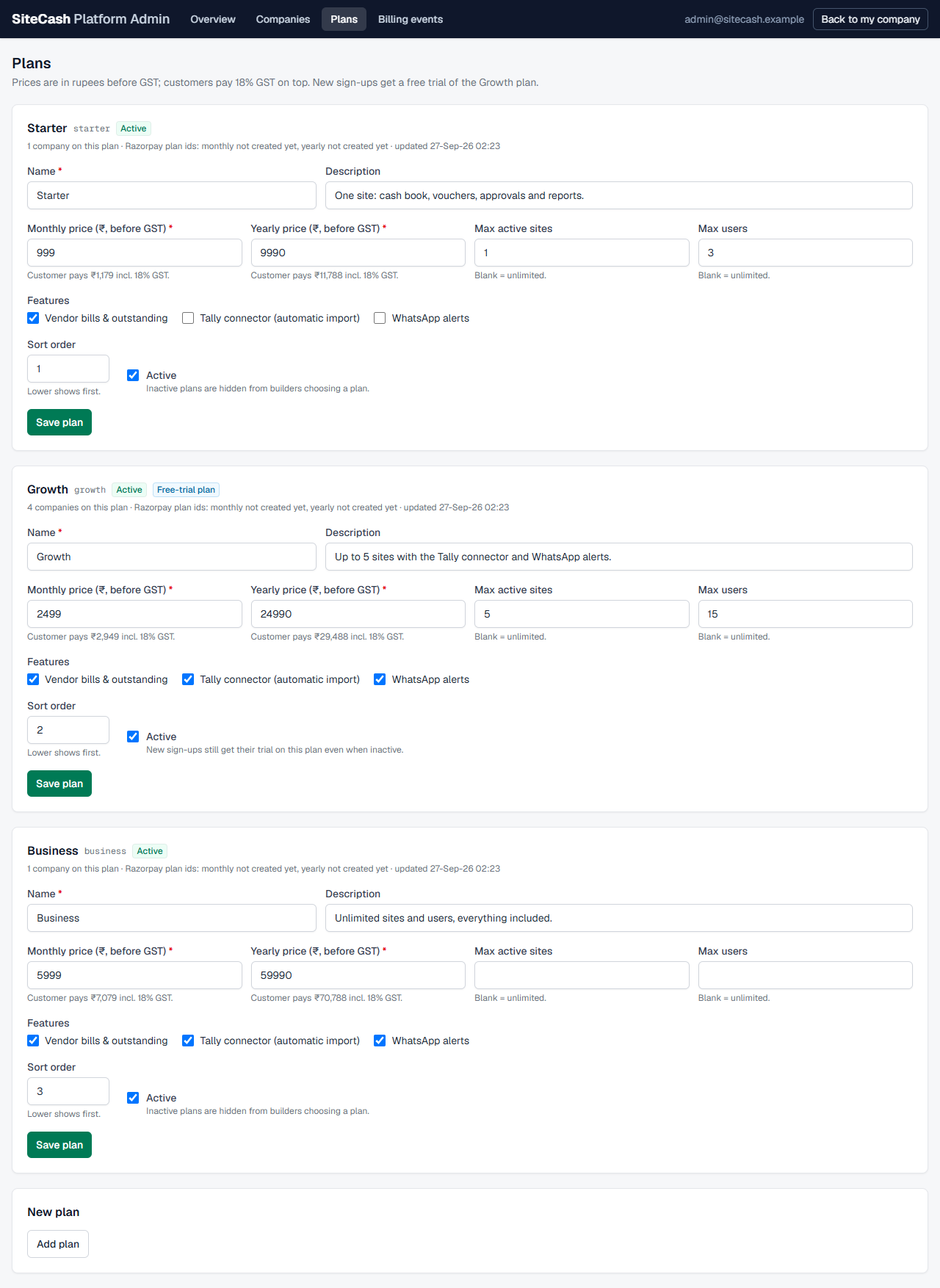
Each plan card shows its name, code, Active or Inactive, Free-trial plan for Growth, how many companies are on it, and its Razorpay plan numbers ("not created yet" until the first checkout).
| Field | What it does |
|---|---|
| Name, Description | Shown on plan cards on the home page and on Plan & Billing. |
| Monthly price / Yearly price (₹, before GST) | List prices. The hint shows what the customer pays, for example "Customer pays ₹2,949 incl. 18% GST." Set yearly to 10 × monthly and the cards show "2 months free". |
| Max active sites, Max users | Limits. Blank = unlimited. Changes apply at once to every company on the plan; nothing is removed from companies that are now over the limit, they just cannot add more. |
| Features | Vendor bills & outstanding, Tally connector (automatic import), WhatsApp alerts. Shown as ticks on plan cards. The Tally connector and WhatsApp boxes really switch those features on or off for the plan's companies. |
| Sort order | Lower numbers show first. |
| Active | Inactive plans are hidden from builders choosing a plan. Companies already on it keep it. The free-trial plan still gives trials even when inactive. |
Click Save plan. You see "Saved the Growth plan."
Changing a price
Razorpay plans cannot be edited, so when you change a price SiteCash forgets the matching Razorpay plan and creates a new one at the next checkout. The form warns you before saving, and the message after saving says so. New checkouts pay the new price. Companies already subscribed through Razorpay keep paying the old price until they change plan.
Adding and deleting plans
Click Add plan at the bottom, give a Code (lowercase letters, digits and dashes, for example pro-plus; it cannot be changed later), fill in the fields and click Add plan.
Delete plan appears only on plans that no company uses, and never on the free-trial plan. It is for plans added by mistake. If a company has ever paid for the plan, SiteCash refuses: "Companies use (or have paid for) this plan. Untick Active to stop offering it instead."
Billing events
Billing events lists the notifications Razorpay sends to SiteCash (the last 200, newest first): a subscription was activated or charged, a renewal failed (pending), stopped (halted), was cancelled or completed. Each notification is applied once. If applying it failed, Razorpay sends it again later and SiteCash then applies it automatically.
- Each row shows when it arrived, the event name (for example
subscription.charged), the company and a badge: Processed, Error (with the error text) or Not processed. - Click a row to see the event number and the full message from Razorpay.
- Errors only shows just the failed ones; All events shows everything.
A row with "No company" is a notification SiteCash could not match to a company, for example a subscription created outside SiteCash in the Razorpay dashboard.
Troubleshooting
- You see "page not found" at the platform admin address. Your login email is not in
PLATFORM_ADMIN_EMAILS, or SiteCash was not restarted after it was added. Check the spelling and log in again. - A builder paid online but is still on trial or view-only. Look at the company's Pending checkout and at Billing events. If there is no
subscription.activatedorsubscription.chargedevent, check the webhook in the Razorpay dashboard. Meanwhile, use Change subscription manually to set Active with the right paid-until date. - "The paid-until date must be after today." Offline payments must end in the future. For a past correction, use Change subscription manually.
- "A trial needs a trial end date." / "Payment due and Cancelled need a paid-until date…" Fill in the date for the status you chose.
- "Give a reason. The company's users see it." A suspension needs a reason of at least 3 characters.
- "This is the free-trial plan for new sign-ups, so it cannot be deleted." Untick Active instead if you want to stop selling it.
- Builders see "Online payment is not enabled yet…". The Razorpay keys are not set on the server. Until they are, record offline payments for them.
- Many errors in Billing events, or errors that stay after Razorpay's retries. Copy one error message and the event number, and send them to the person who maintains the SiteCash server. Fix the affected companies with Change subscription manually in the meantime.