Help › Alerts & notifications
Alerts & notifications
SiteCash tells the right people when something needs them: a cash request to decide, cash that arrived, a site running low, an entry sent back. Alerts always appear under the bell, and each person can also get copies by email or WhatsApp.
The bell and the Alerts page
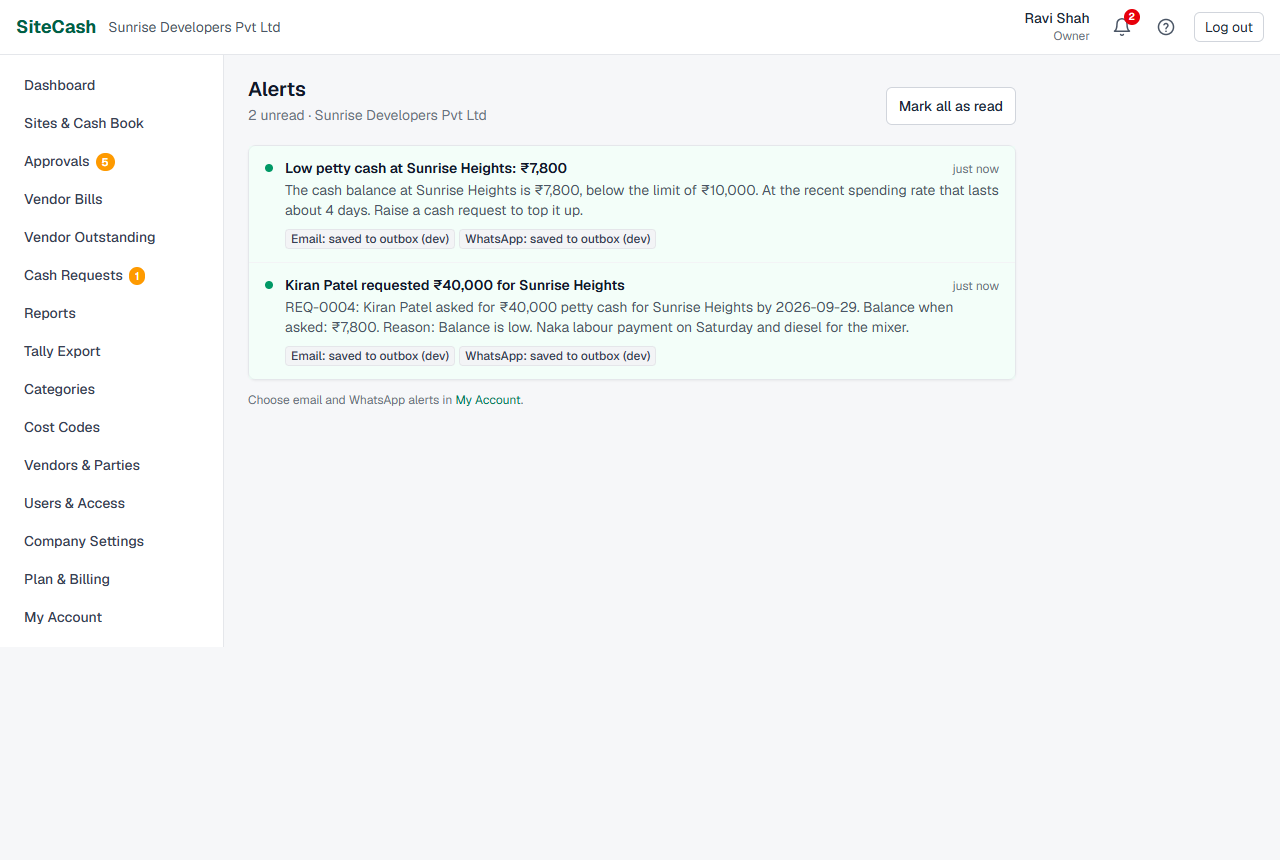
The bell is at the top right of every page. A red number on it shows how many alerts you have not read yet (99+ when there are very many).
- Click the bell. The Alerts page opens. The line under the title shows how many are unread.
- Unread alerts have a green dot, bold text and a light green background. Each shows how long ago it came (“just now”, “5 min ago”, “2 h ago”, “3 days ago”, later the date). Hold the mouse on the time to see the exact date and time.
- Click an alert. SiteCash marks it as read and opens the page it is about: the cash request, the entry to correct, the Tally Export page, and so on.
- To clear the red number without opening each one, click Mark all as read at the top. (The button shows only when something is unread.)
You are never alerted about something you did yourself. For example, when Neha Joshi approves a cash request, Kiran Patel gets the alert, not Neha.
Every alert: who gets it and when
“Approvers” below means everyone with the role Owner, Admin or Accountant. “Site users of the site” means the site users who have been given that site.
| Alert (example title) | When | Who gets it | Clicking it opens |
|---|---|---|---|
| New cash request “Kiran Patel requested ₹25,000 for Sunrise Heights” |
Someone raises a cash request for a site. The alert includes the request number (REQ-0003), the balance when asked, the needed-by date and the reason. | All approvers, except the person who asked. | The request, to approve or reject it. See Cash requests. |
| Request approved or rejected “REQ-0003 approved: ₹20,000 for Sunrise Heights” |
An approver approves (fully or a smaller amount) or rejects a cash request. The approver’s note is included. An approved alert ends with “Record it as “Cash received” when the cash arrives.” | The person who asked and the site users of that site, except the approver. | The request. |
| Cash received for a request “₹20,000 received at Sunrise Heights (REQ-0003)” |
A “Cash received” entry linked to an approved request is saved at the site. It says so when the request is now fully received. | The approver who decided the request and the person who asked, except whoever saved the entry. | The request. |
| Low balance “Low petty cash at Sunrise Heights: ₹1,250” |
The site’s cash balance drops below its low-balance limit. Sent once, not again until the balance has been topped up. See below. | The site users of that site and all approvers. | A new cash request for that site. |
| Voucher sent back “SH/26-27/0042 sent back: Wrong cost code” |
An approver sends an entry back for correction in Approvals. The note says what to fix. | The person who made the entry. | The entry, ready to edit. Saving it sends it for approval again. See Approvals. |
| Tally import done / failed “Tally import done: Sunrise Heights 01-Sep-26–30-Sep-26” |
The Tally connector finishes importing an export. The title says “done”, “failed” or “partly failed”, and the text gives the number of vouchers imported or Tally’s error. | The person who generated that export. | The Tally Export page. See Tally export & connector. |
| Daily summary “Daily summary: 3 things need attention” |
Each morning at about 9:00, only when something needs attention. See below. | Approvers get the company summary. Site users get a reminder when entries are still sent back to them. | The dashboard. |
Low balance alerts
The low balance alert warns before a site runs out of cash, so the in-charge does not have to pay from his own pocket.
- The owner or an admin opens the site’s settings and fills in Low balance alert below (₹), for example 5,000. Leave it blank for no alert. See Sites & cash book.
- When an entry takes the balance below that amount, everyone concerned gets one alert, with the balance and, when SiteCash can work it out from recent spending, about how many days the cash will last.
- The site card on the dashboard shows Low balance while the balance stays below the limit.
- No new alert comes while the balance stays low. Once cash is received and the balance is back at or above the limit, the alert is ready again for the next time it drops.
Closed sites do not send low balance alerts.
The daily summary
Once a day, at about 9:00 in the morning, SiteCash looks at each company and sends a short summary. Nothing is sent on a day when nothing needs attention, and a company never gets more than one summary a day.
- Owners, admins and accountants get a list such as: “5 entries waiting for approval”, “2 cash requests waiting for a decision”, “3 overdue vendor bills (₹62,400)”, “Low cash at Sunrise Heights (₹1,250)”.
- Site users get “Reminder: 2 entries sent back to you” with the voucher numbers, when entries they made are still waiting for their correction.
Email and WhatsApp copies
Every alert appears in SiteCash. On top of that, each person decides for themselves in My Account whether to get a copy by email, by WhatsApp, or both. One person’s choice does not change anyone else’s.
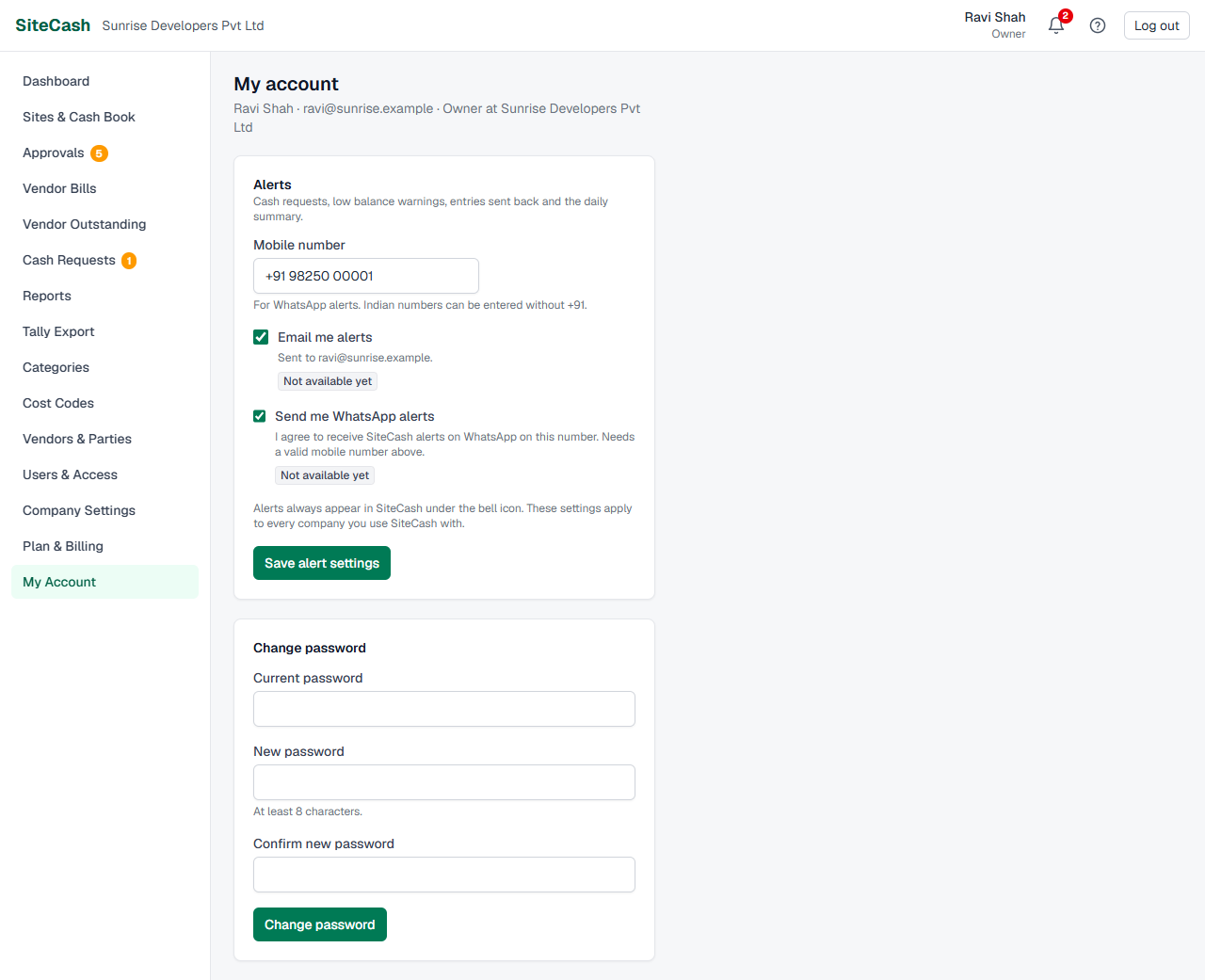
- Open My Account.
- Tick Email me alerts (it is on for new users). Copies go to the email you log in with.
- Click Save alert settings.
The email subject is the alert title. The email ends with a link “Open in SiteCash”.
WhatsApp copies need all four of these:
- Your mobile number in My Account. Indian numbers can be typed without +91 (for example 98250 12345); numbers outside India need the country code.
- Your consent: tick Send me WhatsApp alerts (“I agree to receive SiteCash alerts on WhatsApp on this number.”). Nobody gets WhatsApp messages without ticking this themselves.
- Your company’s plan includes WhatsApp alerts. Check the plan cards in Plan & Billing. See Plan & billing.
- WhatsApp is connected for your SiteCash. The badge next to the tick box shows Live when it is. If it shows Not available yet, the people who run your SiteCash have not connected WhatsApp yet.
- Open My Account, enter your Mobile number.
- Tick Send me WhatsApp alerts.
- Click Save alert settings. The number is shown back in full form, for example +91 98250 12345.
Sent, failed, skipped: the status chips
Under each alert on the Alerts page, a small chip shows what happened to your email or WhatsApp copy, for example Email: sent or WhatsApp: failed. Hold the mouse on a chip to see the address or number it went to, or the reason it did not go.
| Chip | What it means | What to do |
|---|---|---|
| Email: sent WhatsApp: sent | The copy was handed over to the email service or to WhatsApp. | Nothing. If you still cannot find an email, look in the spam folder. |
| Email: saved to outbox (dev) | This is a test copy of SiteCash: the message was saved on the server instead of being sent. You do not see this on the real SiteCash. | Nothing, unless you expected real messages; then tell whoever runs your SiteCash. |
| Email: failed WhatsApp: failed | The email service or WhatsApp refused the message, for example a wrong number or a WhatsApp message format that is not yet approved. | Hold the mouse on the chip to read the reason. Check your mobile number in My Account; otherwise tell your admin. |
| Email: skipped WhatsApp: skipped | No attempt was made: the channel is not connected for your SiteCash, or there was no valid email or mobile number. | Hold the mouse on the chip for the reason. Correct your mobile number, or ask your admin whether the channel is live. |
| No chip | No copy was due: you have not ticked email or WhatsApp, the company’s plan does not include WhatsApp, or the alert has no WhatsApp version (Tally import alerts). | Change your choices in My Account if you want copies. |
Copies go out a moment after the alert appears, so a brand-new alert can show no chip for a few seconds.
Troubleshooting
- If you see “Enter your mobile number to get WhatsApp alerts.”, you ticked WhatsApp without a number. Type your mobile number and save again.
- If you see “Enter a valid mobile number, e.g. 98250 12345 (with the country code if outside India).”, the number has too few or too many digits. Type the 10-digit mobile number, or the full number with country code.
- If the red number on the bell does not go away, some alerts are still unread. Open them, or click Mark all as read on the Alerts page.
- If you expected an alert that is not there, check that you are in the right company (alerts of another company are not shown), and remember that nobody is alerted about their own action.
- If you get no email copies, check that Email me alerts is ticked, look in the spam folder, and look at the chip under the alert on the Alerts page.
- If you get no WhatsApp copies although you ticked the box, look at the chip. No chip at all usually means your company’s plan does not include WhatsApp alerts; WhatsApp: skipped means WhatsApp is not connected or the number is not valid.
- If a low balance alert did not come a second time, that is normal: it comes once per drop. It comes again only after the balance has been topped up to the limit and falls again.
- If you want no email at all, untick Email me alerts and save. Alerts still appear under the bell.