Help › Users, access & settings
Users, access & settings
Decide who can log in to your company, what each person can do and which sites they can open. Company Settings holds the details printed on vouchers, the rules for site users and the names SiteCash uses when it sends data to Tally.
The Users & Access list
Open Users & Access in the menu. Only owners and admins see this menu item and the Company Settings item. If someone else opens the address directly, SiteCash sends them back to the dashboard.
The list shows everybody who can log in to your company, owners first, then admins, accountants and site users, each group in name order.
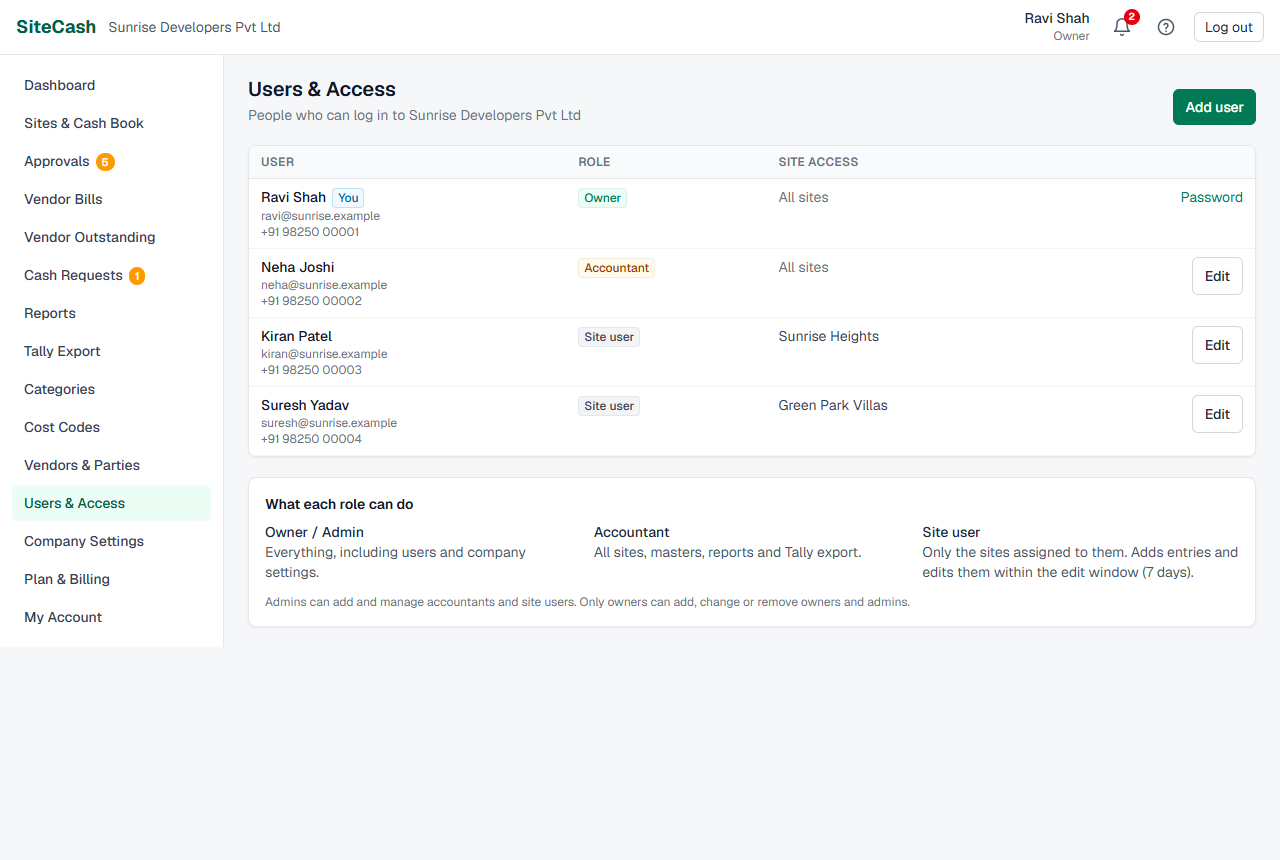
| Column | What it shows |
|---|---|
| User | Name (click it to open the person), email and phone. You marks your own row. Login disabled means this login has been switched off and the person cannot log in. |
| Role | Owner, Admin, Accountant or Site user. |
| Site access | "All sites" for owners, admins and accountants. For a site user, the sites they can open (the first four, then "+2 more" and so on). No sites yet means a site user who cannot open any site yet. |
| (last column) | Edit if you may manage this person, Password on your own row, or "Owner only" if only an owner may change this person. |
Under the list, the box What each role can do gives a one-line summary of each role.
Roles explained
Every person has one role in your company. The role decides what they can see and do. Give people the smallest role that lets them do their work.
| Role | Can do | Typical person |
|---|---|---|
| Owner | Everything: all sites, entries, approvals, cash requests, vendor bills, reports, Tally, categories and vendors, users, sites and Company Settings, and buying or cancelling the plan. Only owners can add, change or remove owners and admins. | Ravi Shah, the company owner |
| Admin | The same work as an owner, including users, sites, Company Settings and the plan. An admin can add and manage accountants and site users, but not owners or other admins. | An office manager you trust fully |
| Accountant | All sites, approvals, cash request decisions, vendor bills, categories, cost codes and vendors, reports, Excel import and Tally export. Can edit any entry until it is exported to Tally. Cannot manage users, sites or Company Settings. | Neha Joshi, the accountant |
| Site user | Only the sites you tick for them. Adds entries with bill photos, asks for cash, and edits or cancels entries they made themselves, within the edit window. Cannot approve entries, decide cash requests, open Vendor Bills or export to Tally. | Kiran Patel, supervisor at Sunrise Heights |
Add a user
Before you add a site user, make sure the site exists (see Sites & cash book), so you can tick it.
- Open Users & Access and click Add user.
- Type the person's Name and Email. They log in with this email.
- Type a Phone number if you have it (optional).
- Type an Initial password of at least 8 characters. You can see what you type, so you can pass it on to them.
- Choose the Role. The hint under the box repeats what that role can do. The form starts on Site user.
- For a site user, tick the sites under Sites this person can open. All and None tick or clear every site; the line below counts them ("1 of 2 selected"). Closed sites are marked "Closed". For other roles you see "This role can open every site, so no site list is needed."
- Click Add user. You go back to the list with a green message.
- Tell the person the address of SiteCash, their email and the password. Ask them to change the password in My Account after their first login.
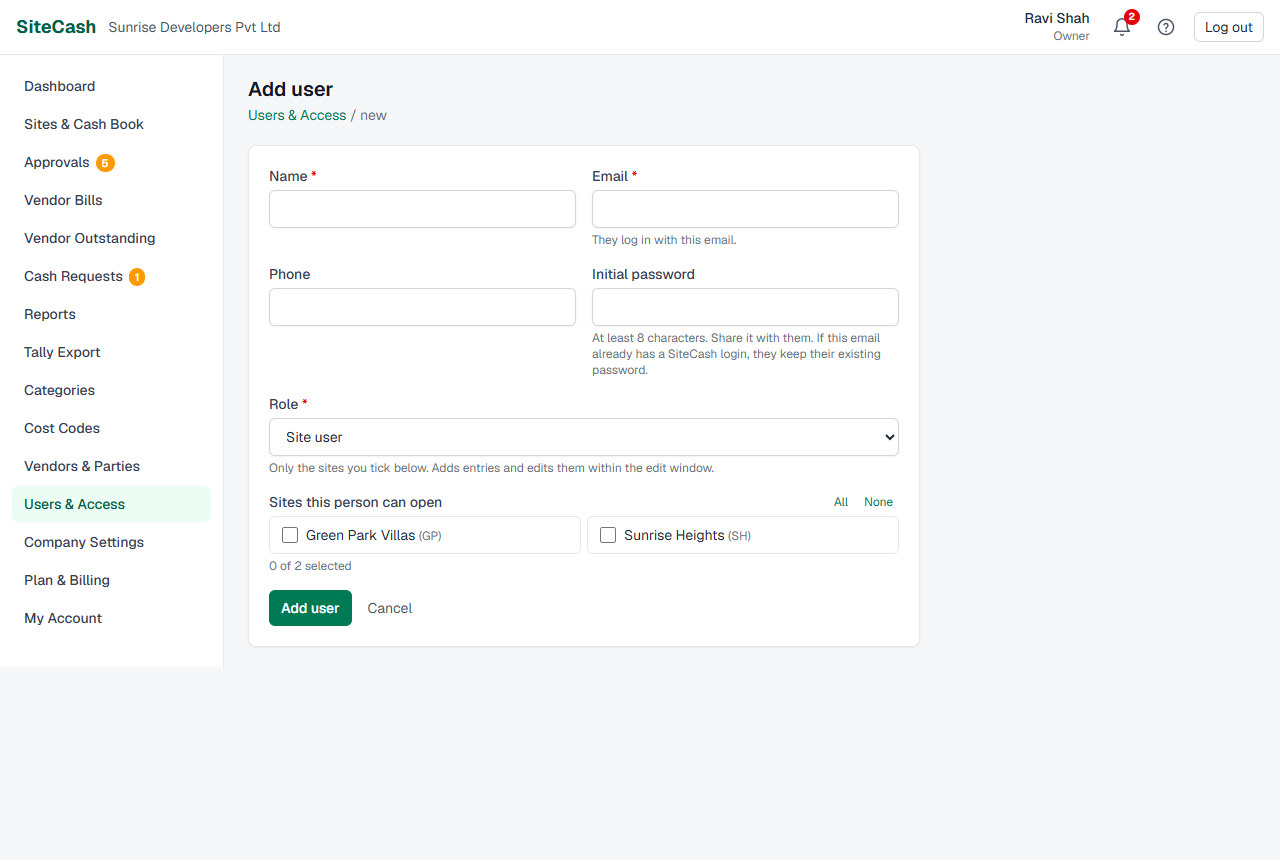
| Field | What to enter |
|---|---|
| Name | Required, at least 2 letters. Shown on the entries they make and in their history. |
| Required. Their login. One email = one login, even across different companies. | |
| Phone | Optional, up to 30 characters. Shown in the users list. |
| Initial password | At least 8 characters. Needed only when the email is new to SiteCash. |
| Role | Owner, Admin, Accountant or Site user. Admins can only choose Accountant or Site user. |
| Sites this person can open | Only for site users. You can leave all boxes empty and tick sites later. |
When the email already has a SiteCash login
Some people work for two builders, or already use SiteCash with another company. If the email you type already has a login, SiteCash does not make a second one. It adds the existing login to your company and ignores the password you typed. The message says: "User added. They already had a SiteCash login, so they log in with their existing password." After logging in, they choose the company from the company box at the top of the screen and click Switch.
Plan user limits
Your plan includes a number of users. Everyone with a login in your company counts, owners and site users alike. When you reach the limit, Add user shows a message like "Your Starter plan includes 3 users. Upgrade your plan (Billing) to add more." Remove someone who has left, or choose a bigger plan in Plan & billing. You also cannot add users while your company is in view-only mode (trial or plan ended).
Change role and site access
Use this when a supervisor moves to another site, starts looking after a second site, or gets a new job in the office.
- In Users & Access, click the person's name or Edit.
- Under Role & site access, change the Role if needed.
- For a site user, tick or untick sites. Example: tick Green Park Villas so Kiran Patel can work on both SH and GP.
- Click Save access. You see "Saved."
The change works at once. The person does not need to log out; the next page they open follows the new role and sites.
Reset someone's password
If a site user has forgotten their password and cannot use Forgot password? on the login page (for example, they have no access to their email), you can set a new one.
- Open the person from Users & Access.
- Under Reset password, type a New password of at least 8 characters.
- Click Set new password. You see "Password changed. Share the new password with Kiran Patel."
- Give them the new password. They can use it right away.
The old password stops working, and the person is logged out on every phone and computer where they were logged in. This is useful when a phone is lost.
Admins cannot reset the password of an owner or another admin: for them the Reset password box does not appear. Ask an owner.
Your own password: the best place is My Account. On your own row in Users & Access you see Change your password and Change my password; if you use it, SiteCash may ask you to log in again with the new password.
Remove a user
- Open the person from Users & Access.
- At the bottom, under Remove from company, click Remove from company.
- Confirm the question "Remove Kiran Patel from Sunrise Developers Pvt Ltd? They will no longer be able to log in to this company."
- You go back to the list with "User removed from the company. Their past entries stay in the cash book."
Nothing they entered is deleted: vouchers, bill photos and history still show their name. If they also use SiteCash with another company, their login keeps working there.
Rules that protect your company
- Only owners manage owners and admins. Admins can add, change, reset and remove only accountants and site users. On an owner's or admin's row, an admin sees "Owner only".
- You can't change yourself. You cannot change your own role or sites ("You can't change your own role or access. Ask another owner.") or remove yourself ("You can't remove yourself. Ask another owner.").
- The last owner stays. A company must always have at least one owner. You cannot remove the only owner ("This is the only owner. Make someone else an owner before removing them.") or change them to another role ("The company must keep at least one owner. Make someone else an owner first.").
- Changes work at once. Role and site changes apply to the very next page the person opens.
- View-only mode stops changes. While your company is in view-only mode (trial or plan ended, renewal overdue, or suspended), you cannot add users or sites, change a role or site access, reset someone's password, or save Company Settings or site settings. Remove from company still works, and everyone can still change their own password and alert settings in My Account.
Company Settings
Open Company Settings in the menu (owners and admins). The page has four boxes: company details, site users, Tally export and alert channels. There is one Save settings button at the bottom of the first three boxes; it saves all of them together. You see "Settings saved.", or "No changes to save." if nothing changed.
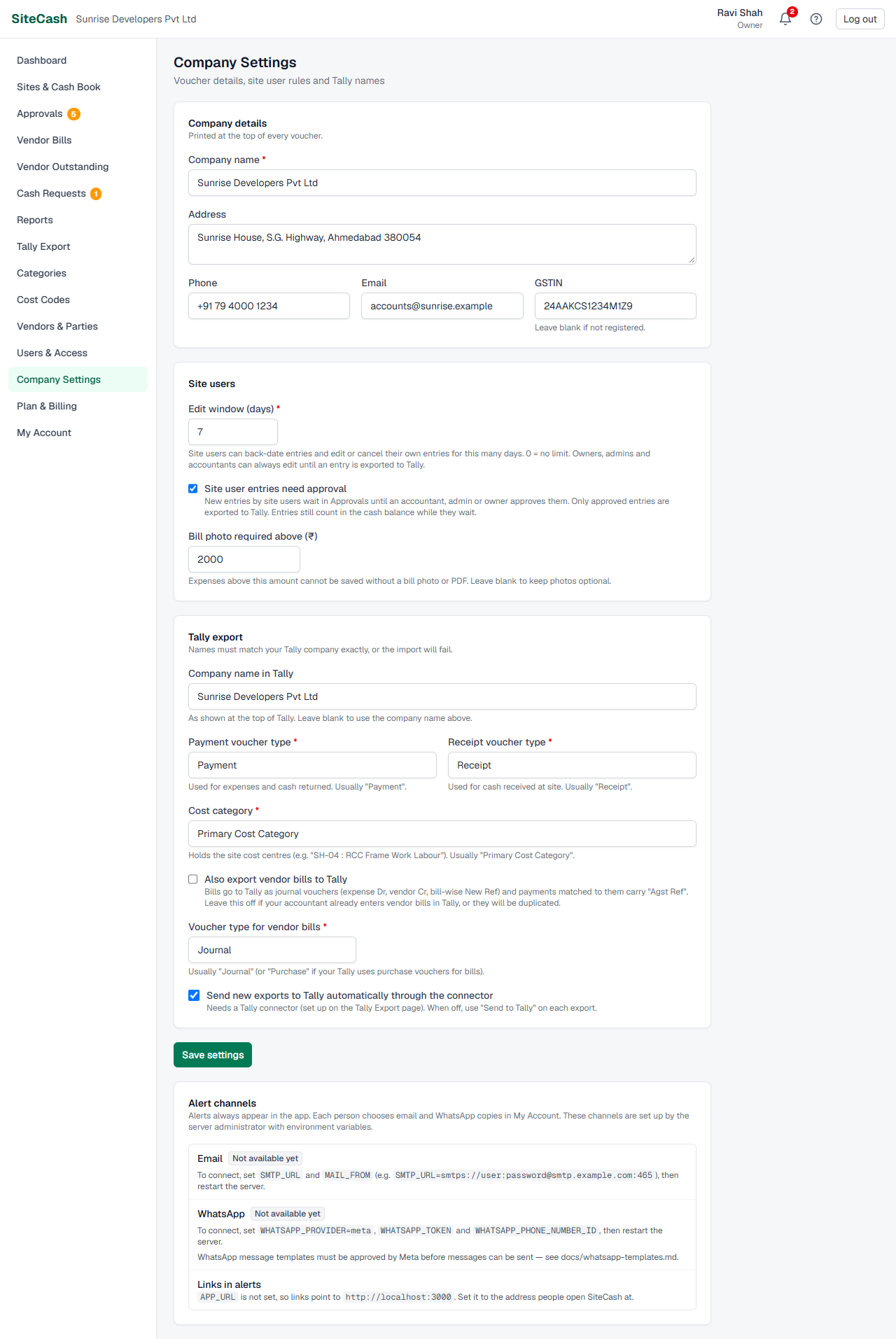
Company details
These are printed at the top of every voucher (see Printing vouchers). The company name also shows at the top of every page in SiteCash.
| Field | What to enter |
|---|---|
| Company name | Required. Example: Sunrise Developers Pvt Ltd. |
| Address | Office address, up to 500 characters. |
| Phone | Office phone. |
| Office email, or leave blank. | |
| GSTIN | 15 characters, for example 24ABCDE1234F1Z5. Leave blank if you are not registered. SiteCash checks the format and changes it to capital letters. |
Site user rules
Edit window (days)
This number controls two things for site users:
- Editing: a site user can edit or cancel an entry they made themselves only for this many days after they made it. After that the entry shows "Locked: entries can only be changed within 7 days." Entries made by someone else (for example cash received that the office recorded for the site) are never open to site users: "Locked: only the office can change entries made by someone else."
- Back-dating: a site user cannot give an entry a date older than this many days. With 7 days, on 27 Sep 2026 Kiran Patel can pick any date from 20 Sep 2026; an older date shows "Site users can only enter dates from 20-Sep-26 onwards. Ask your accountant for older entries." When a site user edits or corrects an entry, it may keep its saved date even if that is older; it just cannot be moved to an earlier date than the limit.
New companies start with 7 days. You can set 0 to 365; 0 means no limit. Entries Sent back by an approver can always be corrected by the site user who made them, even after the window. Approved entries are locked for site users ("Locked: already approved.").
Owners, admins and accountants are not limited by the edit window. They can edit any entry until it is exported to Tally. After export, entries are locked for everyone.
Site user entries need approval
On by default. When ticked, new entries made by site users start as Waiting for approval and appear in Approvals until an accountant, admin or owner approves them or sends them back (see Approvals). Only approved entries are exported to Tally. Waiting entries still count in the site's cash balance, because the cash has already been spent.
When you untick it, new entries by site users are approved straight away. Entries made by owners, admins and accountants never need approval.
Bill photo required above (₹)
Type an amount, for example 500. Then an expense of more than ₹500 cannot be saved without at least one bill photo or PDF. The entry form shows "A bill photo is required for expenses above ₹500.00" as soon as the amount is higher. An expense of exactly ₹500 is still allowed without a photo. The rule applies to everyone who makes expense entries, and not to cash received or cash returned. Leave the box blank to keep photos optional.
Tally export settings
These names must match your Tally company exactly, or Tally will refuse the import. Your accountant should fill them in. Full steps are on Tally export & connector.
| Field | What to enter |
|---|---|
| Company name in Tally | As shown at the top of Tally. Leave blank to use the company name above. |
| Payment voucher type | Used for expenses and cash returned. Usually "Payment". |
| Receipt voucher type | Used for cash received at site. Usually "Receipt". |
| Cost category | Holds the site cost centres (for example "SH-04 : RCC Frame Work Labour"). Usually "Primary Cost Category". |
| Also export vendor bills to Tally | Tick to send vendor bills as journal vouchers with bill-wise references. Leave it off if your accountant already enters vendor bills in Tally, or they will be entered twice. |
| Voucher type for vendor bills | Usually "Journal" (or "Purchase" if your Tally uses purchase vouchers for bills). |
| Send new exports to Tally automatically through the connector | Needs a Tally connector, set up on the Tally Export page, and a plan that includes the connector (not Starter). When off, use "Send to Tally" on each export. |
Alert channels
The last box on Company Settings shows how alerts can reach people. You can only read it; there is nothing to change here. Alerts always appear inside SiteCash (the bell icon). Each person chooses email and WhatsApp copies for themselves in My Account (see Alerts & notifications).
| Status | What it means |
|---|---|
| Live | This channel is connected. Emails or WhatsApp messages are really sent to people who switched them on. |
| Not connected yet | You are on a test copy of SiteCash. Messages are saved on the server for checking, not sent. |
| Not available yet | This channel has not been set up for SiteCash, so nothing is sent by it. People still get alerts inside SiteCash. |
When a channel is not live, the box shows the technical settings that are missing. These are set by the SiteCash operator, not by you: contact SiteCash support if you need email or WhatsApp alerts. The last line, Links in alerts, shows the web address that links in emails and WhatsApp messages open.
Troubleshooting
- "Your … plan includes 3 users. Upgrade your plan (Billing) to add more." You have reached your plan's user limit. Remove someone who has left, or choose a bigger plan in Plan & billing.
- "… is already a user of this company." This email is already in your list. Open that person and change their role or sites instead.
- "Set an initial password (at least 8 characters)." The email is new to SiteCash, so the person needs a password. Type one of 8 or more characters.
- "Only an owner can add owners or admins." You are an admin. Ask an owner to do it.
- A site user says they see no sites. Their row shows No sites yet. Open them, tick their site and click Save access.
- A new user cannot log in with the password you set. If you saw "They already had a SiteCash login", they must use their existing password (or Forgot password? on the login page).
- You can't reset a password: "… also uses SiteCash with another company". Ask the person to use Forgot password? on the login page.
- "Locked: entries can only be changed within 7 days." The site user's edit window has passed. An accountant, admin or owner can still edit the entry, or you can make the window longer in Company Settings.
- "Locked: only the office can change entries made by someone else." A site user opened an entry someone else made, for example cash received recorded by the office. An accountant, admin or owner can change it.
- Save buttons show the view-only message, or take you to Plan & Billing. Your company is in view-only mode. The owner or an admin chooses a plan in Plan & billing; after that, changes work again at once.
- "GSTIN should be 15 characters, e.g. 24ABCDE1234F1Z5." Check the GSTIN for a missing or extra character, or leave it blank.
- Email or WhatsApp alerts are not arriving. Check the Alert channels box. If it is not Live, contact SiteCash support. If it is Live, check the person's choices in My Account.