Help › Reports & Excel
Reports & Excel
See where the site cash went, by cost code, category, month and vendor, just like the pivot tables of the old Excel sheet. Print the report, download it as Excel, and bring your old Excel petty cash book into SiteCash.
Everyone can open Reports and download Excel files, but only for the sites they can access. Importing an Excel file is only for owners, admins and accountants.
The Reports page
Open Reports in the menu. The page opens for All my sites and the current financial year to date (1 April to today).
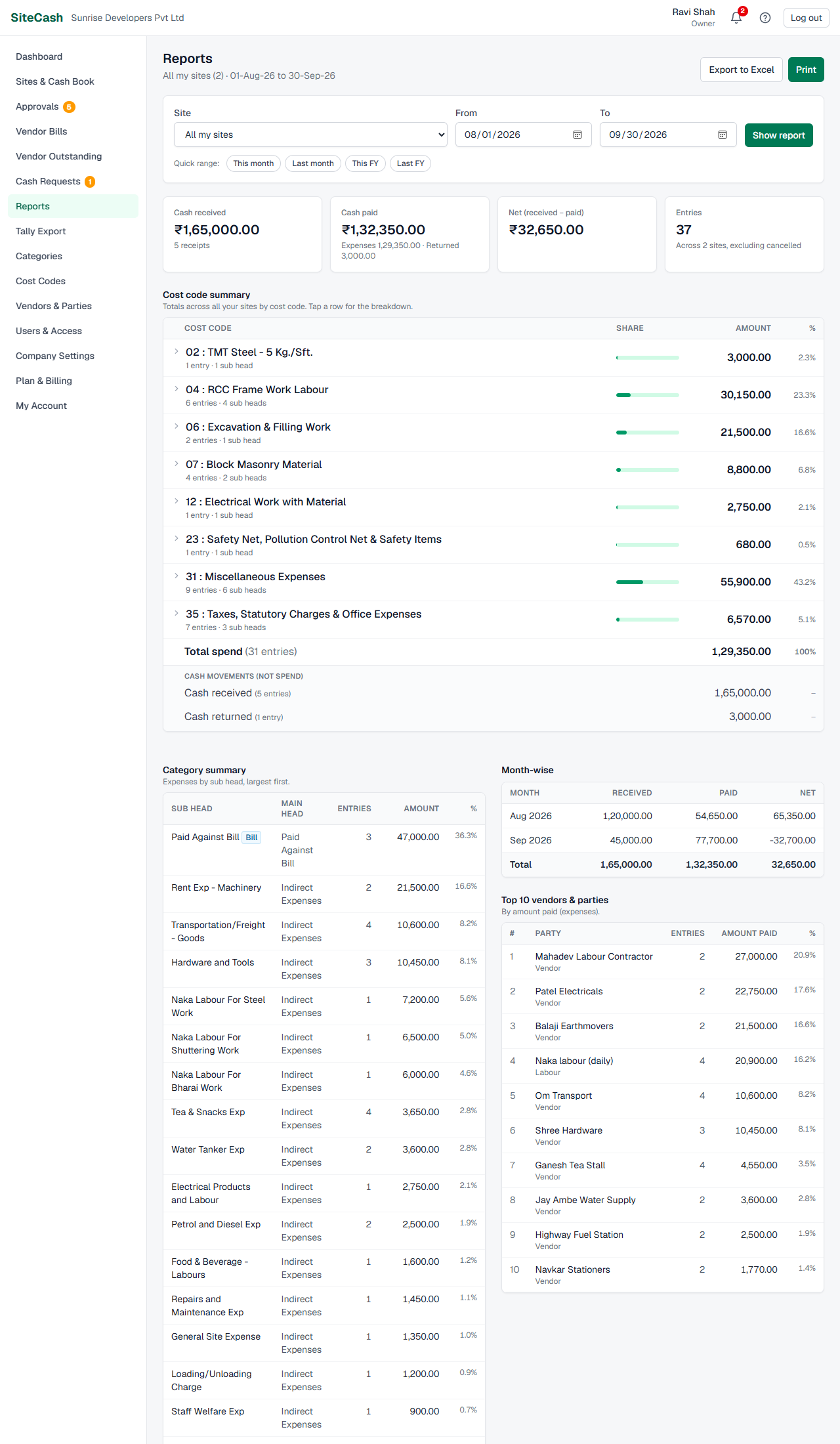
- In Site, choose one site (for example Sunrise Heights (SH)) or All my sites. All my sites means every site you have access to; closed sites are marked "- inactive".
- Set the From and To dates and click Show report.
- Or click a Quick range: This month, Last month, This FY (1 April to today) or Last FY (the full previous April–March year). The chosen range is highlighted.
The line under the title repeats what you are looking at, for example "Sunrise Heights (SH) · 01-Apr-26 to 27-Sep-26".
What is counted
- Cancelled vouchers are never counted.
- Entries waiting for approval or sent back are counted, because the cash has already left the site (see Approvals).
- Spend means expenses only. Cash received and cash returned are cash movements, not spend.
- Cash paid means expenses plus cash returned.
- Vendor bills are not part of these reports; they are on Vendor Outstanding. Payments to vendors from site cash (Paid Against Bill) are counted as spend.
Summary cards
The cards change depending on whether you chose one site or all sites.
| One site | All my sites |
|---|---|
| Opening balance: cash in hand at the start of the From date. | Cash received, with the number of receipts. |
| Cash received, with the number of receipts. | Cash paid, split into expenses and returned. |
| Cash paid: "Expenses … · Returned …". | Net (received − paid). |
| Closing balance: "Cash in hand at period end". | Entries: "Across 2 sites, excluding cancelled". |
A negative balance or net amount is shown in red.
Cost code summary
This is the same view as the old Excel pivot: each cost code (Super Head) with its total, and inside it the categories (Sub Heads) that make up that total.
- For one site the cost code shows as the site's cost centre, e.g. "SH-04 : RCC Frame Work Labour". For all sites it shows without the site code, e.g. "04 : RCC Frame Work Labour", and adds up all sites.
- Each row shows the number of entries, how many sub heads, the amount, a share bar and the % of total spend.
- Tap a row to open its breakdown. Each sub head shows its main head, entries, amount and %.
- Two special rows can appear after the cost codes: Paid against bill (payments to vendors from site cash that have no cost code; inside it you see the vendors paid, under "Paid to") and No cost code (expenses entered without a cost code).
- Total spend gives all expenses with the number of entries.
- At the bottom, Cash movements (not spend) shows Cash received and Cash returned.
Category, month-wise and top vendors
Category summary
Expenses by sub head (category), largest first: sub head, main head, entries, amount and %. Categories used for paying vendor bills have a Bill badge and suspense categories a Suspense badge.
Month-wise
One row per month of the period: Received, Paid, Net and, for one site, the Closing balance at the end of the month. Months with no entries are shown in grey, so gaps are easy to see.
Top 10 vendors & parties
The ten vendors and parties paid the most (expenses only), with their type (Vendor, Labour, Staff…), number of entries, amount paid and %. For example Mahadev Labour Contractor, Shree Hardware, Om Transport. Only expenses where a vendor or person was entered in "Paid to" appear here.
Printing a report
- Choose the site and period.
- Click Print at the top of the page.
- In the print window choose your printer, or "Save as PDF" to send the report by email or WhatsApp.
The printout leaves out the filters and buttons, adds your company name, the print date and your name at the top, and opens every cost code so the full breakdown is on paper.
Report Excel
Click Export to Excel on the Reports page. The file covers the same site (or all your sites) and period you are looking at, and is named like Report_SH_2026-04-01_2026-09-27.xlsx (or Report_AllSites_…). Every sheet starts with your company name, site, period and who made it.
| Sheet | What it has |
|---|---|
| Cost Code Summary | Columns: Cost Code (Super Head), Sub Head / Paid To, Main Head, Entries, Amount, % of Spend. Each cost code row is followed by its sub heads as grouped rows, which you can fold with Excel's outline buttons. Then the total spend and a Cash summary: Opening balance (one site only), Cash received, Expenses, Cash returned, Total paid (expenses + returns), Closing balance (one site only). |
| Category Summary | Columns: Sub Head (Category), Main Head, Posting (Expense, Paid against bill or Suspense), Entries, Amount, % of Spend, with a total and filter buttons on the header. |
| Monthly | Columns: Month, Received, Paid, Net, Closing Balance (one site only), Entries, with an opening row (one site) and a total row. Net and closing are Excel formulas, so they update if you change a number. |
Cash book Excel
The whole petty cash book of one site, like your old Excel sheet. You can download it in two places:
- In the site's cash book, click Excel. It uses the From and To dates of the cash book.
- On the Reports page, when one site is chosen, click Cash book (Excel). It uses the report's period.
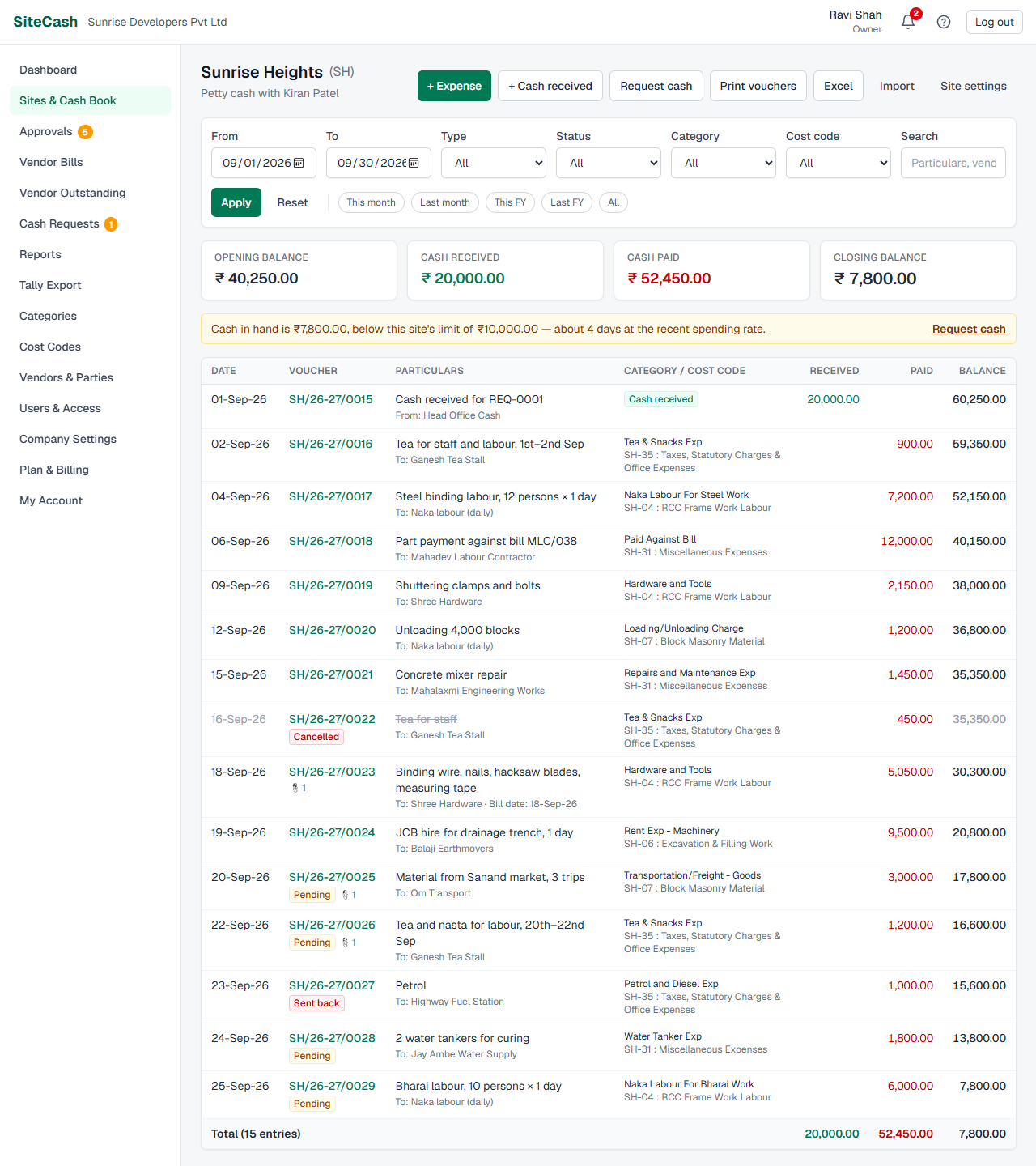
The file is named like CashBook_SH_2026-09-01_2026-09-27.xlsx and has one sheet, Cash Book, titled "Petty Cash Book: Sunrise Heights (SH)" with the period and the cash in charge (for example Kiran Patel). It is set for landscape printing.
| Column | What it shows |
|---|---|
| Voucher No | e.g. SH/26-27/0042 |
| Date, Bill Date | Entry date, and the bill date if one was entered. |
| Type | Expense, Receipt or Return. |
| Particulars | The description of the entry. |
| Category (Sub Head), Cost Code, Main Head | e.g. Cement, SH-04 : RCC Frame Work, and the category's main head. |
| Party | Paid to / received from, e.g. Ganesh Tea Stall or Head Office Cash. |
| Requested By | The reference name typed on the entry. |
| Remarks | The entry's remarks, plus "Bill No: …" when a bill number was entered. |
| Received (Dr), Paid (Cr) | Cash in and cash out. |
| Balance | Running balance, as an Excel formula. |
The first row is the Opening Balance and the last row is Total / Closing Balance. Entries waiting for approval and sent back are included.
Importing an old Excel petty cash book
If a site's petty cash was kept in Excel before SiteCash, you can bring those rows in as vouchers, so the site's history, balances and reports are complete.
Who can import: owners, admins and accountants. Open the site's cash book and click Import.
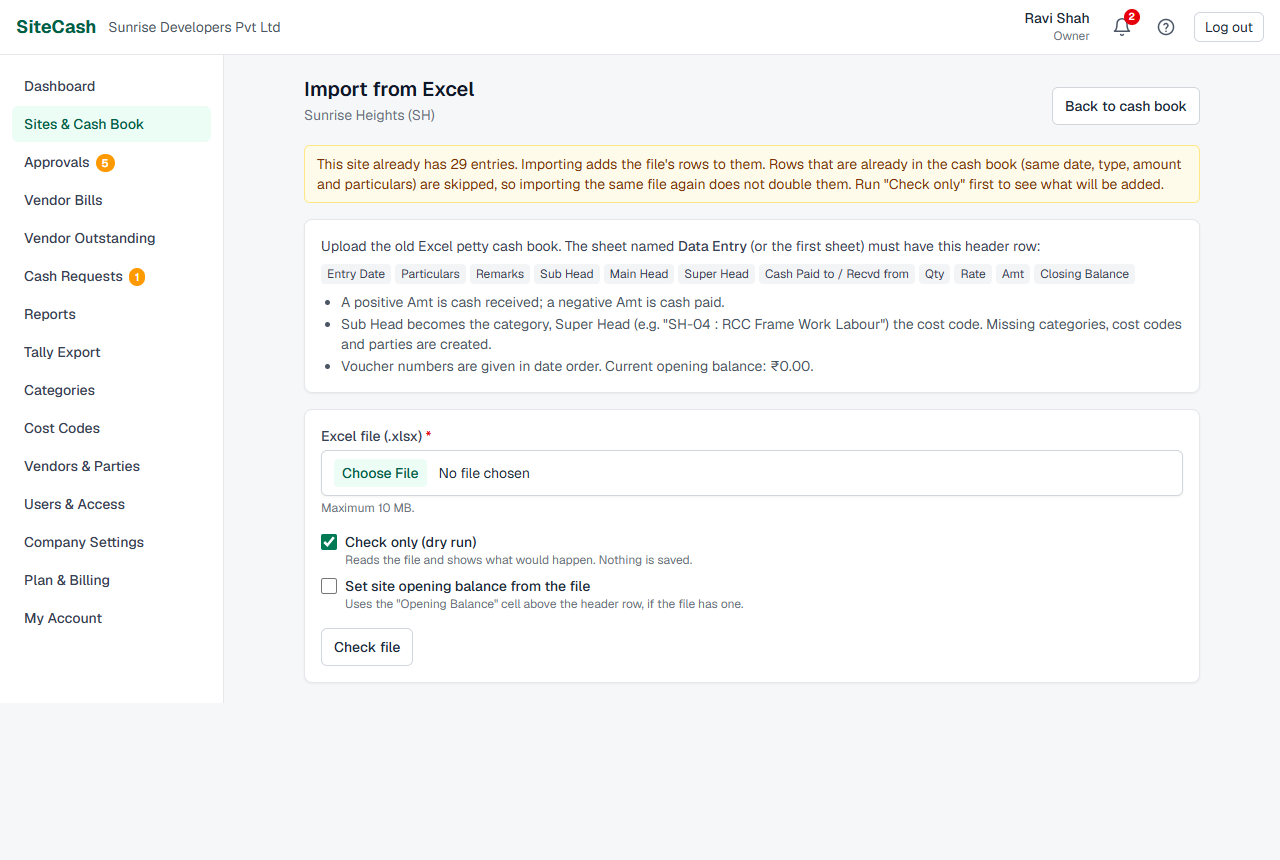
The layout the file must have
- An Excel .xlsx file, up to 10 MB. Old .xls files are not accepted: open them in Excel and use Save As → .xlsx.
- SiteCash reads the sheet named Data Entry, or the first sheet if there is none.
- A header row within the first 15 rows, with a cell named exactly Particulars. The columns are:
Entry Date,Particulars,Remarks,Sub Head,Main Head,Super Head,Cash Paid to / Recvd from,Qty,Rate,Amt,Closing Balance. The date, Particulars and Amt columns must be there; the others are used when present. - Amt with + (positive) is cash received; Amt with − (negative) is cash paid.
- The Main Head and Closing Balance columns are not read. SiteCash works out the balance itself; main heads come from your categories.
How each row becomes a voucher
| In the Excel row | In SiteCash |
|---|---|
| Positive Amt | A Cash received entry. "Cash Paid to / Recvd from" becomes who it came from, e.g. Head Office Cash. |
| Negative Amt with Sub Head "Cash Receipt" (or Super Head containing "Cash Receipt") | A Cash returned entry, returned to the name in "Cash Paid to / Recvd from". |
| Any other negative Amt | An Expense. |
| Sub Head | The category. If blank (or if a cost code was typed there), the category "General Site Expense" is used. |
| Super Head, e.g. "SH-04 : RCC Frame Work Labour" | The cost code 04. If there is no Super Head, the category's usual cost code is used, or else code 00. |
| Sub Head "Paid Against Bill" | A payment to a vendor. The vendor's name is taken from the Remarks column (the old sheet kept it there). |
| "Cash Paid to / Recvd from" on an expense | Kept in Remarks as "Note: …". |
| A date in the Remarks column | The entry's bill date. |
| Particulars, Qty, Rate | Kept as they are. A row with no Particulars uses the Sub Head as description. |
Voucher numbers are given in date order (rows of the same day keep their Excel order), per financial year, e.g. SH/25-26/0001 onwards. Imported entries are saved as approved and are recorded as entered by you.
Step by step: check first, then import
- Click Excel file (.xlsx) and choose the file.
- Leave Check only (dry run) ticked. It reads the file and shows what would happen. Nothing is saved.
- Decide on Set site opening balance from the file (see below).
- Click Check file and read the Check result (marked Nothing saved yet).
- If it looks right, untick Check only. The button changes to Import entries. You do not need to choose the file again.
- Click Import entries and confirm. You see "Imported 312 entries into Sunrise Heights." with Open cash book and Import another file. The number counts only the rows actually added.
The check result shows the number of Rows that will be added, the Period (first and last date in the file), Cash received, Paid (expenses and returns), the net cash movement, what happens to the opening balance, how many rows are already in the cash book and will be skipped (see Avoiding duplicates), and the new categories, cost codes and parties that will be created. Rows that are skipped are not counted in Rows or in the amounts. It is exactly what the real import will do.
What gets created
Categories, cost codes and parties (vendors and cash sources) that are not in SiteCash yet are created automatically, and listed in the result so you can check the spelling. Afterwards you can tidy them up in Categories, cost codes & vendors.
- Cost codes are matched by number. "SH-04 : …" and "GP-04 : …" both mean cost code 04. If 04 already exists, its name in SiteCash is kept.
- New categories are created as normal expense categories. Check their main head and usual cost code afterwards.
Fixes SiteCash makes for you
- Dates typed as text are understood: "12-Sep-2025", "12 Sep 25", "12/09/2025" (read as day/month/year, the Indian way) and "2025-09-12", as well as normal Excel dates. Dates that do not exist, such as "31/02/2026" or "31-Apr-26", are caught by Check only: the row is skipped with a warning.
- Amounts typed as text with commas, spaces or ₹ are read as numbers.
- Garbled characters from copy-paste are repaired, e.g. "1100×2" becomes "1100×2" and "–" becomes "–". Gujarati and other real text is left alone.
- Old spellings: "Repairs and Maintanance Exp" becomes "Repairs and Maintenance Exp", and "Suspense AC" becomes "Suspense A/c".
- Vendor names from Remarks for Paid Against Bill rows, as described above.
Warnings
Rows SiteCash could not use are listed as warnings with the Excel row number. Empty rows are skipped without a warning.
| Warning | What to do |
|---|---|
| Row 57: no amount, skipped. | The row has text but no Amt. Fill the amount in Excel if it is a real entry, or ignore it. |
| Row 88: date "15th Sept" is not a valid date, skipped. | SiteCash cannot read the date. Correct it in Excel and check again. |
| Row 91: date "31/02/2026" is not a valid date, skipped. | That day does not exist (for example 31 February or 31 April). Correct the date in Excel and check again. |
| Row 102: "Paid Against Bill" without a vendor name. | The entry is imported without a vendor. Type the vendor in Remarks and check again, or fix the voucher after import. |
| Row 5: cash received without a name. | Imported without "received from". Fill "Cash Paid to / Recvd from" in Excel, or fix it after import. |
Opening balance option
Set site opening balance from the file uses the "Opening Balance" cell above the header row, if the file has one (the number next to that label). The result says "Site opening balance will be set to ₹…". If you leave it unticked, the result only says what the file shows "(not applied)". It is ticked by default when the site has no entries yet. The import page also shows the site's current opening balance.
Avoiding duplicates
SiteCash skips rows that are already in the site's cash book: a row with the same date, type, amount and particulars as an entry already there is not added again. This happens in Check only and in the real import, so importing the same file twice does not double the vouchers. The result says, for example, "3 rows are already in this site's cash book (same date, type, amount and particulars) and will be skipped." (after the import: "were skipped").
If the site already has entries, the import page also says: "This site already has 25 entries. Importing adds the file's rows to them. Rows that are already in the cash book (same date, type, amount and particulars) are skipped, so importing the same file again does not double them. Run "Check only" first to see what will be added."
- Two identical rows inside the same file are both imported, because they can be two real payments (for example two ₹480 tea bills on the same day).
- Cancelled vouchers do not count: a row that matches only a cancelled entry is imported again.
A closed site can be checked, but you must reopen it before importing.
Troubleshooting
- If the report shows "No entries in this period", it means nothing (except cancelled vouchers) was entered for that site and period. Do: choose a wider date range or another site.
- If you see "No sites to report on", it means you have no access to any site yet. Do: ask your admin to give you access.
- If you see "The From date must be on or before the To date.", do: swap the dates.
- If the Cash book (Excel) button is missing on Reports, it means "All my sites" is chosen. Do: choose one site.
- If report totals differ from your old Excel, it means SiteCash leaves out cancelled vouchers but counts entries waiting for approval. Check both in the cash book.
- If you see "Old .xls files are not supported. Open the file in Excel and save it as .xlsx.", do: exactly that, then upload the .xlsx file.
- If you see "The file is too large (… MB). The maximum is 10 MB.", do: delete extra sheets or pictures from the file, or split it by year.
- If you see 'Could not find the header row (a cell named "Particulars").', it means the header row is missing, is below row 15, or the column is named differently. Do: make sure the Data Entry sheet has a cell "Particulars" in its header row.
- If you see 'Column for "amount" not found in the header row.' (or "date" / "description"), do: name the columns Amt, Entry Date and Particulars.
- If you see 'Row 91: date "31/02/2026" is not a valid date, skipped.', it means the date does not exist (or cannot be read). Do: correct the date in Excel (or turn the column into real Excel dates) and check again. Rows with such dates are never imported.
- If the result says "… rows are already in this site's cash book … and will be skipped", it means those rows were imported or entered before with the same date, type, amount and particulars. Do: nothing; they are not added twice. If fewer rows are added than you expected, compare the file with the cash book.
- If you see "Only owners, admins and accountants can import Excel files.", or the Import button is missing, it means you are a site user.
- If you see "This site is closed. Reopen it before importing entries.", do: ask an owner or admin to reopen the site in Site settings.
- If Check file or Import entries shows a message that your trial or plan has ended, it means the company is in view-only mode, and importing (even a check) waits until a plan is active. Reports, printing and Excel downloads still work. Do: ask the owner or an admin to choose a plan (see View-only mode).
- If Paid Against Bill rows come in as a normal expense category, it means your "Paid against bill" category has a different name in SiteCash than the Sub Head in the file, so SiteCash created a new, normal category. Do: before importing, make the Sub Head in the file match your "Paid against bill" category name exactly, and run Check only to confirm no new category "Paid Against Bill" is listed.