Help
Welcome to SiteCash
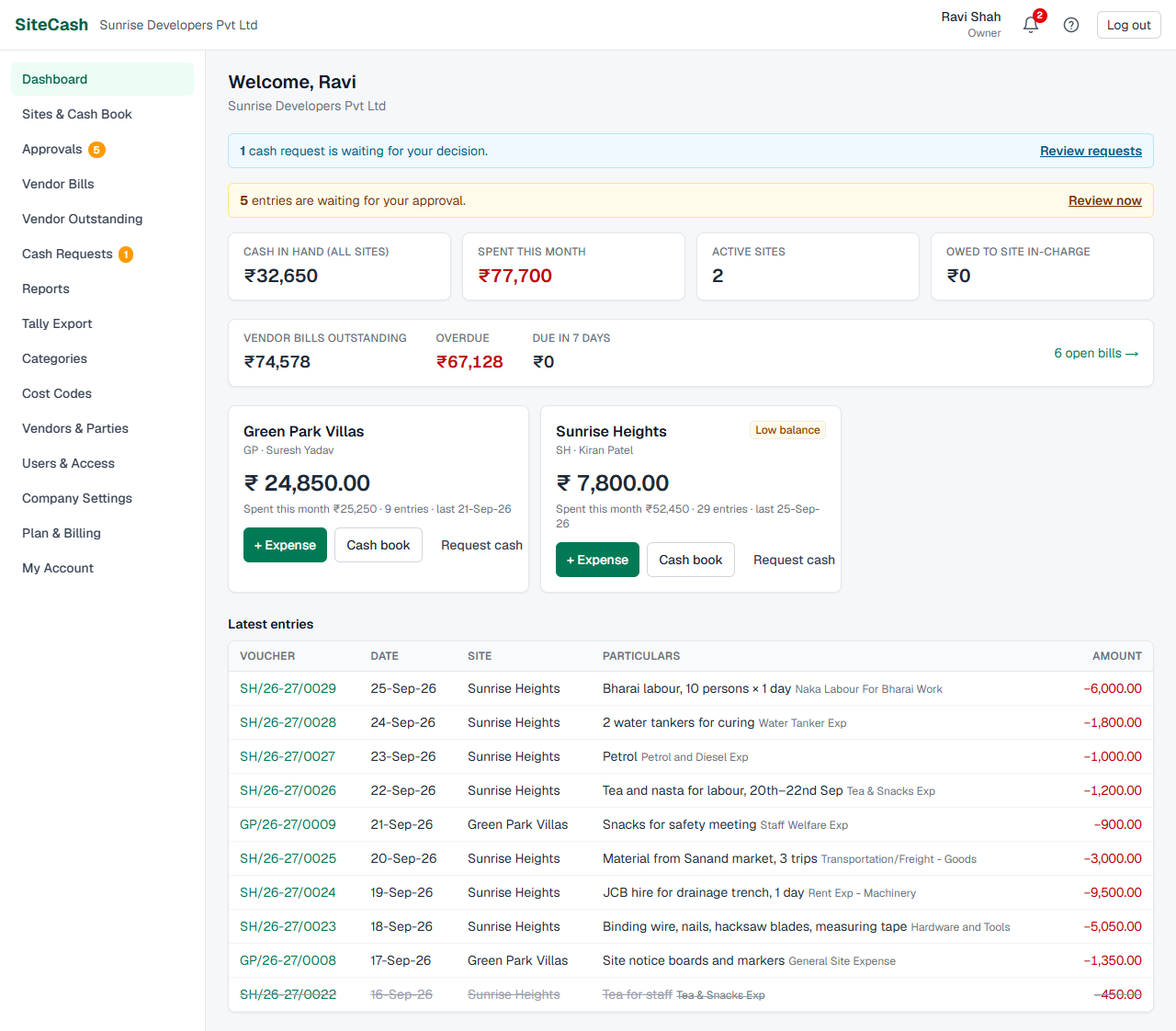
SiteCash is the petty cash book for your construction sites. Site staff write down every rupee they spend or receive, from their phone, with a photo of the bill. The office approves it, prints vouchers, keeps track of vendor bills and sends everything to Tally.
Who uses this:
Owner
Admin
Accountant
Site user
Where to start
Pick the line that fits you best and read that page first.
| You are… | Read first | Then |
|---|---|---|
| Setting up SiteCash for your company | Getting started | Add your sites, add your people, check categories and cost codes |
| A site in-charge or supervisor who spends site cash | Entries & bill photos | Cash requests, what happens when an entry is sent back |
| An accountant in the office | Approvals | Vendor bills, Reports, Tally |
| Moving from the old Excel petty cash sheet | Reports & Excel (import section) | Categories, cost codes & vendors |
Your role
Every person in your company gets one role. The role decides what they can see and change. The owner sets roles on the Users & Access page.
| Role | Who it is for | What they can do |
|---|---|---|
| Owner | The builder or director — for example Ravi Shah | Everything, including plan and billing, adding owners and admins, and company settings. |
| Admin | A trusted office manager | Everything an accountant can do, plus company settings, users and billing. |
| Accountant | The office accounts person — for example Neha Joshi | All sites. Approves entries, decides cash requests, manages vendor bills, categories and vendors, exports to Tally. |
| Site user | The site in-charge or supervisor — for example Kiran Patel | Only the sites given to them. Adds expenses and cash received, attaches bill photos, requests cash, prints vouchers. |
Good to know A site user working on Sunrise Heights cannot see or add anything on Green Park Villas unless the owner gives them that site too. See Users, access & settings.
How money moves in SiteCash
- Cash reaches the site. The site user asks for cash with a cash request. The office approves it and sends the cash. The site user records it as + Cash received.
- The site spends it. For every payment the site user adds an + Expense with a photo of the bill. See Entries & bill photos.
- The office checks it. The accountant approves each entry or sends it back with a note. See Approvals.
- Vouchers are printed and signed. One voucher per entry, numbered per site and year, like SH/26-27/0042. See Printing vouchers.
- Vendor bills are settled. Bills from vendors such as Shree Hardware are recorded once and marked paid from site cash or office payments. See Vendor bills & outstanding.
- Accounts get it. Approved entries go to Tally, as a file or automatically with the Tally connector. See Tally export & connector.
All help pages
Start here
Daily work
Sites & cash bookAdd sites, read the cash book, balances, filters and low-balance warnings.
Entries & bill photosAdd expenses and cash received, attach bill photos, edit or cancel an entry.
Printing vouchersPrint one voucher or all vouchers for a period, two per A4 page.
ApprovalsApprove entries, send them back with a note, and fix a sent-back entry.
Cash requestsAsk the office for cash, approve requests and record the cash when it arrives.
Alerts & notificationsThe bell, email and WhatsApp alerts, and who gets what.
Accounts
Vendor bills & outstandingRecord vendor bills, match payments, see who is owed and for how long.
Reports & ExcelCost code and category summaries, Excel downloads, importing your old Excel sheet.
Tally export & connectorSend approved entries to Tally Prime as a file or automatically.
Setup
Categories, cost codes & vendorsThe lists you pick from when you add an entry, and their Tally names.
Users, access & settingsAdd people, choose their sites, and set the company rules.
Plan & billingFree trial, plans, paying online and what happens if a payment is missed.
More
FAQ & troubleshootingQuick answers to common questions and error messages.
Platform adminFor the SiteCash operator only: companies, trials, plans and payments.
Mobile app (for the SiteCash operator)
Mobile app overviewHow the Android and iPhone app fits together, build types and the release checklist.
Development setupSet up a PC and run the app on Android and iPhone with every command explained.
Publish to Play Store & App StoreProduction builds, store consoles step by step, review and updates.
Words used in SiteCash
| Word | Meaning |
|---|---|
| Site | One project, like Sunrise Heights. Each site has its own cash book and a short code (SH) used in voucher numbers. |
| Entry / voucher | One line in the cash book: an expense, cash received or cash returned. Each entry gets a voucher number. |
| Category | What the money was spent on, like Cement or Tea & Refreshments. In the old Excel sheet this was the “Sub Head”. |
| Cost code | Which part of the work the money is for, like Civil Work. In the old Excel sheet this was the “Super Head”. In Tally it becomes a cost centre. |
| Vendor / party | The person or shop you paid or got money from, like Shree Hardware. |
| Balance | Cash left at the site. A negative balance means the site in-charge has spent their own money and the company owes it to them. |
| Cash request | A request from the site for more cash, like REQ-0003. |
| Financial year | April to March. Voucher numbers start again at 0001 every April, for example SH/26-27/0001. |
Getting more help
- Open this manual from any page in SiteCash: click the round ? Help icon next to the bell at the top. It opens in a new tab, so your work stays open.
- Look in FAQ & troubleshooting first — most error messages are explained there.
- Ask your company's owner or accountant. They can change your role, your sites and the company rules.
- For billing or account problems, the owner can contact SiteCash support from the Plan & billing page.
Tip On a phone, open SiteCash in your browser and choose Add to Home screen. It then opens like an app.