Help › Entries & bill photos
Entries & bill photos
Every time cash is paid out, comes in or goes back from a site, you make one entry. Each entry becomes a numbered voucher in the site's cash book, with its bill photos attached.
The three entry types
At the top of the form you choose the type. You cannot change the type after saving, so pick the right one.
| Type | Use it when | Example | Effect on cash |
|---|---|---|---|
| Expense (cash paid) | Cash is paid from the site's petty cash for anything: material, labour, transport, tea, fuel, or a payment against a vendor's bill. | ₹480 to Ganesh Tea Stall for tea for the labour. | Goes down (Paid column) |
| Cash received | Cash comes to the site in-charge, usually from the office. | ₹20,000 from Head Office Cash. | Goes up (Received column) |
| Cash returned | Unused cash is handed back from the site, for example to the office when work is over. | ₹5,000 returned to Head Office Cash. | Goes down (Paid column) |
Add an entry
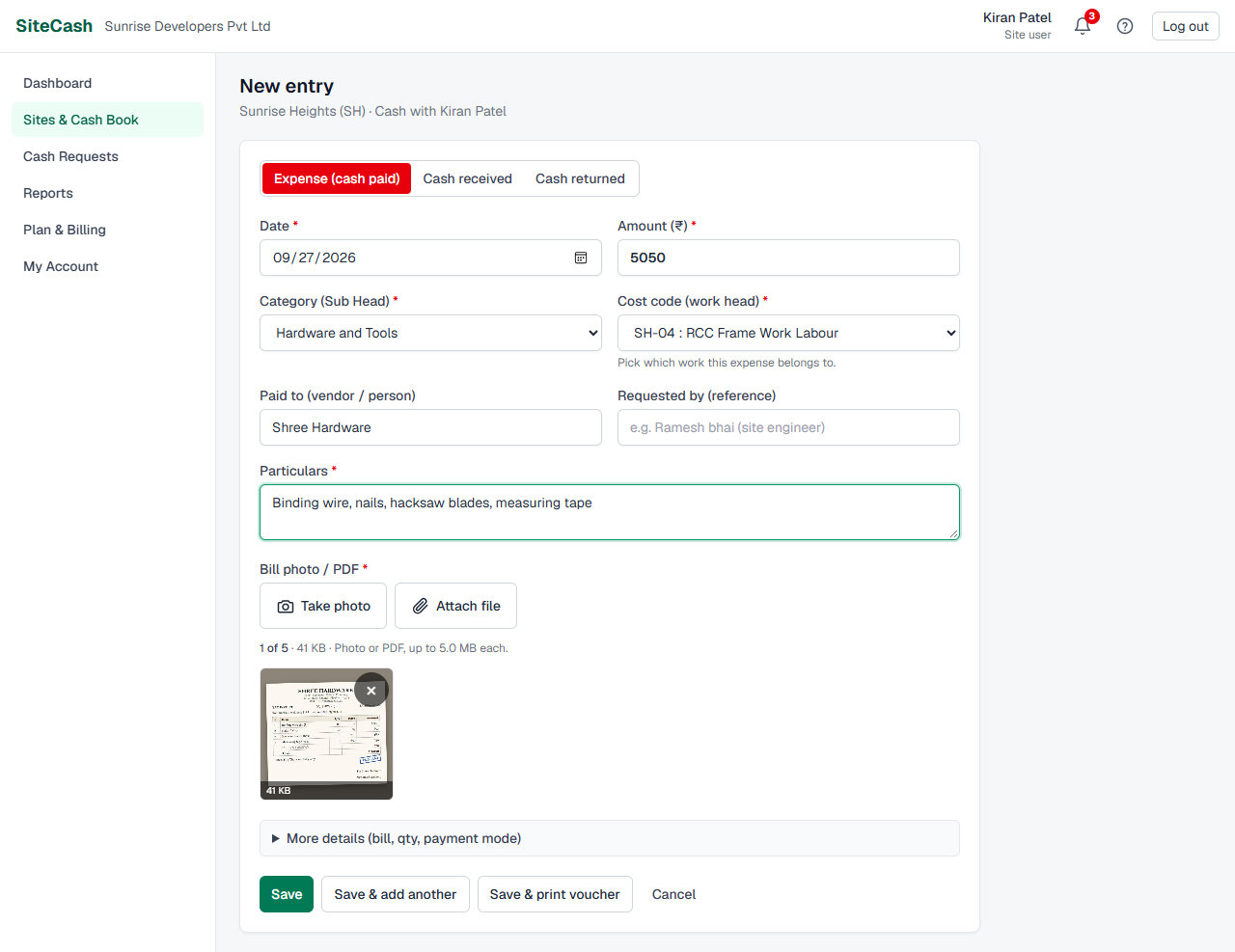
- Open the site's cash book and click + Expense or + Cash received. (From the Sites list, + Entry opens an expense.) The form shows the site and Cash with Kiran Patel.
- Check the type at the top. Click another type if needed.
- Check the Date (today is filled in) and type the Amount.
- For an expense, choose the Category. The cost code fills itself in if the category has a usual one; if not, choose it.
- Type who was paid, or who sent the cash. Pick a name from the list as you type, or type a new one.
- Write the Particulars: what the money was for.
- Tap Take photo to photograph the bill, or Attach file to choose a photo or PDF.
- Click Save. The voucher number appears in a green message on the cash book, for example Saved voucher SH/26-27/0042.
Fields on the form
Fields marked with * on the screen must be filled in. Some fields appear only for one type.
| Field | Shown for | What to enter |
|---|---|---|
| Date * | All | The day the cash was paid or received. See Date rules. |
| Amount (₹) * | All | More than 0. You may type commas (1,25,000) and paise (480.50). |
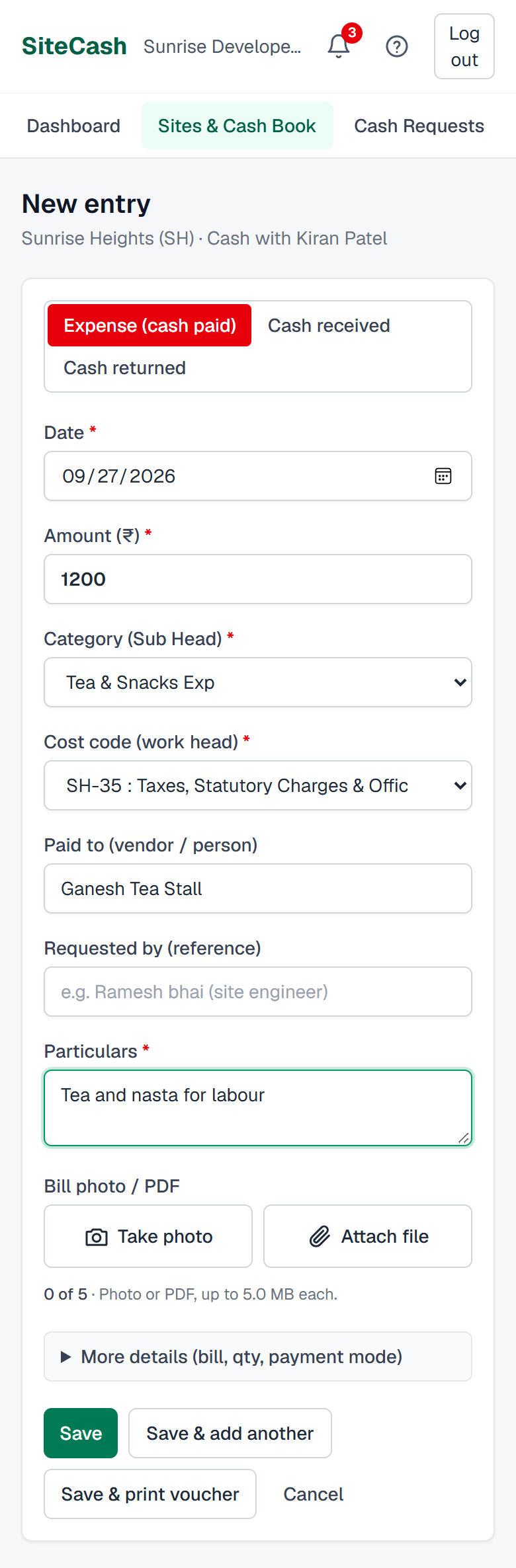
| Category (Sub Head) * | Expense | What kind of expense it is, for example Tea & Snacks Exp, Hardware and Tools or Paid Against Bill. |
| Cost code (work head) | Expense | Which work the money was for, for example SH-04 : RCC Frame Work Labour. See Category and cost code. |
| Paid to (vendor / person) | Expense | The shop, vendor or person who got the cash. Optional for normal expenses. For Paid Against Bill the label changes to Vendor (bill paid to) and it is required. |
| Received from * | Cash received | Where the cash came from, for example Head Office Cash. |
| Returned to * | Cash returned | Who got the cash back, for example Head Office Cash. |
| Requested by (reference) | Expense | Who asked for this spend, for example the foreman. It shows in the cash book as Ref: and on the printed voucher. |
| Against bill | Expense in a "Paid against bill" category | The vendor bill this cash pays. See Paying a vendor bill. |
| For cash request | Cash received | The approved cash request this cash is for. See Cash received for a request. |
| Particulars * | All | What the money was for, in a few words, for example Tea for slab casting labour, 3rd floor. |
| Bill photo / PDF | All | Photos or PDFs of the bill or receipt. See Bill photos. |
| More details | All | Bill no., bill date, payment mode, qty, rate, received by and remarks. See More details. |
Date rules
- The date cannot be in the future.
- Owners, admins and accountants can choose any past date.
- Site users can go back only as many days as the company's Edit window (7 days unless your company changed it in Company Settings; 0 means no limit). With a 7-day window, on 27-Sep-26 the earliest date is 20-Sep-26. For older bills, ask your accountant to make the entry.
- When a site user edits or corrects their own entry (for example one that was sent back), the entry may keep its saved date, even if that date is older than this limit. It just cannot be moved to a date earlier than the limit.
- The date decides the financial year in the voucher number. An entry dated 31-Mar-27 gets an
SH/26-27/…number; one dated 01-Apr-27 gets anSH/27-28/…number. See voucher numbers.
Category and cost code
The category says what the money was spent on (the Tally ledger). The cost code says which work it belongs to (the Tally cost centre for this site). Your accountant sets them up in Categories, cost codes & vendors.
- When you choose a category that has a usual cost code, the cost code fills in by itself. Example: Tea & Snacks Exp fills in SH-35 : Taxes, Statutory Charges & Office Expenses. You can change it.
- When the category has no usual cost code, the cost code box stays on — Select — with the hint Pick which work this expense belongs to. Example: Hardware and Tools can be for many kinds of work, so you must choose, for example SH-12 : Electrical Work with Material.
- For normal expense categories the cost code is required. For Paid Against Bill and suspense categories (like Suspense A/c) it is optional and shows — None —.
Paid to, received from and vendors
As you type a name, SiteCash suggests names already in your list. For expenses it suggests vendors, labour contractors and staff, for example Om Transport or Mahadev Labour Contractor. For cash received and cash returned it suggests cash sources, for example Head Office Cash.
If you type a new name, SiteCash adds it to Vendors & Parties when you save:
- a new name on an expense is added as a Vendor / supplier;
- a new name on cash received or cash returned is added as a Cash source / funding account.
Capital and small letters do not matter: shree hardware is matched to Shree Hardware. Extra spaces are removed.
Paying a vendor bill ("Against bill")
When cash from the site pays a bill that the office has recorded in Vendor bills, choose the category Paid Against Bill. The form then asks for the Vendor (bill paid to) and shows an extra box Against bill.
- Choose the category Paid Against Bill.
- Type the vendor name, for example Shree Hardware.
- In Against bill, pick the bill. The list shows the vendor's unpaid bills at this site, oldest first, as bill no · bill date · ₹ due.
- Save. The payment is matched to that bill, up to what is still due on it.
If the vendor has no open bill at this site, the box is grey and says No open bills for this vendor at this site. You can match the payment to a bill later. Leave it on — Not matched to a bill yet —; the accountant can match it from the bill page.
Cash received for a request
If the site asked for cash with a cash request and it was approved, the Cash received form shows a For cash request box. Choose the request, for example REQ-0003 · ₹15,000.00 still to come. As soon as the cash recorded against the request reaches the approved amount, the request changes to Cash received by itself. If only part has come, it stays Approved — cash to be sent until the rest is recorded.
The easy way: open the request and click Record cash received. The form opens with the request, the amount still to come and the particulars (Petty cash received for REQ-0003) already filled in.
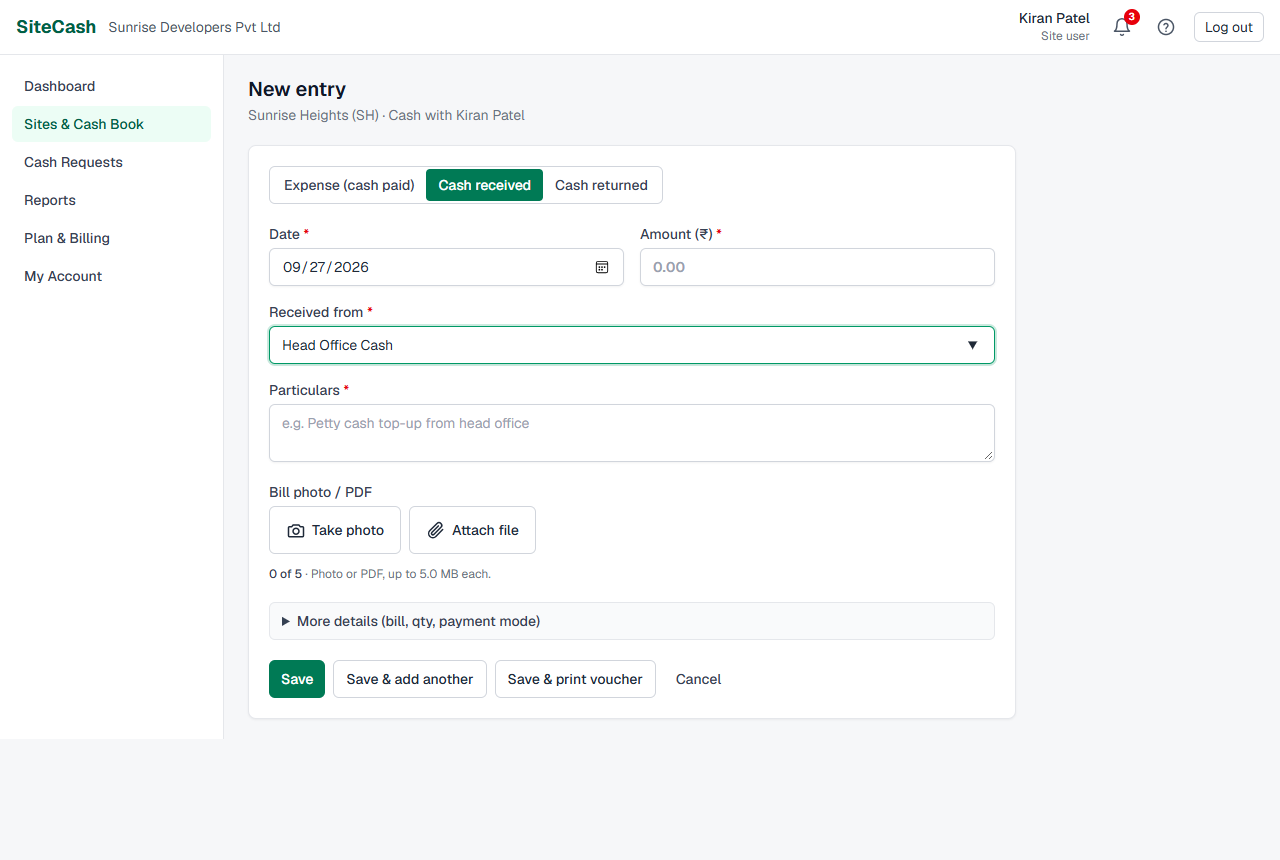
The box appears only when this site has an approved request that is still waiting for cash. Otherwise leave it: cash received does not need a request.
More details
Click More details (bill, qty, payment mode) to open these optional fields:
| Field | What to enter |
|---|---|
| Bill no. | The number printed on the shop's bill. |
| Bill / actual date | The date on the bill, if it is different from the entry date. Cannot be in the future. |
| Payment mode | Cash (the normal choice), UPI, Card or Bank. |
| Qty and Rate (₹) | For material bought by quantity. When you fill in both, the Amount is worked out for you (qty × rate), for example 20 × 45 = 900. |
| Received by | The person who took the cash or goods. Printed under the receiver's signature on the voucher. |
| Remarks | Any extra note for the accountant. |
Bill photos
A photo of the bill is the proof for the expense. The accountant checks it before approving.
- Take photo opens the phone camera. Hold the bill flat, in good light, and fill the screen with it.
- Attach file lets you choose photos or PDFs already on the phone or computer. You can choose several at once.
- Allowed: photos (JPG, PNG, WEBP, HEIC) and PDF.
- Up to 5 files per entry, each 5 MB or smaller, and at most 10 MB together in one save.
- Photos are made smaller on your phone before they are sent (a 4 MB camera photo becomes a few hundred KB). This saves mobile data and still keeps the bill readable. While this happens you see Preparing photos… and the save buttons wait.
- Below the buttons you see how many files you have, for example 2 of 5. Tap × on a picture to remove it before saving.
When a photo is required
Your company can set Bill photo required above (₹) in Company Settings. Then an expense above that amount cannot be saved without at least one photo or PDF. A red * appears next to Bill photo / PDF and the message A bill photo is required for expenses above ₹500.00. Cash received and cash returned never need a photo.
Adding photos later
Open the voucher, go to Bill photos, choose the files and click Upload 1 file (the button shows how many). You can add photos even after the entry is approved or sent to Tally, because it only adds proof. You cannot add photos to a cancelled voucher.
A photo can be deleted with Delete only while you are still allowed to edit the entry (see Editing an entry). Deleting cannot be undone.
Save buttons
| Button | What happens |
|---|---|
| Save | Saves and goes back to the cash book, where the new row is highlighted. |
| Save & add another | Saves and opens an empty form of the same type, with Saved voucher SH/26-27/0042. Add the next one below. Best for entering many bills at the end of the day. |
| Save & print voucher | Saves and opens the printable voucher. See Printing vouchers. |
| Cancel | Leaves the form without saving. |
If something is missing, a red message appears at the top of the form and everything you typed stays in place. Fix it and save again.
Approval after saving
- When a site user saves an entry and the company setting Site user entries need approval is on (it is on unless changed), the entry shows Pending and waits in Approvals.
- Entries saved by an owner, admin or accountant are approved straight away. If the company has switched approval off, site users' entries are approved straight away too.
- A pending entry already counts in the cash balance, because the cash has already been spent.
- If the accountant sends it back, it shows Sent back with a note. Correct it and save; see Editing an entry.
- Only approved entries are exported to Tally.
Viewing a voucher
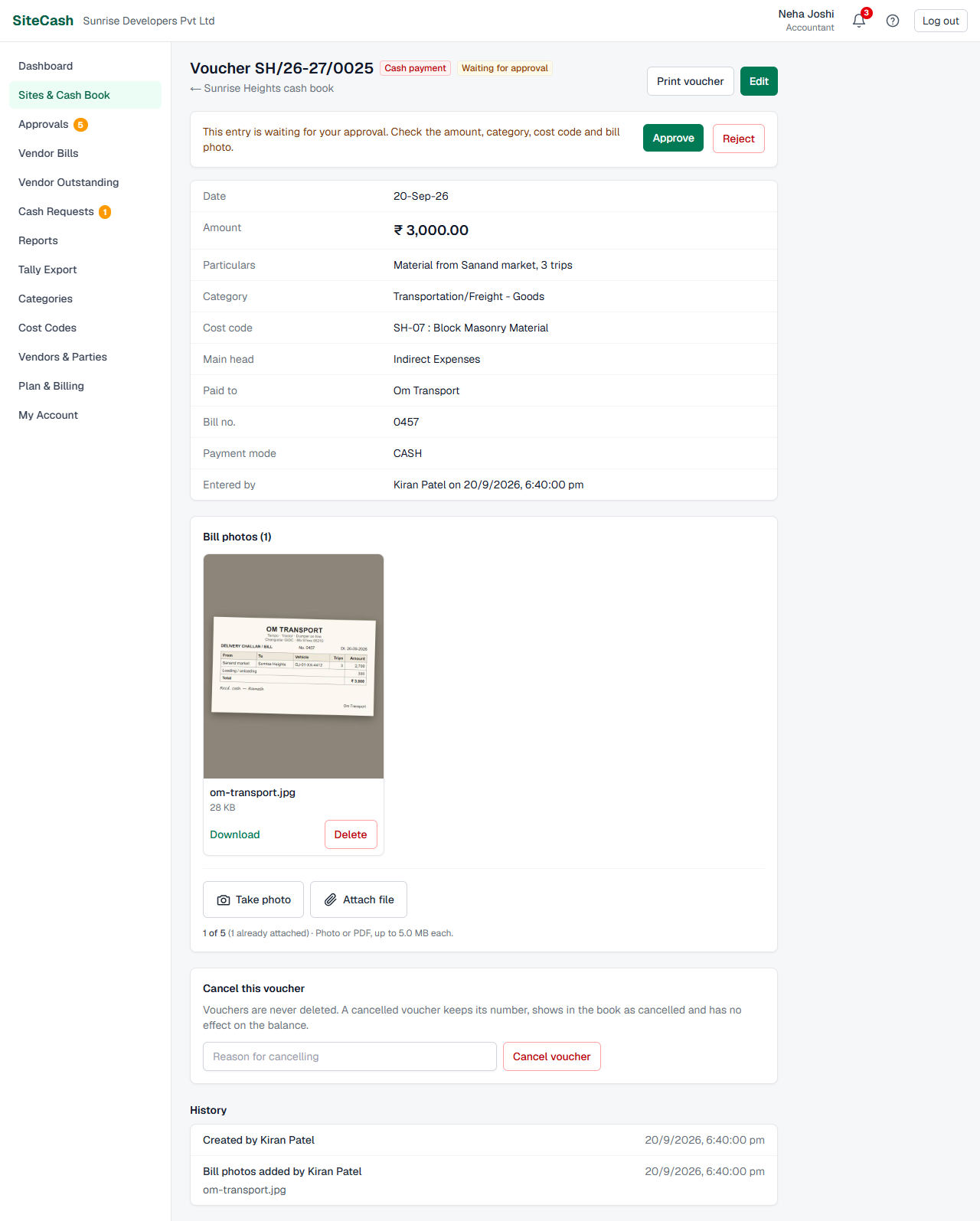
Click a voucher number in the cash book. The voucher page shows:
- The number and badges: the type (Cash payment, Cash received or Cash returned) and, if they apply, Cancelled, Waiting for approval, Sent back, In Tally.
- Buttons Print voucher and Edit (Edit only while you may still change it).
- All details: date, amount, particulars, category, cost code, main head, paid to, and the optional details. Entered by shows who made it and when; Approved by shows who approved it and when.
- For owners, admins and accountants, a yellow panel on entries that are not approved, with Approve and Reject. See Approvals.
- For a Paid Against Bill payment: Vendor bills paid by this voucher, and any amount Not matched yet.
- Bill photos: tap a photo to open it full size, or Download it.
- Cancel this voucher and History (see below).
Editing an entry
Open the voucher and click Edit. The form opens with the saved values (the type cannot be changed). Make the change and click Save or Save & print voucher. The voucher number stays the same.
Who can edit, and until when
| Situation | Owner / Admin / Accountant | Site user |
|---|---|---|
| Your own entry | Any time | Only within the edit window: 7 days from the day the entry was saved (or what your company set). After that: Locked: entries can only be changed within 7 days. |
| Made by someone else (for example Cash received that the office recorded for the site) | Any time | No: Locked: only the office can change entries made by someone else. |
| Approved by an approver | Any time | No: Locked: already approved. |
| Sent back | Any time | Yes, if you made it, even after the edit window. It may keep its own date even if that is older than the back-dating limit. Saving sends it for approval again (Pending). |
| Exported to Tally (Tally) | Nobody: Locked: already exported to Tally. | |
| Cancelled | Nobody: This voucher is cancelled. | |
| Site is closed | Nobody, until an admin reopens the site. | |
When an entry is locked, the Edit button is hidden and a blue note says why.
Other rules when editing
- The date must stay in the same financial year, because the voucher number contains the year. To move an entry to another year, cancel it and make a new one.
- To change the type (for example from expense to cash returned), cancel the voucher and make a new one.
- If a Paid Against Bill payment is already matched to a vendor bill, you cannot change its category or vendor, or make the amount lower than the matched amount. Remove the match on the bill page first.
- Every change is written in the History with the old and new value.
Cancelling a voucher
Vouchers are never deleted. This keeps the number series complete, so nothing can go missing without a trace. Instead you cancel a wrong voucher.
- Open the voucher and go to Cancel this voucher near the bottom.
- Type the reason, for example Entered twice, see SH/26-27/0041 (at least 3 characters).
- Click Cancel voucher and confirm.
After cancelling:
- The voucher keeps its number and stays in the cash book, grey and struck through, with Cancelled.
- Its amount has no effect on the balance or totals.
- If it paid a vendor bill, the match is removed, so the bill shows as due again.
- If it was cash received for a cash request, it no longer counts towards that request.
- The voucher page shows the reason, and the printed voucher gets a large CANCELLED stamp.
The same people who may edit an entry may cancel it (see the table above). So a site user can cancel only entries they made themselves. A voucher already in Tally cannot be cancelled here.
History
At the bottom of the voucher page, History lists everything that happened to the entry, newest first, with the person and the time: Created, Edited (each changed field, old value struck through → new value), Approved, Sent back (with the note), Cancelled (with the reason), Bill photos added and Bill photo removed (with file names). Entries brought in from Excel show No history (imported from Excel).
Troubleshooting
- If you see Site users can only enter dates from 20-Sep-26 onwards. Ask your accountant for older entries. it means the date is earlier than your company's back-dating limit (the message shows the first date allowed). When you correct or edit your own entry, you may keep its saved date; you just cannot move it earlier. Do: choose a date from the one shown onwards, or give an older bill to your accountant to enter.
- If you see Entry date cannot be in the future. do: choose today or an earlier day.
- If you see Choose the cost code (which work is this expense for?). do: pick a cost code; this category has no usual one.
- If you see Attach a bill photo: it is required for expenses above ₹…. do: tap Take photo and save again.
- If you see … is too large it means a file is over 5 MB. Do: take a photo instead of attaching the original, or make the PDF smaller.
- If you see … is not a supported file. do: attach a JPG, PNG, WEBP or HEIC photo, or a PDF.
- If Take photo and Attach file are grey, it means the entry already has 5 files. Do: delete one on the voucher page first.
- If you see This site is closed. Ask an admin to reopen it. it means the site was closed in Site settings.
- If you see Date must stay in financial year 2026-27 … do: keep the date in that year, or cancel the voucher and make a new one.
- If you see Locked: … it means you can no longer change this entry (see the table in Editing an entry). Do: ask your accountant.
- If you see a message that your trial or plan has ended, it means the company is in view-only mode: you can view, print and download, but not save or cancel entries or add or delete bill photos. Do: ask the owner to check Plan & billing.