Help › Tally export & connector
Tally export & connector
SiteCash turns your approved petty cash entries (and, if you want, vendor bills) into Tally Prime vouchers. You can import them into Tally as a file, or let the Tally connector on the accountant's PC put them into Tally automatically.
How entries become Tally vouchers
Each SiteCash entry becomes one Tally voucher with the same voucher number (for example SH/26-27/0042) and the same date. The bill number goes into the voucher's reference, and the narration carries the description, who was paid, the bill number and date, remarks and PC Vch SH/26-27/0042, so you can always find the paper voucher.
| In SiteCash | Tally voucher | Debit (Dr) | Credit (Cr) |
|---|---|---|---|
| Expense (category of kind Expense or Suspense), e.g. ₹1,850 for Hardware and Tools | Payment | The category's Tally ledger, with the cost centre, e.g. SH-04 : RCC Frame Work Labour | The site's cash ledger, e.g. Petty Cash - (Kiran) |
| Expense in a "Paid against bill" category, e.g. ₹25,000 paid to Shree Hardware | Payment | The vendor's ledger (Shree Hardware). If the bill it pays is already in Tally, the payment carries bill-wise Agst Ref with the bill number; any extra amount goes On Account. | The site's cash ledger |
| Cash received at site, e.g. ₹50,000 from Head Office Cash | Receipt | The site's cash ledger | The account the cash came from (Head Office Cash) |
| Cash returned from site | Payment | The account the cash went back to | The site's cash ledger |
| Vendor bill (only when Also export vendor bills to Tally is on) | Journal | The bill's category ledger, with the cost centre | The vendor's ledger, bill-wise New Ref = bill number. Voucher number looks like SH/BILL/VB-125. |
The voucher type names (Payment, Receipt, Journal) and the cost category come from Company Settings, so they can match your Tally exactly.
SH-04 : RCC Frame Work Labour for Sunrise Heights and GP-04 : RCC Frame Work Labour for Green Park Villas. So each site gets its own cost centres in Tally. See Cost codes.One-time setup in SiteCash
Names must match your Tally exactly (spelling and spaces), or Tally will reject the vouchers. Do this once, before your first export.
Company Settings (owner or admin)
Open Company Settings and fill the Tally export box, then click Save settings. More about this page in Users, access & settings.
| Field | What to enter |
|---|---|
| Company name in Tally | The company name as shown at the top of Tally, e.g. Sunrise Developers Pvt Ltd. Leave blank to use your SiteCash company name. |
| Payment voucher type | Used for expenses and cash returned. Usually Payment. |
| Receipt voucher type | Used for cash received at site. Usually Receipt. |
| Cost category | Holds the site cost centres. Usually Primary Cost Category. |
| Also export vendor bills to Tally | Tick only if Tally should get your vendor bills from SiteCash. Leave it off if your accountant already enters vendor bills in Tally, or they will be entered twice. |
| Voucher type for vendor bills | Usually Journal (or Purchase if your Tally uses purchase vouchers for bills). |
| Send new exports to Tally automatically through the connector | On by default. It only matters once a Tally connector is set up. When off, you send each export yourself with Send to Tally. |
Site settings (owner or admin)
Open the site, then its settings, and fill Tally cash ledger: the petty cash ledger of this site exactly as in Tally, e.g. Petty Cash - (Kiran). If you leave it blank, SiteCash uses Petty Cash - Sunrise Heights (the words "Petty Cash - " and the site name). See Sites & cash book.
Categories and vendors (owner, admin or accountant)
Each category and each vendor has a Tally ledger field. Leave it blank when the Tally ledger has the same name; fill it when the name in Tally is different (for example the category Tea & Snacks Exp posts to Staff Welfare in Tally). A category's Main head (Tally group) is the group a new ledger is created under. See Categories, cost codes & vendors.
Ledgers that must already be in Tally
SiteCash can create most ledgers in Tally for you (see masters file): the site cash ledger, expense ledgers, vendor ledgers and cost centres. It does not create the accounts cash comes from or goes back to, such as Head Office Cash, a partner's account or a bank account. Which group they belong to is your accountant's decision.
When the period you are exporting has cash received or cash returned, the Tally Export page lists these names in a blue box: "SiteCash does not create the accounts cash comes from, so these must already exist in Tally with exactly these names: Head Office Cash."
- Check that each listed ledger exists in Tally with exactly that spelling.
- If the Tally name is different, open Vendors & Parties, edit that party (type Cash source / funding account) and put the Tally name in Tally ledger.
- If it does not exist in Tally at all, create it in Tally first.
The Tally Export page
Open Tally Export from the menu. Site users do not see this page.
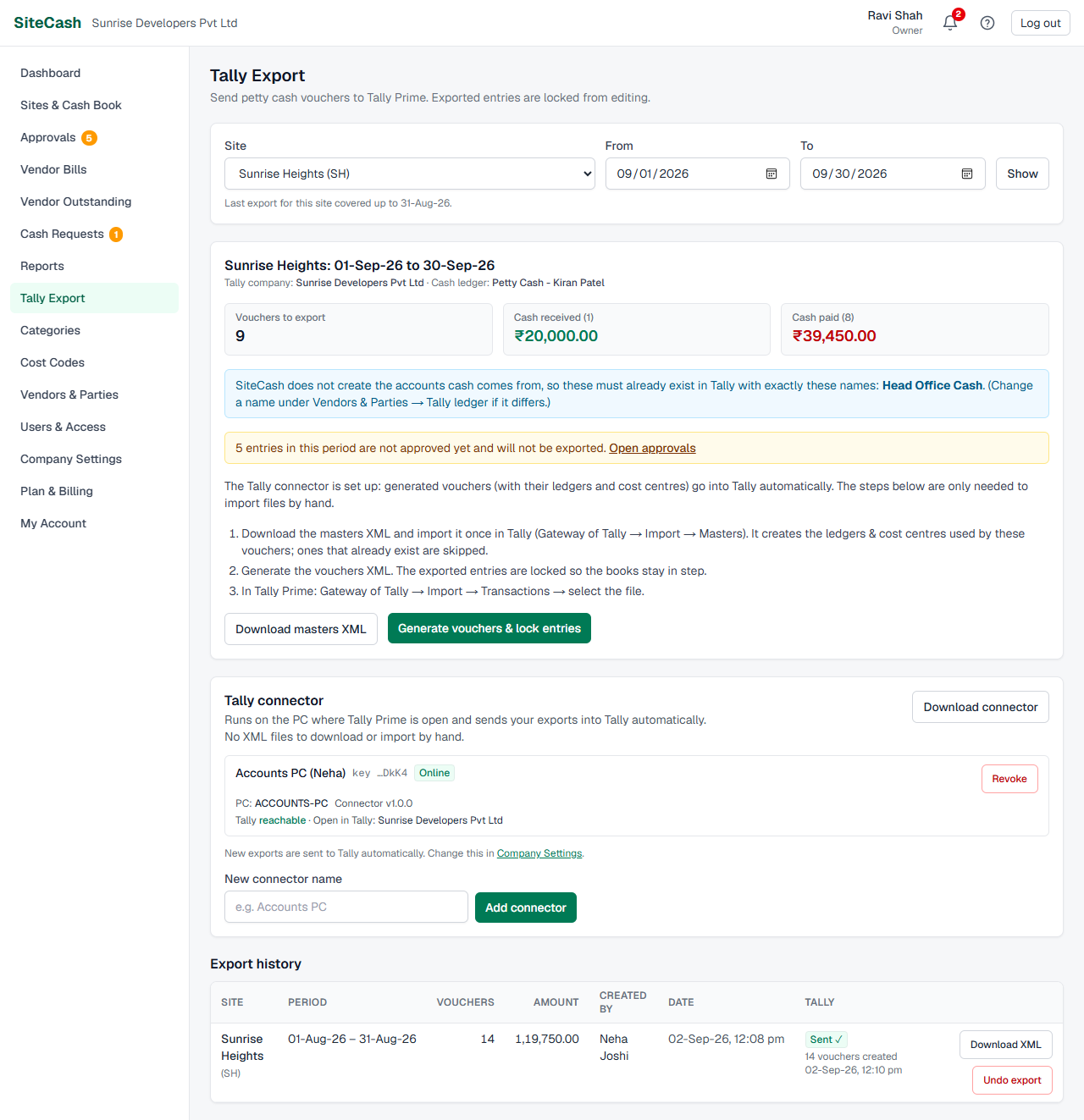
Choose the site and period
- Pick the Site. The page reloads with that site's usual period: from the day after its last export (or its oldest unexported entry) up to today. Below the filter you see "Last export for this site covered up to …" or "Nothing exported for this site yet."
- Change From and To if you want a different period (for example one month), then click Show.
Check the preview
The preview shows Vouchers to export, Cash received and Cash paid (cash paid includes cash returned), with counts and ₹ totals. When vendor bills are exported, there is also a Vendor bills box. Then read the messages under it:
| Message | What it means | What to do |
|---|---|---|
| Blue: "SiteCash does not create the accounts cash comes from…" | These funding accounts must already be in Tally. | See Ledgers that must already be in Tally. |
| Amber: "3 entries in this period are not approved yet and will not be exported." | Entries waiting for approval, or sent back to the site user, are skipped. | Click Open approvals, approve them, and come back. Or export now and include them in a later export. |
| Amber: "2 unexported entries are dated before …" | Someone added or changed back-dated entries after an earlier export, so they fall before your period. | Click Include from … to start the period at the oldest one. |
| Red: "Fix these vouchers before exporting:" | Some vouchers cannot be posted. Each line shows the voucher number (a link to the entry) and the problem, e.g. "Category is missing.", "Paid Against Bill" needs a vendor., "Received from / returned to is missing." For bills: "Choose what the bill is for (category)." | Open each voucher, correct it and save. The generate button stays greyed out until the list is empty. |
| "No unexported entries in this period." | Everything in these dates is already exported, or there are no approved entries. | Choose another period or site. |
Method A: import files by hand
Use this if you have no connector, or automatic sending is off. You download two files (XML files that Tally understands) and import them in Tally Prime.
- On the Tally Export page choose the site and period and make sure there is nothing to fix (see above).
- Click Download masters XML. This file holds the ledgers and cost centres used by these vouchers: the site cash ledger (under Cash-in-Hand), expense ledgers (under the category's main head), vendor ledgers (under Sundry Creditors, bill-wise on) and the cost centres.
- In Tally Prime: Gateway of Tally → Import → Masters, and select the masters file. Ledgers and cost centres that already exist are skipped, so importing it again does no harm.
- Back in SiteCash, click Generate vouchers & lock entries and confirm ("Export 42 vouchers to a Tally file and lock them from editing?").
- A green message says "Exported 42 vouchers (₹1,25,000) for Sunrise Heights, … These entries are now locked." Click Download vouchers XML in that message. (Later you can download it again with Download XML in Export history.)
- In Tally Prime: Gateway of Tally → Import → Transactions, and select the vouchers file.
- Check Tally's import summary: the number of vouchers created should match the number exported. If Tally lists errors, see Troubleshooting.
Tally_Masters_SH.xml and Tally_Vouchers_SH_2026-09-01_2026-09-30.xml, so you can find them in your Downloads folder.Method B: set up the Tally connector
The Tally connector is a small program that runs on the Windows PC where Tally Prime is open (usually the accountant's PC). About once a minute it asks SiteCash for new exports and puts them straight into Tally: first the ledgers and cost centres, then the vouchers. No files to download or import by hand.
It talks only to your SiteCash address and to Tally on that PC. Its key is stored encrypted for that Windows user. It needs no administrator rights.
Before you start (on the Tally PC)
- Open Tally Prime and load your company.
- Turn on Tally's XML server: Help (F1) → Settings → Connectivity, set TallyPrime acts as = Both (or Server) and Port = 9000. (Tally.ERP 9: F12 → Advanced Configuration.)
Add the connector in SiteCash (owner or admin)
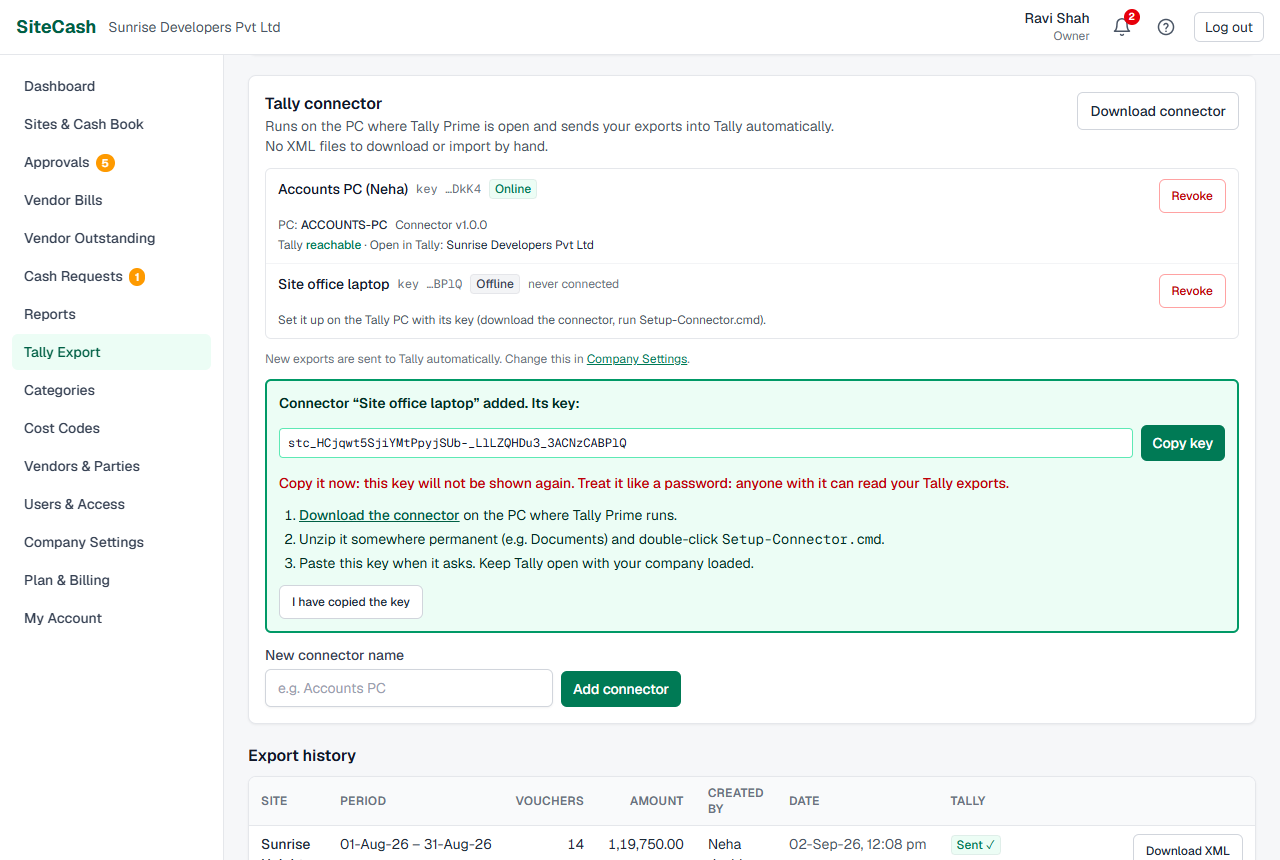
- On the Tally Export page, find the Tally connector card. Type a name in New connector name, e.g.
Accounts PC, and click Add connector. - SiteCash shows the connector's key in a green box. Click Copy key (it changes to Copied ✓). If copying does not work, select the key and copy it yourself.
- Keep the key safe until setup is done, then click I have copied the key.
Install it on the Tally PC
- On the Tally PC, log in to SiteCash and click Download connector (on the connector card). You get
SiteCash-Tally-Connector.zip. Owners, admins and accountants can download it. - Unzip it to a folder you will keep, e.g.
Documents\SiteCash Tally Connector. Do not run it from inside the zip or from Downloads if you clean that folder, because Windows starts it from this folder every day. - Keep Tally open with your company loaded. Double-click
Setup-Connector.cmd. - When it asks "Paste the connector key here", paste the key (right-click or Ctrl+V) and press Enter. The key shows as stars.
- The connector checks Tally and SiteCash. When all is well it says "Done. The connector now runs in the background and starts whenever you log in to Windows." Press any key to close the window.
- In SiteCash, refresh the Tally Export page. The connector shows Online, Tally reachable and the companies open in Tally.
Setup-Connector.cmd again (it asks for the key again).Files in the connector folder
| File | What it is for |
|---|---|
Setup-Connector.cmd | First-time setup: asks for the key, starts the connector and makes it start whenever you log in to Windows. |
Run-Connector-Now.cmd | Runs the connector in a window so you can watch what it does. Close the window to stop it. If the background copy is already running, it only says "The connector is already running.", which is fine. |
Uninstall-Connector.cmd | Stops the running connector and removes it from Windows startup. It says "Stopped the running connector." or "The connector was not running." See Removing the connector. |
connector.log | What the connector did, line by line. Open it in Notepad when something is wrong. |
config.json | Your SiteCash address and the Tally address (normally http://localhost:9000). |
connector.key | Your key, encrypted for your Windows user (made by setup). |
SiteCashTallyConnector.ps1, README.txt | The connector itself (a plain PowerShell script you can read) and short instructions. |
Daily work with the connector
- On the Tally PC, keep Tally open with your company loaded. The connector starts by itself when you log in to Windows.
- In SiteCash, choose the site and period and click Generate vouchers & lock entries. The confirmation says the vouchers will be sent to Tally through the connector.
- The export is Queued. Within about a minute the connector imports it and the status becomes Sent ✓ with the number of vouchers created. The page refreshes by itself every 10 seconds while an export is on its way.
- The person who made the export gets an alert: "Tally import done: …", or "Tally import failed: …" / "Tally import partly failed: …" with Tally's message (see Alerts & notifications).
Export statuses and what to do
The Tally column of Export history shows where each export is. The buttons next to it change with the status. Send to Tally, Retry, Send again and Cancel sending can be used by owners, admins and accountants.
| Status | What it means | What to do |
|---|---|---|
| Not sent | A file-only export: there was no connector, automatic sending was off, or your plan does not include the connector. | Import the file by hand (Download XML), or click Send to Tally if you have a connector and your plan includes it. Never both: SiteCash warns you that the vouchers would be duplicated. |
| Queued | Waiting for the connector. It says "The connector picks it up within a minute." or "Waiting for the connector to come online." | Nothing, if the Tally PC is on. To stop it (for example to import the file instead, or to undo the export), click Cancel sending. |
| Sending… | The connector has picked it up and Tally is importing it. | Wait for Tally's reply. If there is no reply for 15 minutes, it shows "No reply from the connector yet. Check in Tally whether these vouchers arrived." and later turns Failed. |
| Sent ✓ | Tally imported every voucher. It shows how many were created and when. | Nothing. |
| Partly imported | Tally created some vouchers but rejected others, e.g. "12 of 42 vouchers created". Open Tally's messages to see why. It is never retried automatically, to avoid duplicates. | Fix the cause (usually a missing ledger). Then either delete the vouchers that did get into Tally and click Send again (it warns: "Sending again can duplicate them in Tally"), or ask an owner or admin to undo the export, delete the imported vouchers in Tally and export again. |
| Failed | Nothing was imported: Tally was not reachable, or it rejected all vouchers. The reason is shown in red, with Tally's messages underneath. | Fix the cause (open Tally, load the company, create the missing ledger…) and click Retry. If the failure was "No reply from the Tally connector", first check in Tally whether the vouchers arrived. |
Reading the connector card
Everyone who can open the Tally Export page sees the Tally connector card. Each connector shows:
| You see | What it means |
|---|---|
Name and key …Xy3Q | The connector's name and the last 4 characters of its key, so you can tell keys apart. |
| Online | The connector checked in during the last 3 minutes. |
| Offline with "last seen 2 h ago" or "never connected" | The PC is off, you are logged out of Windows, the internet is down, or setup was never finished. On a plan without the connector (Starter) it always shows Offline, because SiteCash does not accept it. |
| PC: ACCOUNTS-PC · Connector v1.0.0 | The Windows computer it runs on and its version. |
| update available | A newer connector exists. Download the connector again and unzip it over the same folder (your key file stays), then restart the PC. |
| Tally reachable / Tally not reachable: … | Whether the connector could talk to Tally on that PC, with the reason if not. When offline it shows the "Last report". |
| Open in Tally: … | The companies loaded in Tally on that PC. |
| Red box: "“Sunrise Developers Pvt Ltd” is not open in Tally on this PC, so imports will fail." | Your company is not among the open companies. Load it in Tally, or correct Company name in Tally in Company Settings. |
| Yellow box at the top of the card: "The Starter plan does not include the Tally connector, so nothing is sent to Tally automatically. Download the vouchers XML from each export instead, or upgrade your plan." | Your plan does not include the connector (see Which plans include the connector). Import the files by hand, or upgrade on Plan & Billing. |
Under the list, a line tells you whether new exports are sent automatically ("New exports are sent to Tally automatically.") or not ("Automatic sending is off: use “Send to Tally” on each export below.").
Revoking a key or removing the connector
Revoke a key when the PC is replaced, the key may have been seen by someone else, or you stop using the connector.
- On the connector card, click Revoke next to the connector (owner or admin) and confirm.
- The connector on that PC stops working at once and its key can never be used again. It stays in the list as Revoked with the date, for the record.
- On that PC, double-click
Uninstall-Connector.cmd. It stops the connector if it is running ("Stopped the running connector." or "The connector was not running.") and removes it from Windows startup. Then delete the folder.
Locked entries and Undo export
As soon as you generate vouchers, the exported entries are locked so SiteCash and Tally stay the same. Nobody can edit or cancel them, not even the owner. The cash book shows a blue Tally badge on them and the voucher page shows In Tally; trying to change one says "Locked: already exported to Tally." Exported vendor bills are locked the same way (you can still add bill photos to them).
If an exported entry is wrong
Only the owner or an admin can undo an export. Undo unlocks all entries of that export so they can be corrected and exported again. It does not remove anything from Tally.
- In Tally, delete the vouchers of that export first (if they were imported by file or by the connector).
- In SiteCash, find the export in Export history and click Undo export. Read the confirmation and confirm.
- SiteCash says "Export undone. 42 entries are unlocked and can be exported again."
- Correct the entries, then export the period again.
Undo export is greyed out while an export is Queued ("Waiting to be sent to Tally. Cancel sending to undo it.") or Sending… ("Being imported into Tally. Undo is possible once Tally replies."). Cancel sending first, or wait for Tally's reply.
Which plans include the connector
Exporting XML files works on every plan. The Tally connector (automatic import) is not included in the Starter plan. It is included in Growth and Business, and in the free trial. On Starter, Add connector says "The Tally connector is not included in the Starter plan. Upgrade on the Billing page." See Plan & billing.
On Starter, the connector card also shows a warning: "The Starter plan does not include the Tally connector, so nothing is sent to Tally automatically. Download the vouchers XML from each export instead, or upgrade your plan." If you already have a connector (for example one set up during the free trial):
- The connector shows Offline, even when the Tally PC is on.
- New exports are not queued for the connector. They stay Not sent; download the vouchers XML and import it in Tally.
- Send to Tally, Retry and Send again say "The Tally connector is not included in the Starter plan. Download the vouchers XML and import it in Tally, or upgrade on the Plan & Billing page."
- Exports that were already Queued are not picked up. Click Cancel sending and import the file instead.
Troubleshooting
| If you see… | It means… | Do this |
|---|---|---|
Tally not reachable on the connector card, or "Tally is not reachable at http://localhost:9000" in connector.log | Tally is closed, or its XML server is off or on another port. | Open Tally and load the company. Check Help (F1) → Settings → Connectivity: Server/Both, port 9000. |
| Red box "… is not open in Tally on this PC" | A different company is loaded in Tally, or the name in SiteCash differs. | Load the right company in Tally, or correct Company name in Tally in Company Settings. |
| Failed, and Tally's messages say a ledger does not exist (e.g. Head Office Cash) | A funding account is missing in Tally or spelled differently, or a ledger could not be created because its main head is not a group in your Tally. | Create the ledger in Tally with exactly that name, or fix the Tally ledger / Main head in Categories or Vendors & Parties. Then Retry (connector) or import again (file). |
| Tally says a voucher type does not exist | The voucher type names in Company Settings do not match your Tally. | Correct Payment voucher type, Receipt voucher type or Voucher type for vendor bills. For an export already made, undo it (owner/admin) and export again. |
| Setup or the log says "SiteCash did not accept the connector key (revoked or mistyped)" | The key was pasted wrongly, or it was revoked. | Paste it again by running Setup-Connector.cmd. If you no longer have the key, add a new connector and use its key. |
Windows SmartScreen or your antivirus warns about the zip or Setup-Connector.cmd | Windows is careful with script files downloaded from the internet. The connector is plain script files you can open and read. | Download it only from your own SiteCash Tally Export page. Right-click the zip → Properties → tick Unblock before unzipping, or choose More info → Run anyway. If your IT team blocks scripts, ask them to allow this folder. |
| Tally runs on a different PC from the one with the connector | The connector looks for Tally on its own PC by default. | Open config.json in Notepad and set "tallyUrl" to the Tally PC, e.g. http://192.168.1.20:9000. Turn on Tally's XML server on that PC and let port 9000 through its firewall. Restart the connector PC. |
| Exports stay Queued and the connector is Offline | The Tally PC is off, nobody is logged in to Windows there, or it has no internet. Or your plan no longer includes the connector (the card then shows a yellow warning). | Switch on the PC and log in. Or Cancel sending and import the file by hand. |
| "The Tally connector is not included in the Starter plan. Download the vouchers XML and import it in Tally, or upgrade on the Plan & Billing page." | You clicked Send to Tally or Retry on a plan without the connector. | Click Download XML and import the file in Tally (see Method A), or upgrade to Growth or Business. |
| Generate vouchers & lock entries is greyed out | There is nothing to export in this period, or the red "Fix these vouchers" list is not empty. | Fix the listed vouchers, or choose another period. |
| "Only the owner or an admin can undo an export." | Accountants cannot undo exports. | Ask Ravi Shah (owner) or an admin. |
| After undo, the same vouchers appear twice in Tally | The vouchers were not deleted in Tally before exporting again. | Delete the duplicates in Tally. Next time, delete in Tally first (see Undo export). |
More help: FAQ & troubleshooting.